Display Settings
Configure the virtual screen for the guest operating system.
📸 Screenshot:
Windows 11: After Windows Setup, run
install.cmdfrom Install Guest Tools. It installs the VirtIO GPU display driver, needed for all of your Mac monitor's resolutions, and the resize service, needed for Auto Resolution.
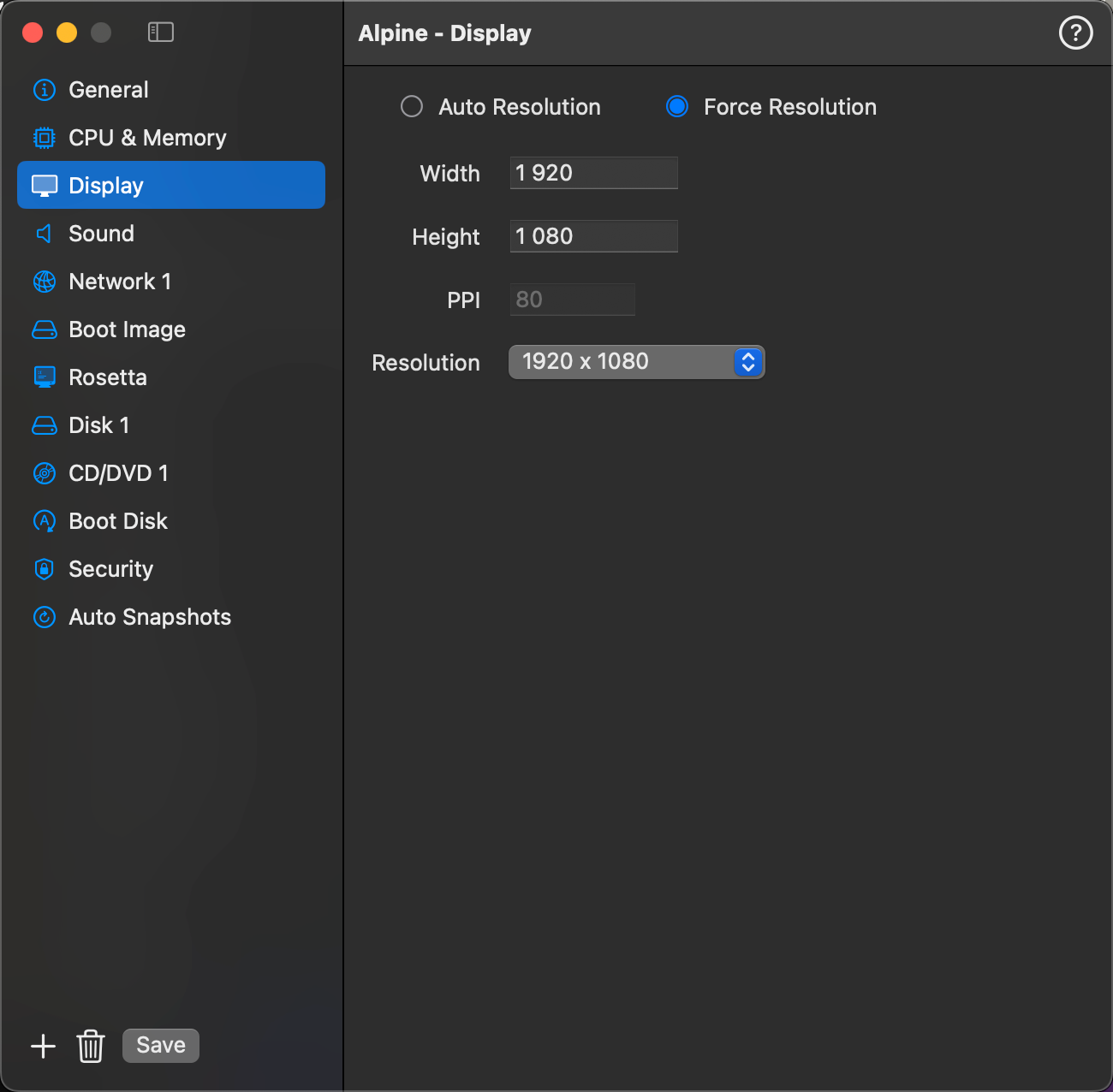
Removing the Display section disables the virtual GPU. The VM can run without a local or remote screen; screen connection, screenshots, and remote input are unavailable. To run without opening a local window while keeping remote screen access, leave the display enabled and turn on Headless in General settings. Display changes take effect the next time the VM starts.
Display Mode
Choose how the virtual display resolution is managed.
| Mode | Description |
|---|---|
| Auto Resolution | The VM window automatically signals the guest OS to match its resolution. When the window is resized or a resolution is selected from the toolbar, the guest adapts instantly — no manual configuration inside the VM required (Windows 11 needs the display driver and resize service installed once — see the note above). |
| Force Resolution | Locks the display to the exact width and height you specify. The guest always runs at this fixed resolution regardless of the window size. |
Initial Resolution (Auto Resolution mode)
When Auto Resolution is selected, the Width, Height, and Resolution picker are still editable. The values you set here are used as the starting window size when the VM window opens. Once running, you can change the resolution at any time from the VM window toolbar.
Use the Resolution picker to choose from resolutions supported by your Mac's displays, or enter a custom Width and Height directly.
Fields
| Field | Description |
|---|---|
| Width | Display width in pixels. In Auto Resolution mode, this is the initial window width. In Force Resolution mode, this is the fixed display width. |
| Height | Display height in pixels. In Auto Resolution mode, this is the initial window height. In Force Resolution mode, this is the fixed display height. |
| Resolution | Preset picker populated from your Mac's supported display resolutions. Selecting a preset fills in Width and Height automatically. Labeled Initial Resolution in Auto Resolution mode. |
| PPI | Pixels per inch for the virtual display. Affects rendering sharpness on the guest. Shown for macOS guests only. |
| HiDPI (Retina) | Gives Windows one pixel per screen pixel on a Retina screen, with 200% scaling, so text is sharp. A window too large for that gets 175%, 150% or 125%. Width and Height stay in points, the size of the window. Off by default. Shown for Windows guests only; see HiDPI. |
| 3D Acceleration | Experimental. Lets Windows apps use DirectX 11 and OpenGL on the Mac's GPU. Needs macOS 26 or later and the 3D display driver from the viogpu3d folder of the tools disc. Auto Resolution and HiDPI then pick the nearest standard resolution, and the VM cannot be suspended. Off by default. Shown for Windows guests only; see 3D Acceleration. |