Network Topology
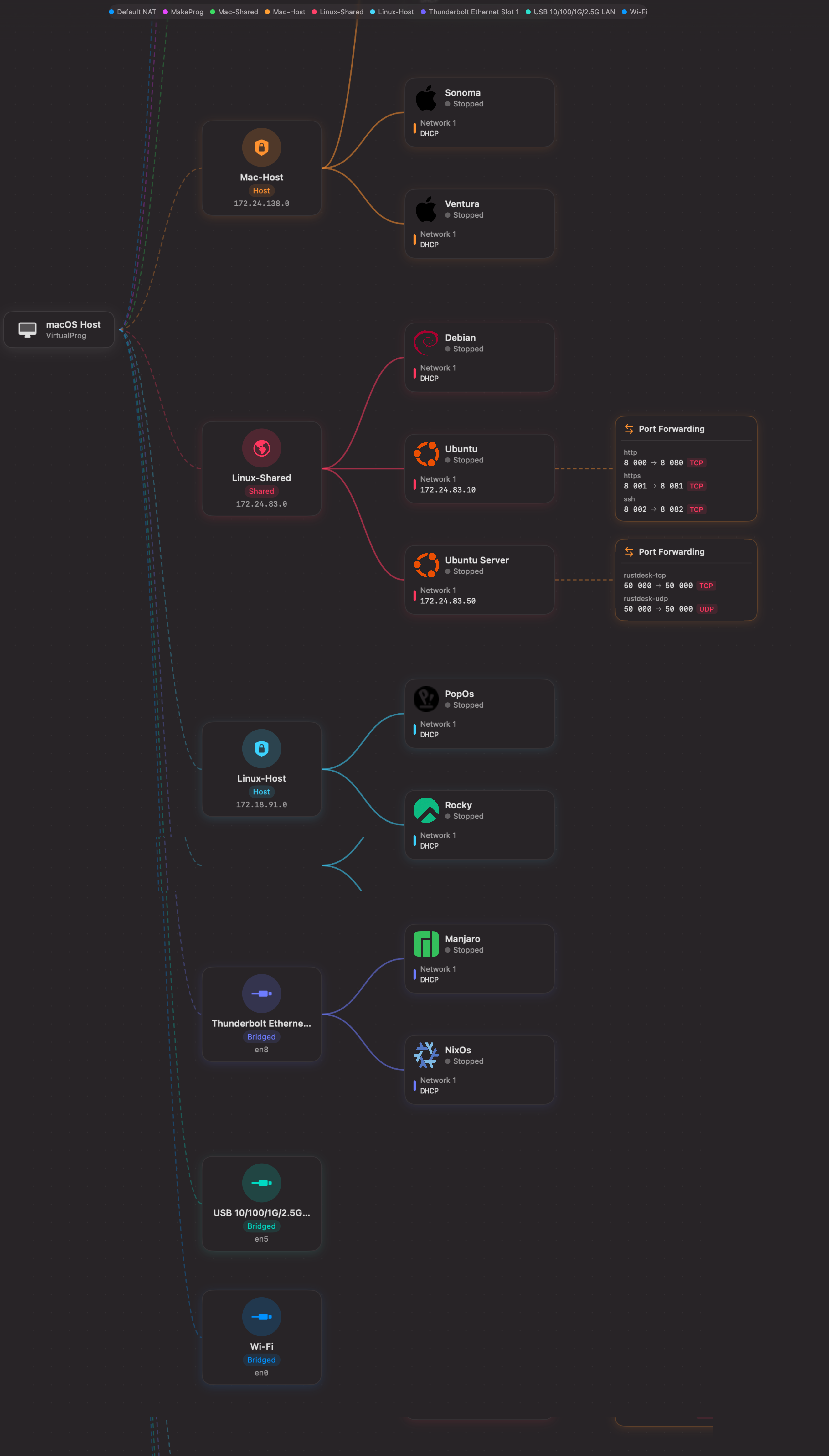
The Network Topology diagram gives you a live, visual map of how your virtual machines connect to networks and the host Mac. It shows every network adapter, IP address, and port forwarding rule at a glance — without opening individual VM configurations.
Open it from Tools → Network Topology.
Overview
The diagram is laid out left-to-right in four columns:
| Column | What it shows |
|---|---|
| Host | The macOS host (your Mac running VirtualProg) |
| Networks | All networks your VMs are connected to |
| Virtual Machines | Each VM with its adapter name and IP address |
| Port Forwarding | Port forwarding rules for VMs that have them |
Connection lines link each column to the next. Dashed lines indicate host-to-network links and port forwarding links. Solid bezier curves connect networks to their VMs, colour-coded by network.
Network Types
Three types of networks appear in the diagram:
| Type | Description |
|---|---|
| Default NAT | The built-in shared NAT network (192.168.64.x). All VMs using the default network adapter appear here. |
| Custom Network | Networks you manage in Tools → Network Manager. Each custom network has its own colour. |
| Bridged | Physical network adapters on your Mac (Wi-Fi, Ethernet, etc.). Bridged interfaces are always shown, even when no VM is attached. |
Selecting Nodes
Click any node to highlight it and dim everything unrelated.
Selecting a Network
- The selected network node is highlighted with a coloured border.
- All VMs connected to that network remain visible.
- VMs on other networks are dimmed.
- If the network has custom details configured (mask, MTU, interface, IPv6), they expand inline below the network node.
Selecting a VM
- The selected VM card is highlighted.
- All networks connected to that VM remain visible.
- The port forwarding node for that VM (if any) remains visible.
- Everything else is dimmed.
Clearing a Selection
Click anywhere on the empty canvas background to clear the current selection and restore all nodes to full opacity.
Network Node Details
When a custom network node is selected, additional configuration details expand below it:
| Field | Description |
|---|---|
| Mask | Subnet mask (if set) |
| MTU | Maximum transmission unit (if different from default 1500) |
| Interface | External network interface, e.g. en0 (Wi-Fi) |
| IPv6 | IPv6 prefix or Enabled if IPv6 is on without a specific prefix |
These fields only appear when they have been configured. Default NAT and bridged network nodes do not show this expanded detail section.
VM Node
Each virtual machine card shows:
- VM icon — custom icon (if set) or the default macOS/Linux icon
- VM name
- OS type and running state (
Runningbadge shown in green when active) - Network connections — each adapter with its name and IP address
For a running VM, the IP address shown is the live address the guest is actually using, resolved from the host's network tables — this reflects the real, current address even for adapters that get their IP via DHCP. If no live address can be determined yet (for example, the guest hasn't finished booting), VirtualProg falls back to the static IP configured for that adapter's IP suffix, or shows DHCP if no address can be resolved at all. Stopped VMs always show their configured static IP or DHCP, since there is no live address to look up.
Tip: If a VM was started after you opened the topology view, click ↻ Refresh in the toolbar to pick up its current IP address.
Port Forwarding Node
VMs that have port forwarding rules configured show a dedicated Port Forwarding node to the right of the VM card, connected by a dashed orange line.
Each rule in the node displays:
- Rule name (if set) — shown above the port mapping
- Host port → Guest port mapping
- Protocol badge —
TCPorUDP
The badge colour matches the network the rule belongs to.
Tip: To add or edit port forwarding rules, open the VM configuration and go to the Network tab.
Zoom & Navigation
The canvas supports both pinch-to-zoom and the zoom controls in the bottom-right corner.
| Control | Action |
|---|---|
| Pinch gesture | Zoom in or out |
| + button | Zoom in by 20% |
| - button | Zoom out by 20% |
| ↺ button | Reset zoom to 100% |
| Scroll | Pan horizontally and vertically |
The zoom level percentage is displayed between the zoom buttons.
Toolbar
| Button | Action |
|---|---|
| Legend | Colour-coded network names shown in the toolbar for quick reference |
| ↻ Refresh | Rebuild the diagram from the latest VM and network configuration |
The diagram also refreshes automatically when VMs or network configurations change.
Tips
- Colour coding — each network has a unique accent colour used consistently across its node, connection lines, IP badges, and the legend in the toolbar.
- Bridged interfaces without VMs — bridged network adapters (Wi-Fi, Ethernet) appear in the Networks column even when no VM is currently using them, so you always have a complete picture of available interfaces.
- Port forwarding at a glance — instead of opening each VM's configuration, use the topology to review all port mappings in one view.
- Custom icon in the diagram — if you have set a custom icon for a VM in its General configuration, that same icon appears in the VM card in the topology diagram.
- Running state — a green
Runningbadge on the VM card lets you see which VMs are active without leaving the topology view.