Restore Image (macOS Only)
Use this section to install macOS in a virtual machine using an IPSW restore image.
📸 Screenshot:
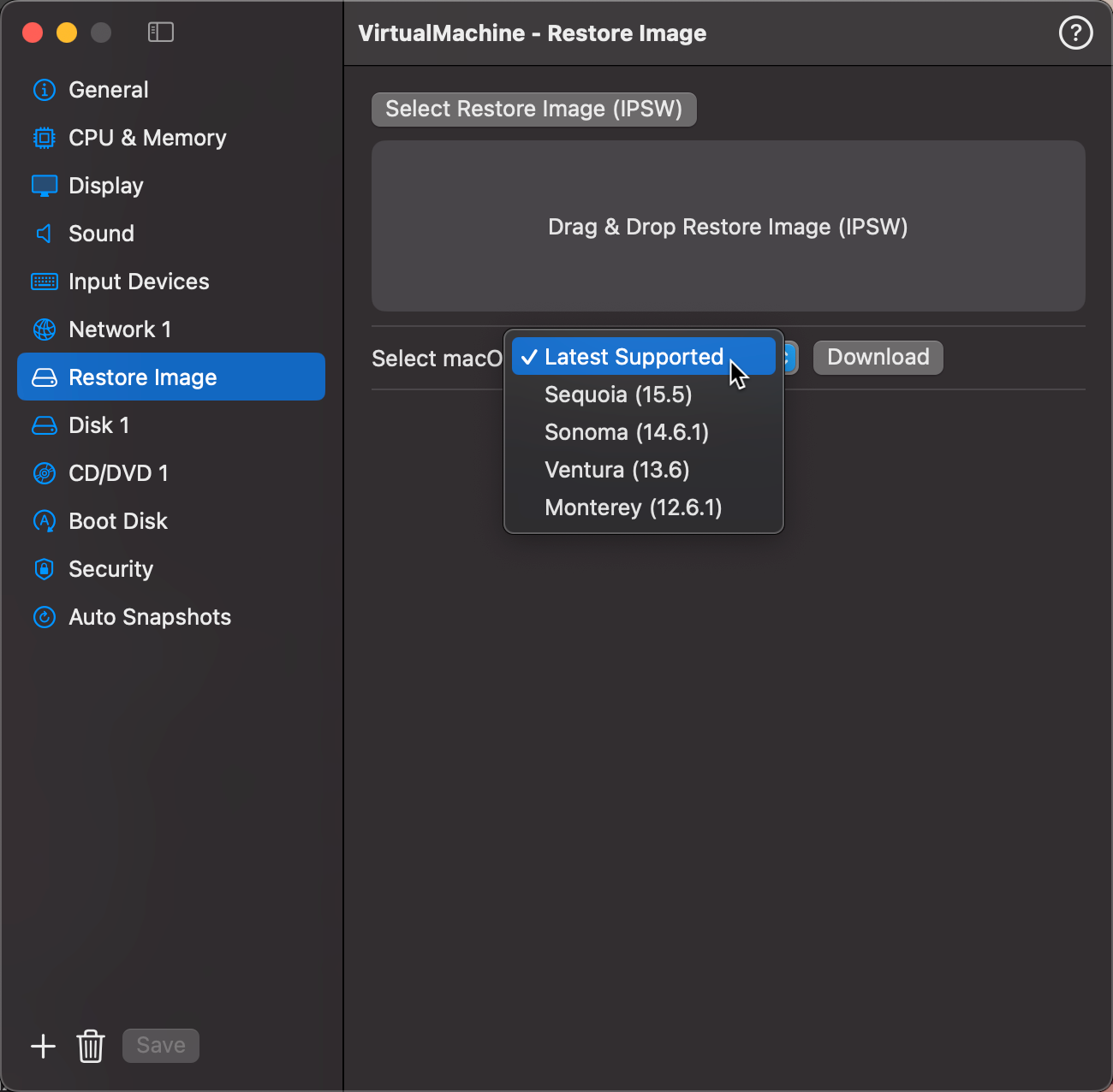
Options
You have two ways to provide a restore image:
- Select Restore Image (IPSW): Choose a
.ipswfile from your local disk, or drag and drop it into the designated area. - Image Catalog: A dropdown listing supported macOS versions available for download. Selecting a version automatically fills in the path if the file is already downloaded. If not, a Download button appears to fetch it from Apple's servers.
Supported Versions
The catalog includes:
- Latest — resolves to the newest macOS version supported by your hardware
- Specific versions: Tahoe, Sequoia, Sonoma, Ventura, Monterey
Download Progress
While downloading, a progress bar shows:
- Percentage and bytes downloaded (e.g.
42% 1.2 GB / 2.9 GB) - Download speed in MB/s
- Estimated time remaining
- A Cancel button to abort at any time
Downloads are managed by the global download engine — progress is shared with the Image Catalog window and any other views tracking the same file.
💡 The Image Catalog picker is for catalog-based downloads only. If you provide your own IPSW file using the file picker, the picker shows no selection — that is expected behaviour.
💡 All downloaded restore images are stored in the app's images folder, configured in VirtualProg Settings. Previously downloaded files are reused automatically — no re-download needed.
Use DFU Restore
When installing a macOS guest the standard installer can stall or fail partway through. Enable Use DFU Restore in the IPSW configuration tab to switch to an alternative installation path that uses Apple's DFU Restore — the same mechanism used to restore real Apple hardware. Only enable this option when the standard installation fails.