💽 Disk Space
Disk Space shows how much room your VMs, templates and snapshots really use, and lets you grow or delete them. Open More → Tools → Disk Space (iPad: Tools → Disk Space).
Note: Requires the latest VirtualProg on your Mac. Older versions show a message instead.
📊 Overview
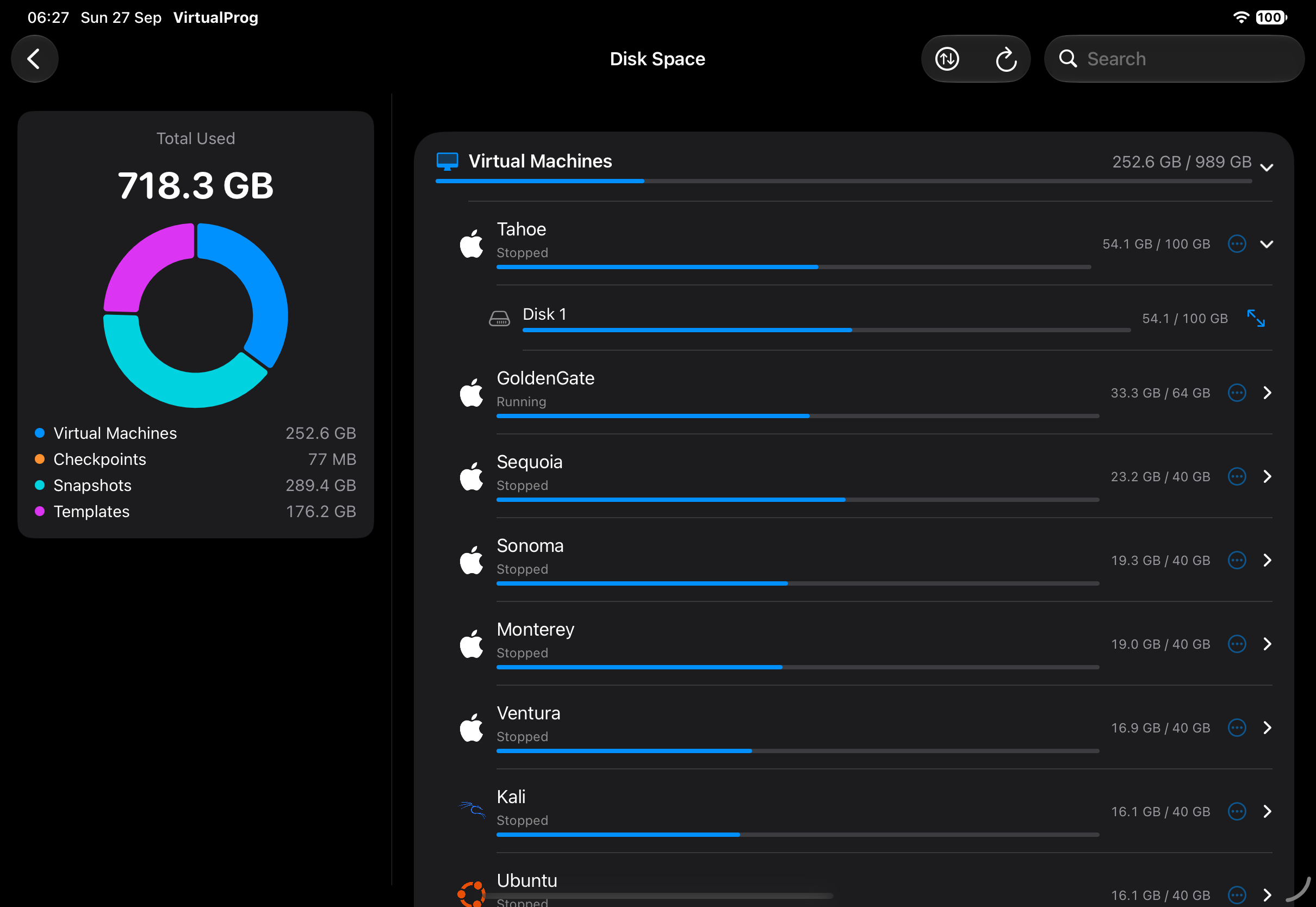
A card at the top shows the total used and a chart split into Virtual Machines, Checkpoints, Snapshots and Templates. On iPad it sits beside the list.
Below, three sections — Virtual Machines, Templates and Snapshots (grouped by VM) — list the biggest first. Tap one to expand its disks (used and configured size) and checkpoint layers. Bars turn red above 85%. A linked clone's inherited disks show Inherited from the parent and add nothing to the total.
Use ⇅ to sort by size or name, search to filter, and Refresh to reload. On iPad (Android has no separate windows), tap the window button in the toolbar to open Disk Space in its own window.
↔️ Resize a Disk
Tap the resize button beside a disk, enter a larger size and tap Resize. Disks can only grow.
The button is available for VMs and templates, not snapshots. If a disk can't be resized right now, tapping it explains why:
| Reason | What to do |
|---|---|
| VM is running or suspended | Stop it first |
| Linked clones depend on it | Delete the clones first |
| It has checkpoints | Delete the VM's checkpoints first |
| VM is locked | Unlock it first |
The sheet stays open to show the result: resized, or — if your Mac hasn't answered yet — a note to check back in a few minutes with a Check Again button. For a macOS Fixed disk you are offered to relocate the recovery partition afterwards.
Important: Resizing cannot be undone. A dynamic disk needs macOS 26 or later on the Mac.
🗑️ Delete
Use the trailing trash button on a template or snapshot to Delete it (with confirmation). VM rows keep their Open and Delete overflow menu. Deleting a VM removes it and all its data permanently.
Operator tokens can view but not resize or delete.