🖼 Image Catalog
The Images tab lets you browse, download, and manage macOS IPSW and Linux ISO boot images directly from the web dashboard — no app window or terminal required.
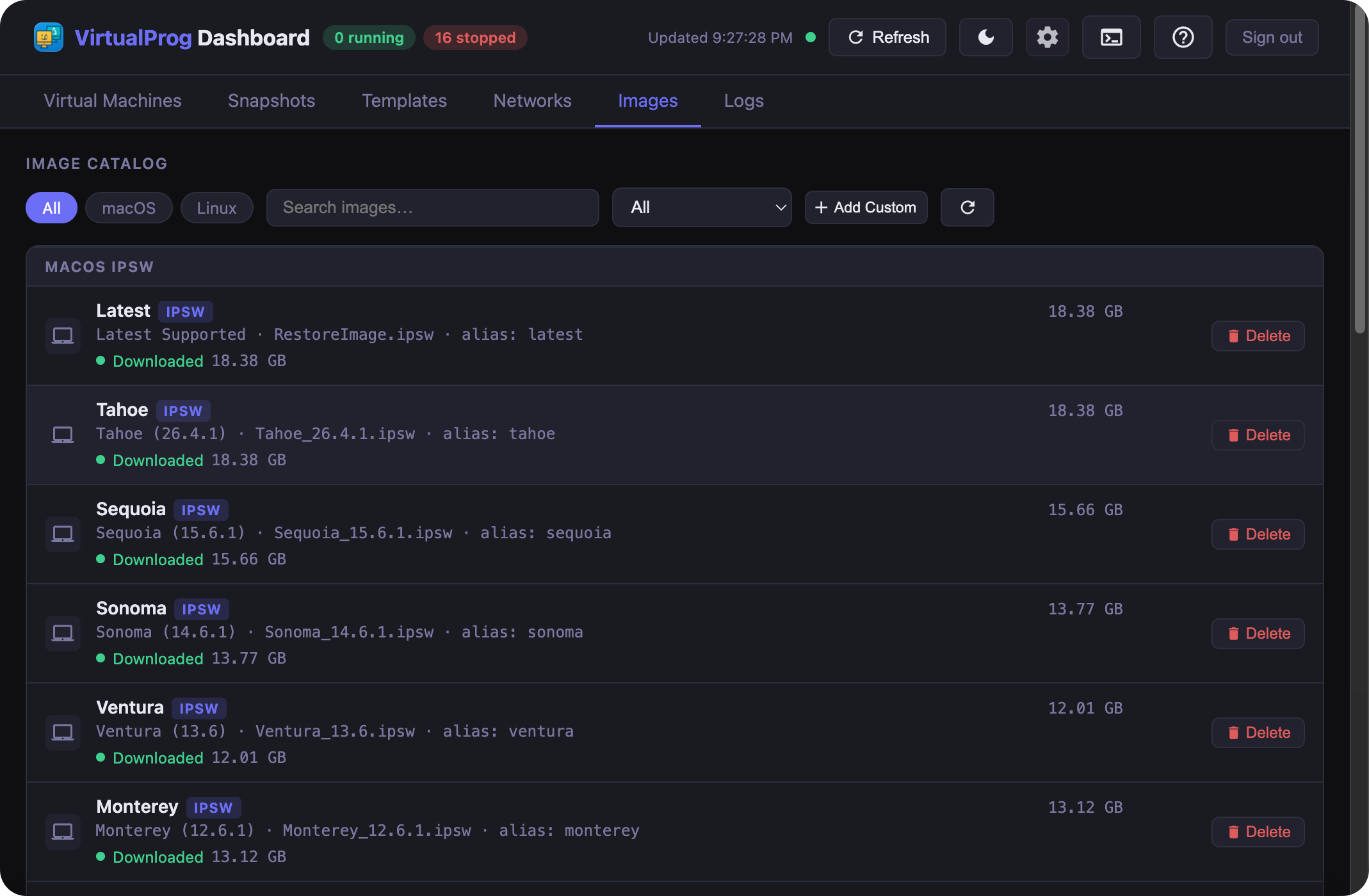
Browsing the Catalog
The catalog is divided into two sections:
- macOS IPSW — all supported macOS versions (Tahoe, Sequoia, Sonoma, Ventura, Monterey, and Latest)
- Linux ISO — 11 distributions including Ubuntu, Fedora, Debian, Alpine, Kali, openSUSE, NixOS, Pop!_OS, Rocky, and more
Use the All / macOS / Linux filter pills to focus on one OS type, or keep All to see everything at once. Use the search bar to filter by name or alias, and the Downloaded / Not Downloaded dropdown to show only entries in a particular state.
Image Status
Each row shows the image name, file type badge (ISO or IPSW), filename, and its current download status:
| Status | Appearance |
|---|---|
| Not Downloaded | Grey dot — image is available but not on disk |
| Downloaded | Green dot — image is on disk, with file size shown |
| Downloading | Live progress bar with percentage, bytes transferred, transfer speed, and estimated time remaining |
| Resolving | Animated bar — VirtualProg is fetching the download URL (macOS Latest only) |
| Error | Red dot with the error message |
| Cancelled | Grey dot — download was cancelled |
| File Missing | Yellow dot — a local-file entry whose file has been removed from the server's images folder |
Download Actions
| Action | When shown | What it does |
|---|---|---|
| Download | Not downloaded, error, or cancelled | Starts the download immediately |
| Re-upload | File Missing (local file entry) | Opens a file picker to select a replacement file — VirtualProg uploads it to the server and restores the entry |
| Cancel | Downloading or resolving | Cancels the active download |
| Delete | Downloaded | Removes the file from disk after confirmation |
While a download is in progress, the row updates live — showing the progress bar, current transfer speed (MB/s), and an estimated time remaining — without requiring a page refresh.
Adding a Custom Entry
Click + Add Custom in the toolbar to add your own image to the catalog. A toggle at the top of the dialog lets you choose between two modes:
Download URL
Register a direct download URL so VirtualProg can fetch the file on demand.
| Field | Description |
|---|---|
| OS Type | Linux (ISO) or macOS (IPSW) |
| Name | A display name for the entry |
| Download URL | A direct download URL for the image file |
| File Name | Auto-detected from the URL — you can edit it if needed |
Click Add to save the entry, then use the Download button on the row to fetch the file when ready.
Local File
Upload a file you already have on your device directly to the server's images folder.
| Field | Description |
|---|---|
| OS Type | Linux (ISO) or macOS (IPSW) |
| Name | A display name for the entry |
| File | Click Choose File to select an IPSW or ISO from your device |
Click Add to start the upload. An inline progress indicator shows the percentage as the file transfers. Once complete, the row appears with a green dot and the file size.
Custom entries appear with an orange Custom badge. If the file for a local-file entry is later removed from the server, the row shows a yellow File Missing indicator and a Re-upload button — click it to pick the file again and restore it without losing the catalog entry. To remove a custom entry from the catalog entirely, use the Delete button (🗑) on the row.
Images downloaded here are the same files used by the Quick VM and New VM dialog image pickers and the
vpvm imagesCLI commands — all share the same images folder.