⌨️ Web CLI Terminal
The Web CLI Terminal brings the full vpvm command-line experience directly into the dashboard — no SSH, no terminal app, no extra setup. It runs as a resizable panel anchored to the bottom of the page, so you can browse your VMs and run commands at the same time.
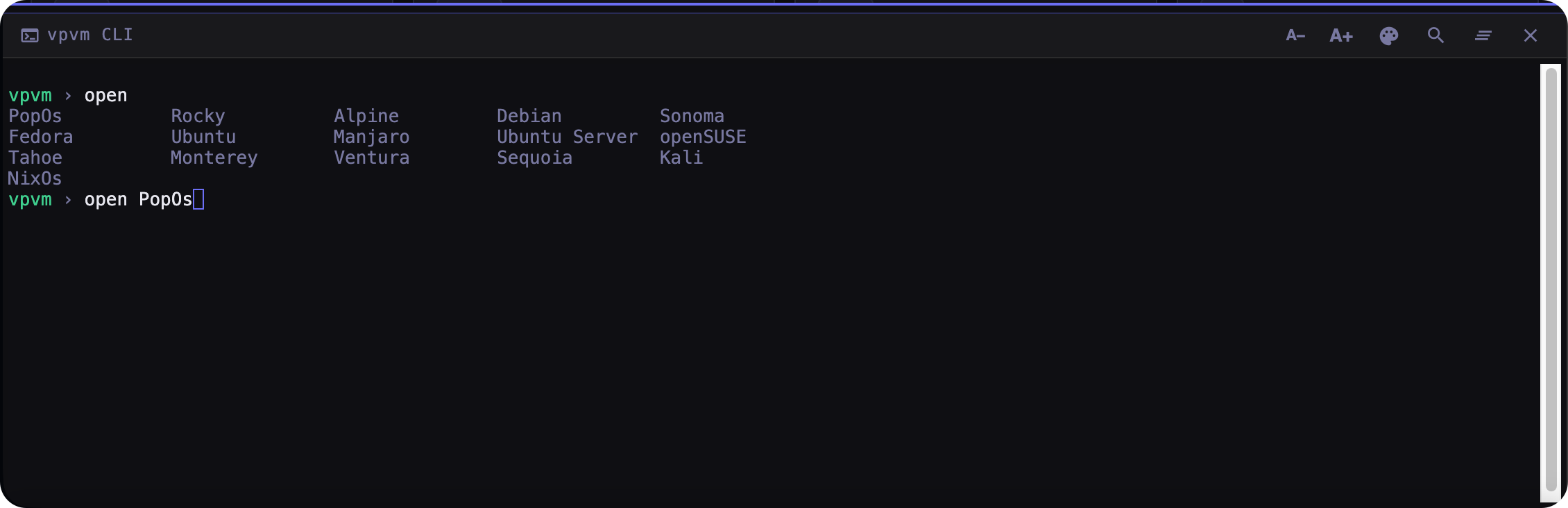
Opening the Terminal
Click the ⌨ CLI button in the top-right header bar to toggle the panel open or closed. You can also press the backtick key (`) from anywhere on the dashboard as a keyboard shortcut — press it again to hide the panel.
The panel loads the terminal engine on first open. Subsequent toggles are instant.
Resizing the Panel
Drag the thin handle at the very top edge of the panel up or down to adjust its height. The terminal automatically re-fits to the new size.
Using the Terminal
The terminal behaves like a standard command-line session:
| Feature | Detail |
|---|---|
| Command history | Use ↑ / ↓ arrow keys to navigate previous commands |
| Cursor movement | Left / Right arrows, Home (Ctrl+A), End (Ctrl+E) |
| Delete / Backspace | Delete removes the character ahead; Backspace removes behind |
| Clear screen | Type clear, press Ctrl+L, or click the ⊘ button in the panel header |
| Scrollback | 5 000 lines |
| Tab completion | Press Tab to auto-complete commands, VM names, template names, network names, and subcommands |
Tab Completion
Press Tab at any point to complete the current word:
- Single match — the word is completed immediately with a trailing space.
- Multiple matches — the list of matches is printed and the longest common prefix is inserted. Press Tab again to cycle through each match one by one. Any other key (Enter, letter, arrow) accepts the current selection.
- No match — a bell sounds.
Completion is context-aware:
| Position | What gets completed |
|---|---|
| First word | All available commands |
After start, stop, pause, resume, restart, status, info, logs, … |
VM names |
After snapshot, snap |
Subcommands: list create restore delete createvm update |
After snapshot <sub> |
VM names |
After template, tpl |
Subcommands: list create clone delete info createvm update config |
After template create |
VM names |
After template clone, template delete, template info |
Template names |
After template config |
Subcommands: info general cpu display sound input startup security schedule auto-snapshot rosetta restore-image boot-disk webhook disk network cd serial nbd |
After template config info |
Section names: general cpu display sound input startup security schedule auto-snapshot rosetta boot-disk restore-image |
After template config info <section> |
Template names |
After template config <sub> |
Template names |
After template config disk |
Subcommands: list add remove update resize relocate-recovery |
After template config disk <sub> |
Template names |
After network, net |
Subcommands: list info sources add update delete |
After network info |
Network names |
After config |
Subcommands: info general cpu display sound input startup security schedule auto-snapshot rosetta restore-image boot-disk webhook disk network cd serial nbd |
After config info |
Section names: general cpu display sound input startup security schedule auto-snapshot rosetta boot-disk restore-image |
After config info <section> |
VM names |
After config <sub> |
VM names |
After config disk |
Subcommands: list add remove update resize relocate-recovery |
After config disk <sub> |
VM names |
After images, img |
Subcommands: list browse get add remove cancel delete status |
After balloon |
Subcommands: info set |
After balloon info, balloon set |
VM names |
After balloon set <vm> |
--target |
VM names, template names, and network names are fetched live from the server on every Tab press so completions are always current.
Available Commands
The Web CLI supports the full set of vpvm commands — VM control, snapshots, templates, configuration, networks, images, memory balloon, and more. Type help in the terminal to see a quick reference inline.
For the complete command reference including all flags, options, and examples, see the Command Line Interface documentation.
The Web CLI calls the same HTTP API endpoints used by the
vpvmbinary. All commands work the same way whether you are on the same Mac or connected remotely from another device.