Display Settings
Configure the virtual screen for the guest operating system.
📸 Screenshot:
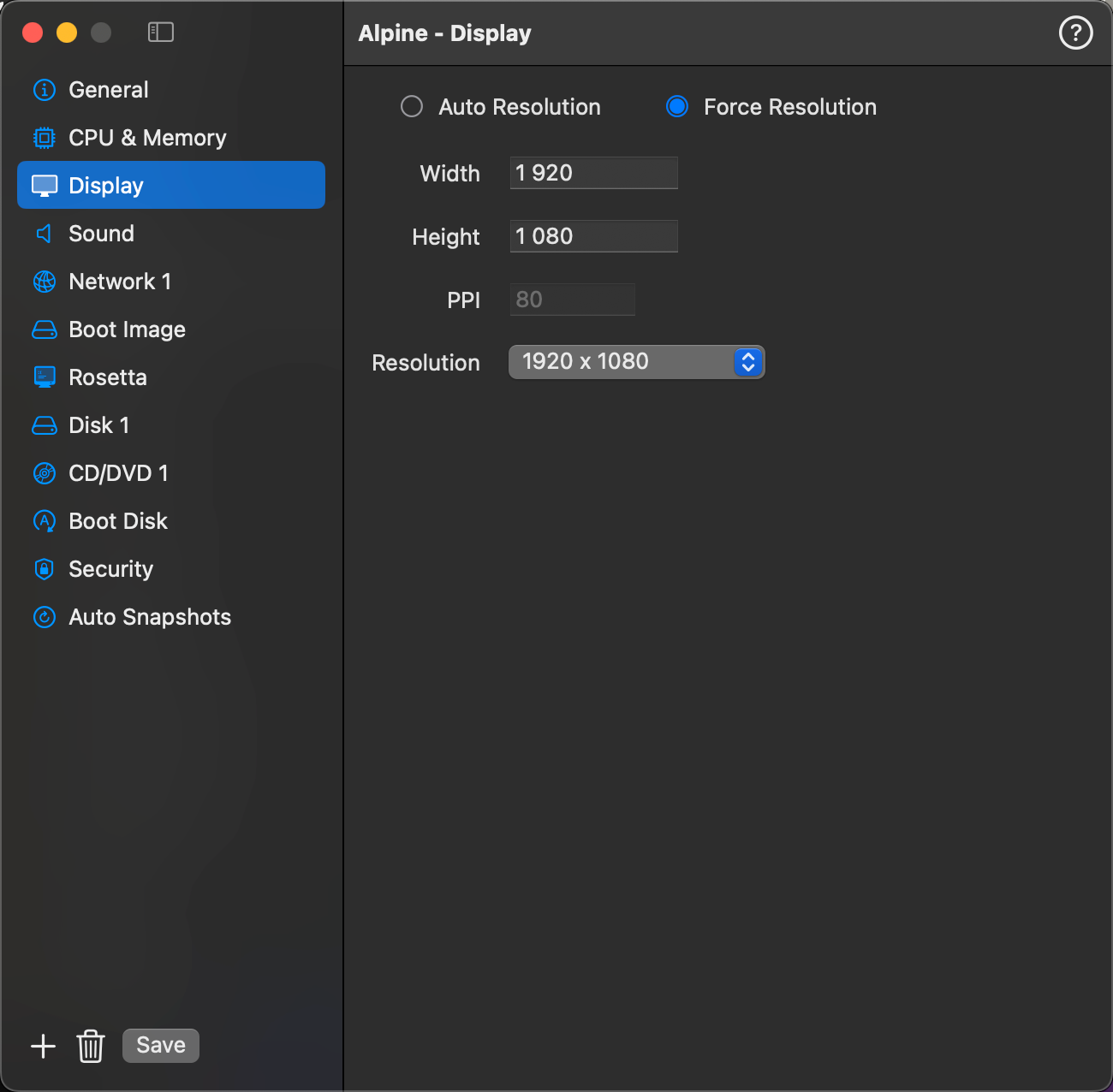
Display Mode
Choose how the virtual display resolution is managed.
| Mode | Description |
|---|---|
| Auto Resolution | The VM window automatically signals the guest OS to match its resolution. When the window is resized or a resolution is selected from the toolbar, the guest adapts instantly — no manual configuration inside the VM required. |
| Force Resolution | Locks the display to the exact width and height you specify. The guest always runs at this fixed resolution regardless of the window size. |
Initial Resolution (Auto Resolution mode)
When Auto Resolution is selected, the Width, Height, and Resolution picker are still editable. The values you set here are used as the starting window size when the VM window opens. Once running, you can change the resolution at any time from the VM window toolbar.
Use the Resolution picker to choose from resolutions supported by your Mac's displays, or enter a custom Width and Height directly.
Fields
| Field | Description |
|---|---|
| Width | Display width in pixels. In Auto Resolution mode, this is the initial window width. In Force Resolution mode, this is the fixed display width. |
| Height | Display height in pixels. In Auto Resolution mode, this is the initial window height. In Force Resolution mode, this is the fixed display height. |
| Resolution | Preset picker populated from your Mac's supported display resolutions. Selecting a preset fills in Width and Height automatically. Labeled Initial Resolution in Auto Resolution mode. |
| PPI | Pixels per inch for the virtual display. Affects rendering sharpness on the guest. Available for macOS guests only. |