🔖 Checkpoints
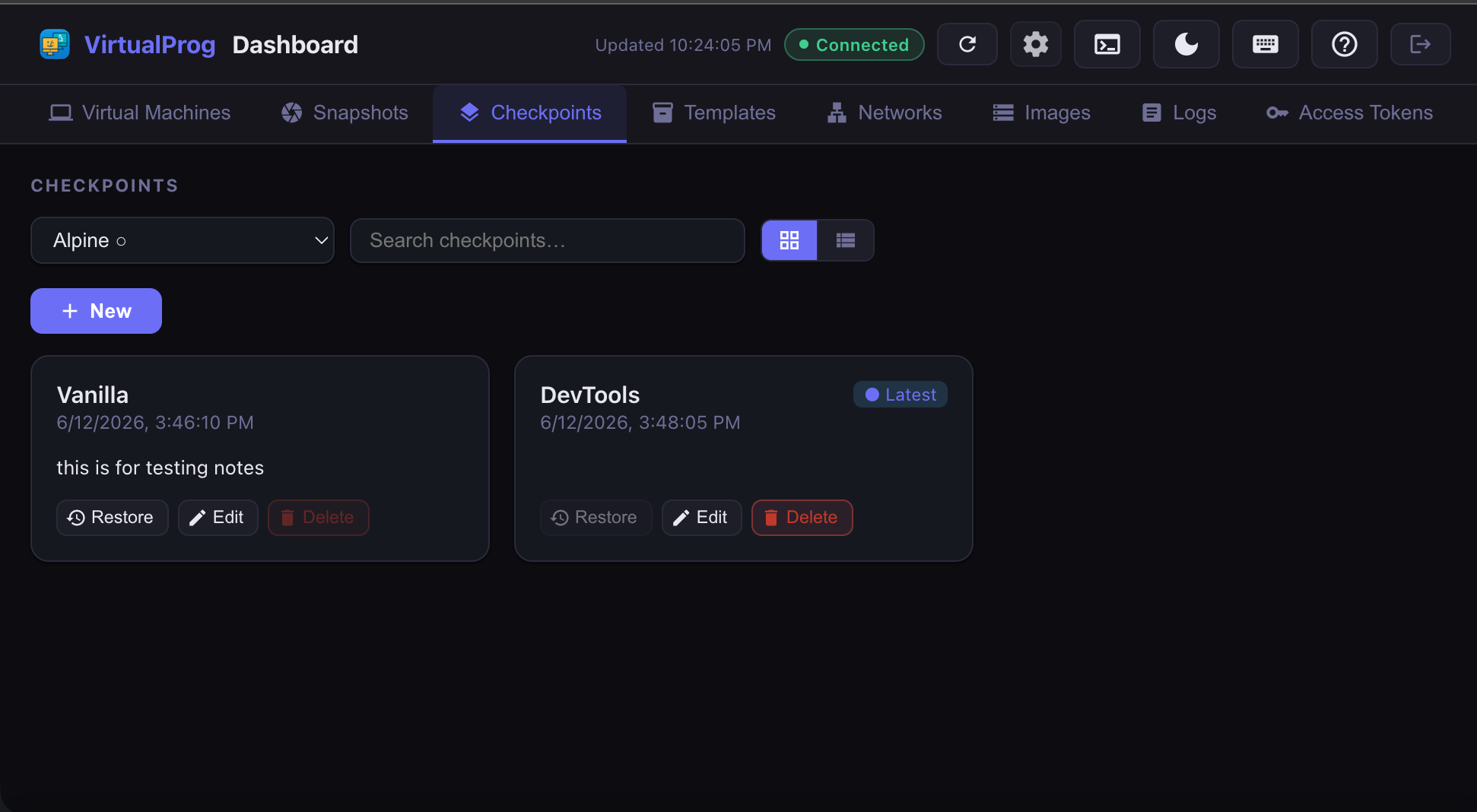
The Checkpoints tab gives you a fast, space-efficient way to save and restore the exact state of a VM's disk — without duplicating the entire VM bundle. Select a VM from the dropdown, then create, restore, edit, or delete checkpoints directly from the browser.
Checkpoints require macOS 27 or later on the host. The tab is not visible on older hosts.
How Checkpoints Work
Checkpoints use a layered disk architecture. Each checkpoint freezes the current disk state as a thin overlay layer and starts a new writable layer on top. This makes creating and restoring checkpoints very fast and storage-efficient — only the changes between layers are stored, not a full copy of the disk.
Checkpoints form a linear stack: the most recent checkpoint is always at the top. Because of this, only the most recent (Latest) checkpoint can be deleted — removing an older layer would break the chain above it.
Selecting a VM
Use the VM dropdown at the top of the toolbar to pick which VM's checkpoints to view. The dropdown shows all VMs with a state indicator — ● for running, ○ for stopped. Selecting a VM immediately loads its checkpoints.
Search and View
Use the search bar to filter checkpoints by name or notes. Use the ⊞ / ≡ / ⌧ toggle to switch between card grid, list, and Linked Clone Topology view. Your view preference is saved across sessions.
Each checkpoint card shows the checkpoint name, creation date and time, and notes (if any). The most recent checkpoint is labelled ● Latest.
Linked Clone Topology View
Switching the view toggle to ⌧ Topology replaces the checkpoint list with the Linked Clone Topology diagram — a fleet-wide map of every linked clone relationship, laid out by generation depth with each clone color-coded and connected back to its parent.
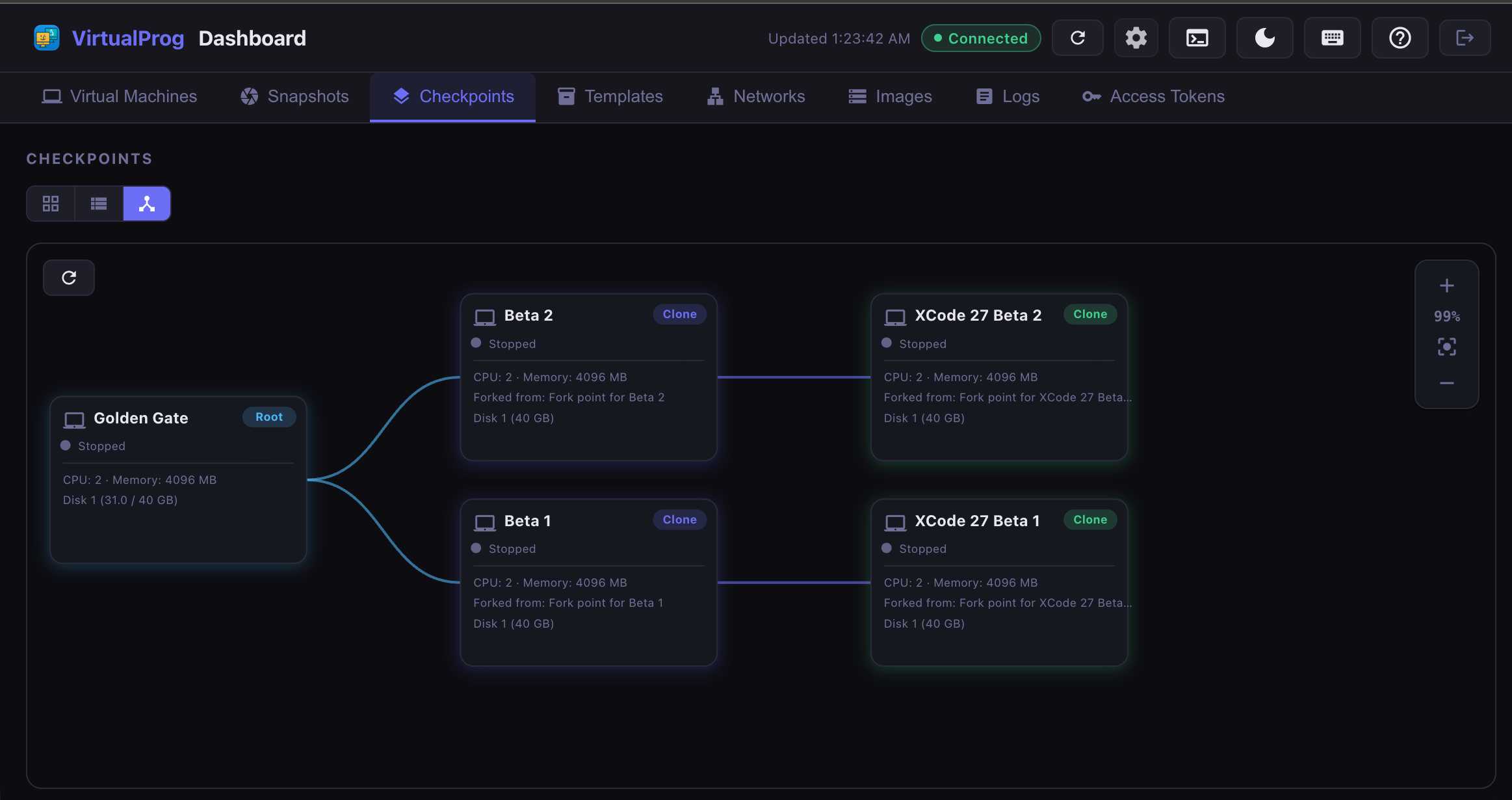
This view is read-only and only visible to the master token or a scoped token with admin access to all VMs — a token restricted to specific VMs never sees it, since the diagram can surface VMs outside that token's allowed set. The VM dropdown and search bar are hidden while this view is active, since the diagram already spans every VM in the fleet.
See Linked Clone Topology for the full breakdown of what each node shows and how the color coding works — it's the same diagram available from the desktop app's Tools → Linked Clone Topology menu.
Creating a Checkpoint
When the selected VM is stopped, a + New button appears below the toolbar. Clicking it opens a dialog where you can enter a checkpoint name and optional notes, then confirm to create it. The list refreshes automatically once the checkpoint is created.
Checkpoint creation requires the VM to be stopped.
Checkpoint Actions
Each checkpoint card or row shows the following actions:
| Action | When shown | Description |
|---|---|---|
| Restore | VM stopped, not Latest | Reverts the VM disk to this checkpoint state — a confirmation dialog appears first |
| Edit | Always | Rename the checkpoint or update its notes |
| Delete | VM stopped, Latest only | Permanently removes the most recent checkpoint — a confirmation dialog appears first |
When the VM is running, Restore and Delete are hidden. Only Edit remains available.
Restore
Restoring a checkpoint rewinds the VM's disk to the state captured at that point. The Restore button is only available on checkpoints that are not the most recent one — restoring the Latest checkpoint would be a no-op since the disk is already at that state.
Restore requires the VM to be stopped.
Edit
The Edit button opens a dialog pre-populated with the checkpoint's current name and notes. Update either field and click Save to apply the changes. The checkpoint list reflects the change immediately.
Delete
Only the Latest (most recent) checkpoint can be deleted. This is by design — removing an older checkpoint in the middle of the stack would invalidate all newer layers built on top of it.
Clicking Delete on the Latest checkpoint shows a confirmation dialog before permanently removing it.
Delete requires the VM to be stopped.
Checkpoints vs Snapshots
| Checkpoints | Snapshots | |
|---|---|---|
| Storage | Incremental layers (space-efficient) | Full copy of VM bundle |
| Speed | Very fast to create and restore | Slower (copies entire bundle) |
| Delete | Latest only | Any snapshot, in any order |
| Host requirement | macOS 27 or later | All supported macOS versions |
| Disk type | Dynamic disks only | All disk types |