Image Catalog
The Image Catalog gives you a single place to browse, download, and manage all macOS IPSW and Linux ISO boot images for your virtual machines — without leaving VirtualProg or opening a browser.
Open it from Tools → Image Catalog.
📋 Overview
The window is split into two panels:
- Left sidebar — select between macOS and Linux image libraries
- Right panel — a list of all available images in the selected library with their current download status and file size
Each image row shows all the information you need at a glance and lets you act on it directly.
🍎 macOS Images
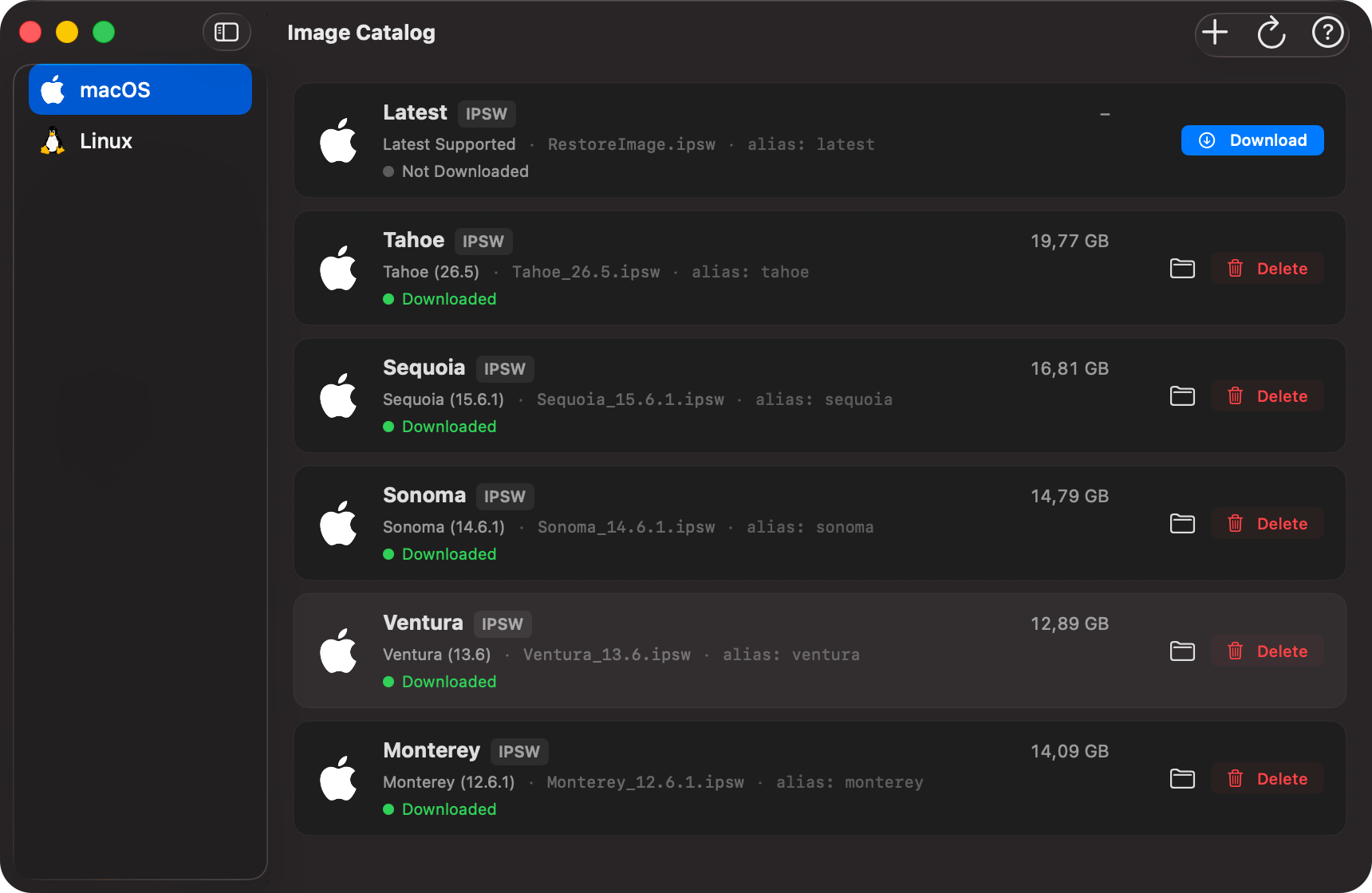
The macOS library lists every supported macOS version available as an IPSW restore image. Each row shows:
- macOS icon — dark-mode aware; automatically adapts to your system appearance
- Short version name (e.g. Tahoe, Sequoia, Sonoma)
- IPSW type badge
- File size on disk — shown once downloaded,
–when not yet available - Full version name and filename as a subtitle (e.g. Tahoe (26.4.1) · RestoreImage-tahoe.ipsw)
- Status indicator — see Status Indicators below
- Action button — context-sensitive; changes based on current state
Tip: Select the Latest entry to always download the most recent macOS release. VirtualProg resolves the exact version at download time.
🐧 Linux Images
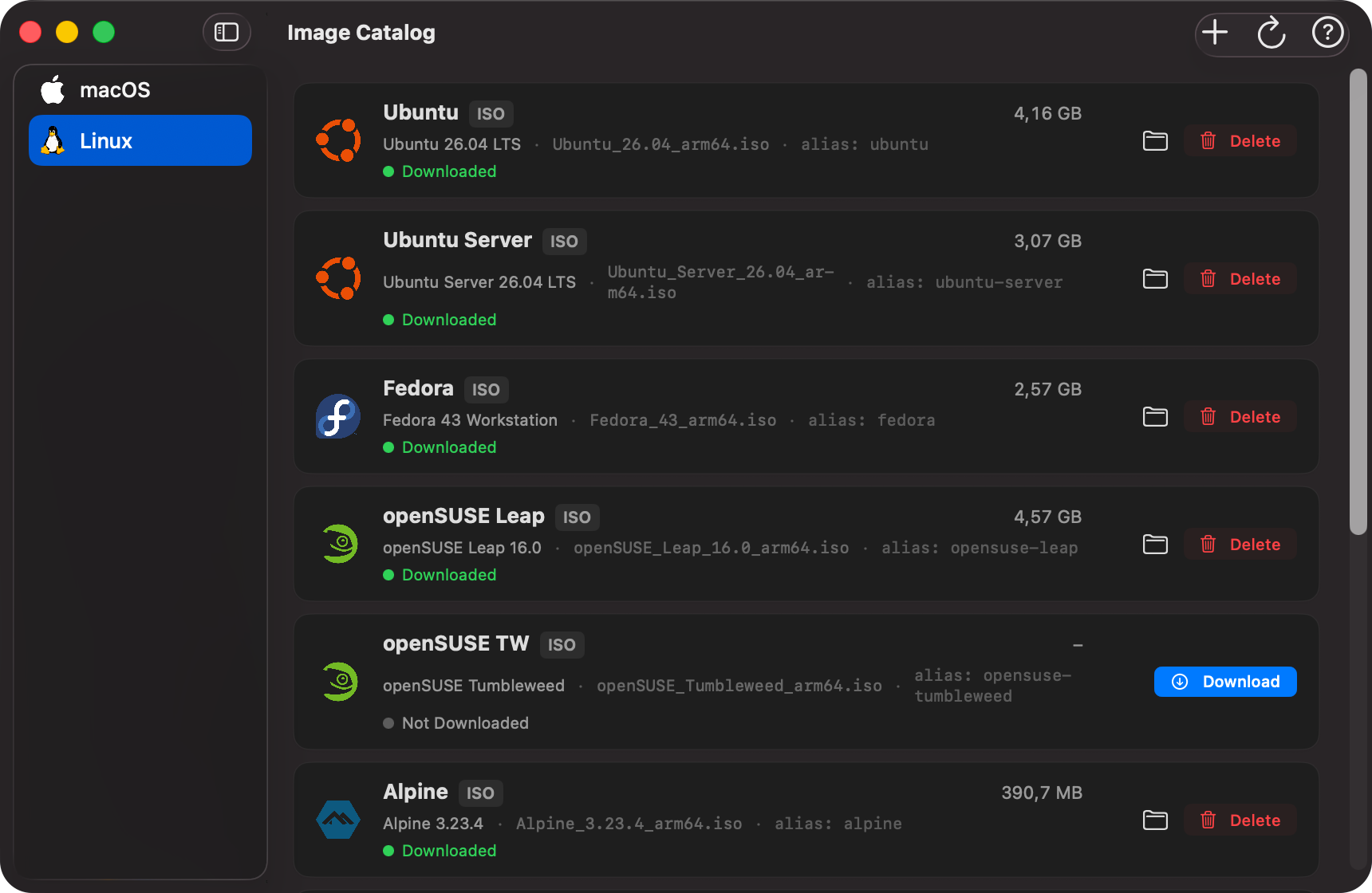
The Linux library lists popular distributions available as ISO images, covering both ARM64 and the current stable releases. Each row shows:
- Linux icon
- Distribution name (e.g. Ubuntu, Fedora, Debian)
- ISO type badge
- File size on disk — shown once downloaded,
–when not yet available - Full version name and filename as a subtitle (e.g. Ubuntu 24.04.2 LTS · ubuntu-24.04.2-live-server-arm64.iso)
- Status indicator — see Status Indicators below
- Action button — context-sensitive; changes based on current state
🔵 Status Indicators
Each row displays a live status reflecting the current state of the image:
| Indicator | Meaning |
|---|---|
| 🟢 Downloaded | The image file is present on disk and ready to use |
| 🔵 ↓ X% ───── 12.4 MB/s ETA 2m 18s | Download is in progress — shows percentage, transfer speed, and estimated time remaining |
| 🔄 Resolving latest version… | VirtualProg is looking up the URL for the latest release (macOS Latest only) |
| ⚪ Not Downloaded | The image is not yet on disk |
| 🟡 File Missing | A local-file entry whose file has been removed from the images folder — use Re-import to restore it |
| 🔴 Error: \<message> | The download failed — the error reason is shown inline |
Status updates automatically every second — no manual refresh required.
▶️ Action Buttons
The button on the right side of each row changes based on the current state:
| State | Button | Action |
|---|---|---|
| Not Downloaded | ↓ Download | Starts downloading the image |
| Not Downloaded (custom entry) | ↓ Download + 🗑 | Download the image, or remove the custom entry entirely |
| File Missing (local file entry) | ↑ Re-import + 🗑 | Pick a replacement file to copy into the images folder, or remove the entry entirely |
| Downloading | ✕ Cancel | Cancels the active download |
| Downloaded | 📁 + 🗑 Delete | Reveal the file in Finder, or delete it from disk |
| Downloaded (custom entry) | 📁 + 🗑 Delete | Reveal the file in Finder, or delete the file and remove the custom catalog entry |
| Error / Cancelled | ↓ Download | Retry the download |
Note: Delete takes effect immediately with no confirmation prompt. The row reverts to Not Downloaded and the file size clears.
Tip: Click the 📁 folder icon on any downloaded image to open its location in Finder — useful for locating the file to attach to a VM or verify its integrity.
🔄 Refresh
Click the ↻ Refresh button in the toolbar to manually re-scan the VirtualProg directory for downloaded files and update all statuses. Status also refreshes automatically every second while the window is open.
💡 Tips
- Download before creating a VM — use the Image Catalog to pre-download an IPSW or ISO, then reference it during VM creation. This avoids waiting during the Quick Create flow.
- One download at a time per file — if you try to download a file that is already downloading, VirtualProg will report it as in progress. You can monitor or cancel it from this window.
- File size helps verify integrity — after a download completes, the file size shown matches the file on disk. Use it to spot incomplete downloads from a previous session.
- Images are shared with the CLI — files downloaded here are the same ones used by
vpvm images get. You can manage them from either the GUI or the terminal interchangeably. - Select a row to highlight it — click any row to select it. The row gains a subtle accent tint with a coloured border, making it easy to track which image you are working with.
🖥️ CLI Equivalent
All Image Catalog actions are also available from the terminal via vpvm images:
# Browse all available images (built-in + custom) with download status
vpvm images browse

# Download by alias or display name
vpvm images get ubuntu
vpvm images get sequoia
vpvm images get "Ubuntu 26.04 LTS"

# Cancel an active download by alias or name
vpvm images cancel ubuntu

# Delete a downloaded image by alias or name
vpvm images delete ubuntu
vpvm images delete sequoia
Custom Entries
You can add your own ISO or IPSW download URLs to the catalog alongside the built-in entries.
From the GUI: Click the + button in the toolbar to open the Add Custom Entry sheet. A toggle at the top lets you choose the entry mode:
- Download URL — enter a display name, a direct download URL, and the OS type (macOS or Linux). The filename is auto-detected from the URL but can be edited if needed. Click Add to save the entry; use the ↓ Download button on the row to fetch the file when ready.
- Local File — enter a display name and OS type, then click Choose File to pick an IPSW or ISO from your Mac. VirtualProg copies the file into the images folder immediately while displaying a progress sheet. The row appears as Downloaded as soon as the copy finishes.
Custom entries appear with an orange Custom badge. If the file for a local-file entry is later removed from the images folder, the row shows a yellow File Missing indicator and a ↑ Re-import button — click it to pick the file again and restore it without losing the catalog entry. To remove a custom entry entirely, use the 🗑 Delete button on the row — this deletes the file from disk and removes the entry from the catalog in one step.
From the CLI:
# Add a custom ISO or IPSW
vpvm images add --name "Ubuntu Nightly" \
  --url "https://cdimage.ubuntu.com/daily-live/current/noble-desktop-arm64.iso" \
  --type linux

# Download a custom entry by name or alias
vpvm images get "Ubuntu Nightly"
vpvm images get custom-a1b2c3d4

# Remove a custom entry (alias or name accepted)
vpvm images remove custom-a1b2c3d4
vpvm images remove "Ubuntu Nightly" --delete-file
See the Command Line Reference for full details.