🔑 Access Tokens
With the master token, open More → Security → Access Tokens (iPad: Security → Access Tokens). Each token shows its role, VM access and when it was last used.
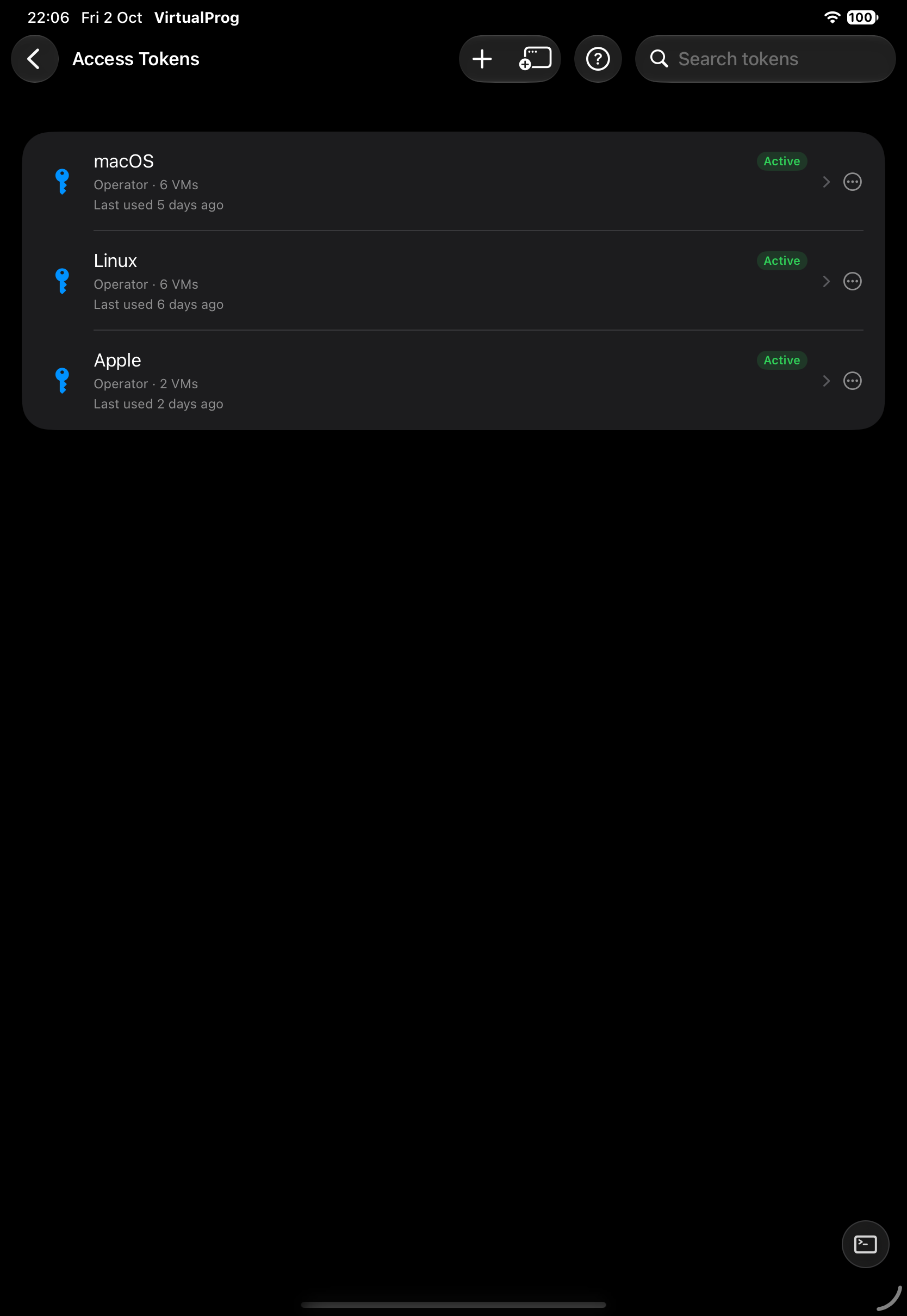
Tap + to open the creation form; tap a token to edit it directly. Saving returns to the list.
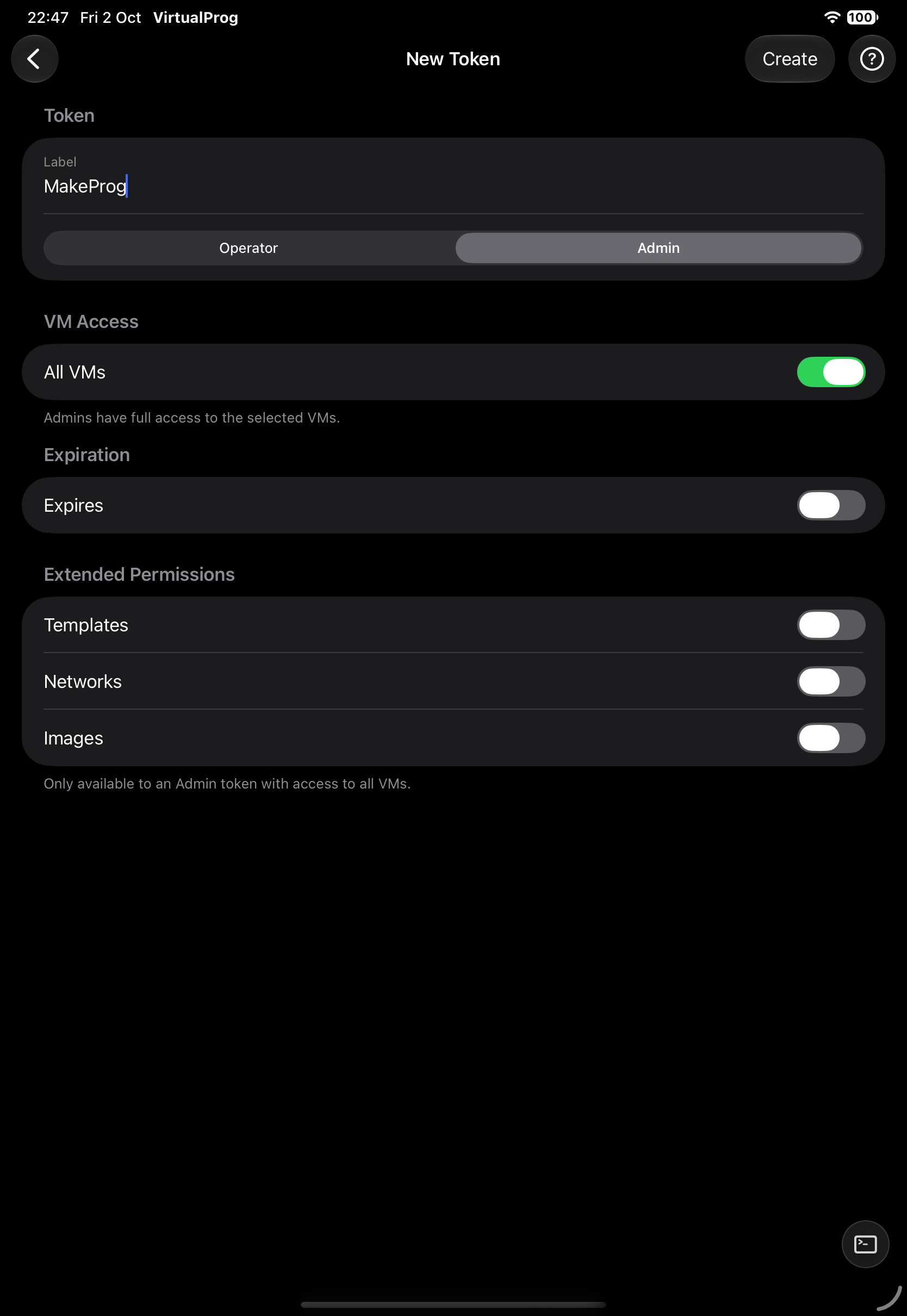
| Field | Description |
|---|---|
| Label | A name for the token |
| Role | Operator or Admin |
| VM Access | All VMs, or pick specific VMs |
| Expires | Optional expiry date |
| Extended Permissions | Templates, Networks, Images — Admin tokens with access to all VMs only |
Important: The secret is shown once when a token is created or rotated. Copy it and store it safely. Rotating immediately invalidates the current secret.
Swipe left on a token — or tap its ••• button — to Enable or Disable it, or choose Revoke and confirm. To rotate a secret, open the token and choose Rotate Secret, then confirm.
On iPad (Android has no separate windows), tap the window button in the toolbar to open Access Tokens in its own window.