⏱️ Checkpoints & Clones
Checkpoints and linked clones are fast and storage-efficient. Both need a macOS 27+ Mac.

⏱️ Checkpoints
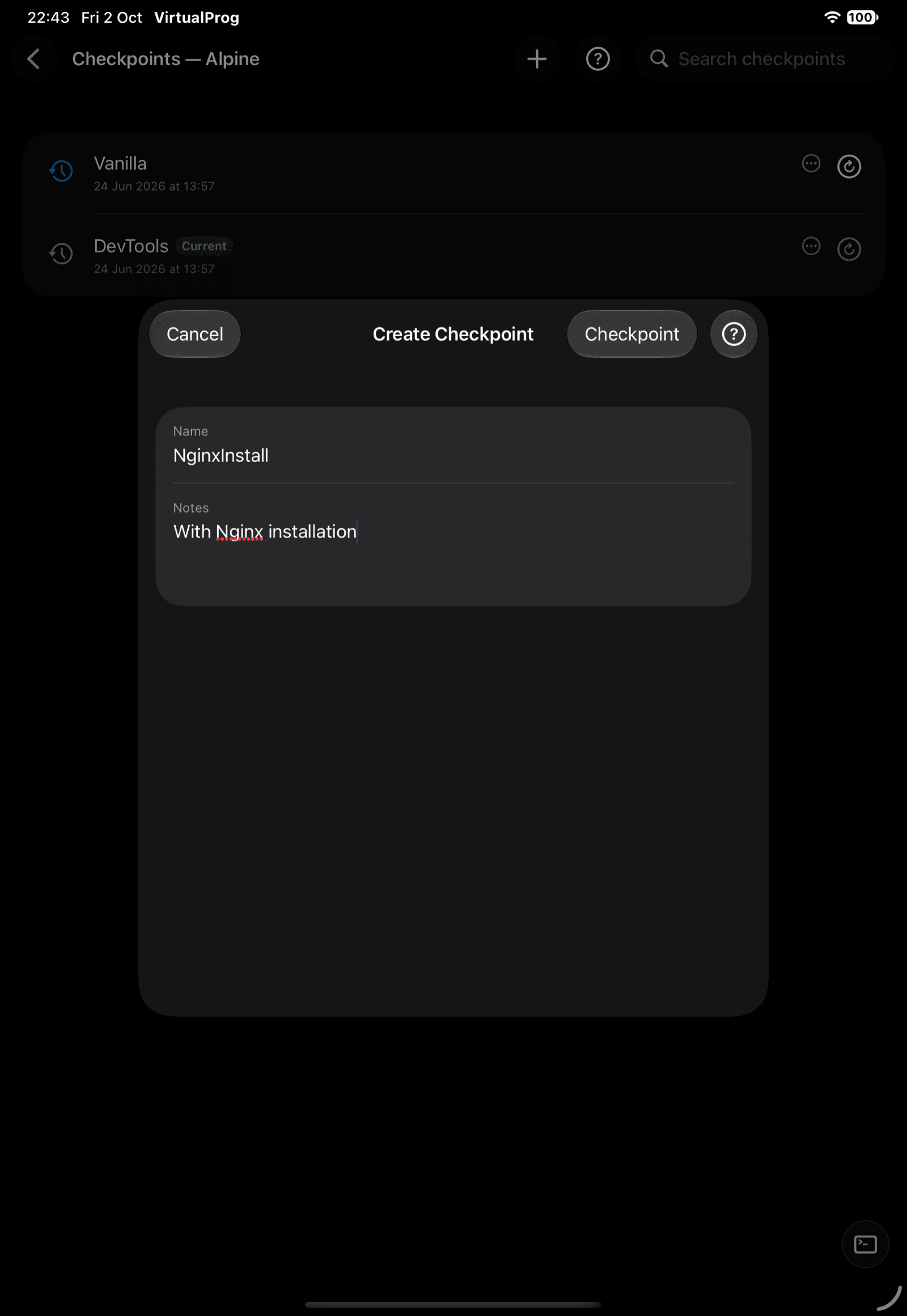
Open a VM's details and tap Checkpoints. Checkpoints are listed oldest first, and the newest is marked Current.
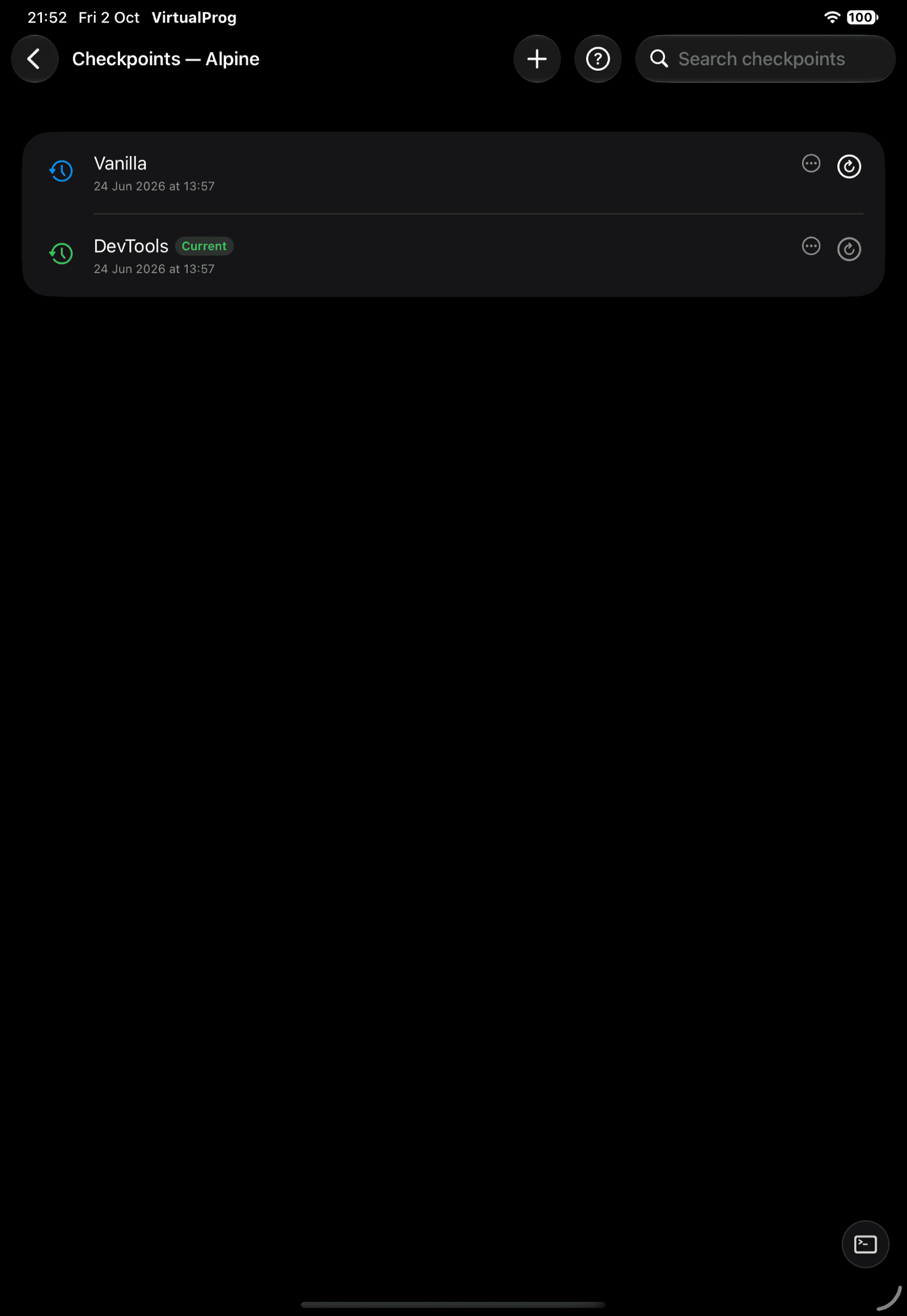
| Action | Description |
|---|---|
| + | Create a checkpoint (VM stopped) |
| Restore | Roll back to a checkpoint. The current one is already the present state |
| Edit | Change the name or notes |
| Delete | Only the most recent checkpoint can be deleted |
🔗 Linked Clones
A linked clone forks a VM instantly without copying its disks; it stores only its own changes. In a VM's details, open Linked Clones and tap Create Linked Clone. A clone shows a link badge with its parent's name — tap it to jump to the parent.
Clones can be cloned again to any depth. A parent with clones cannot be deleted until its clones are removed.
🌳 Linked Clone Topology
Open More → Library → Linked Clones (iPad: Library → Linked Clones) to see the family tree: each generation is a column, and every VM shows its state, CPU, memory and the checkpoint it forked from.
- Tap a VM to highlight its parent and children; tap it again or the background to clear.
- Pinch to zoom, drag to pan, or use the + / − buttons; the fit button restores the default view.
- Open in the bottom card goes to the VM's details.