📱 VirtualProg for iOS & Android
VirtualProg for iOS and Android is a companion app for iPhone, iPad, and Android phones and tablets. On compatible Apple silicon Macs, you can also download the iOS app VirtualProg Remote Control from the Mac App Store and use it to connect to and manage remote VirtualProg servers. The iOS and Android apps look and work the same; where they differ, the page says so — see iOS vs Android for the full list.
It It connects to VirtualProg running on your Mac and lets you monitor and control your virtual machines from anywhere on your network — start and stop VMs, watch and control the live screen, use the console and SSH, manage snapshots and templates, and more.
Note: The app is a remote control. Your virtual machines keep running on your Mac; nothing runs on your phone or tablet.
Reading these pages on Android? "iPhone" means your phone and "iPad" means your tablet. Where Android differs, a Android tab shows what to do instead.
✅ Requirements
| Requirement | Details |
|---|---|
| iPhone / iPad | iOS 17 or later |
| Android | Android 8.0 (API 26) or later |
| Apple silicon Mac | Compatible model; download the iOS app from the Mac App Store |
| Mac | VirtualProg with the CLI Server and External Access enabled |
| Network | Your device must be able to reach your Mac — on the same network, or over the internet through a VPN, port forward or reverse proxy (there is no cloud relay). See Connect |
| Token | The master token, or a scoped token created in Access Tokens |
Set-up steps are in Connect. Some features need a newer Mac: checkpoints, linked clones and USB passthrough require a macOS 27+ Mac, and the latest VirtualProg is recommended for thumbnails, Disk Space and Logs.
🧭 Layouts
The app adapts to your device.
| Device | Layout |
|---|---|
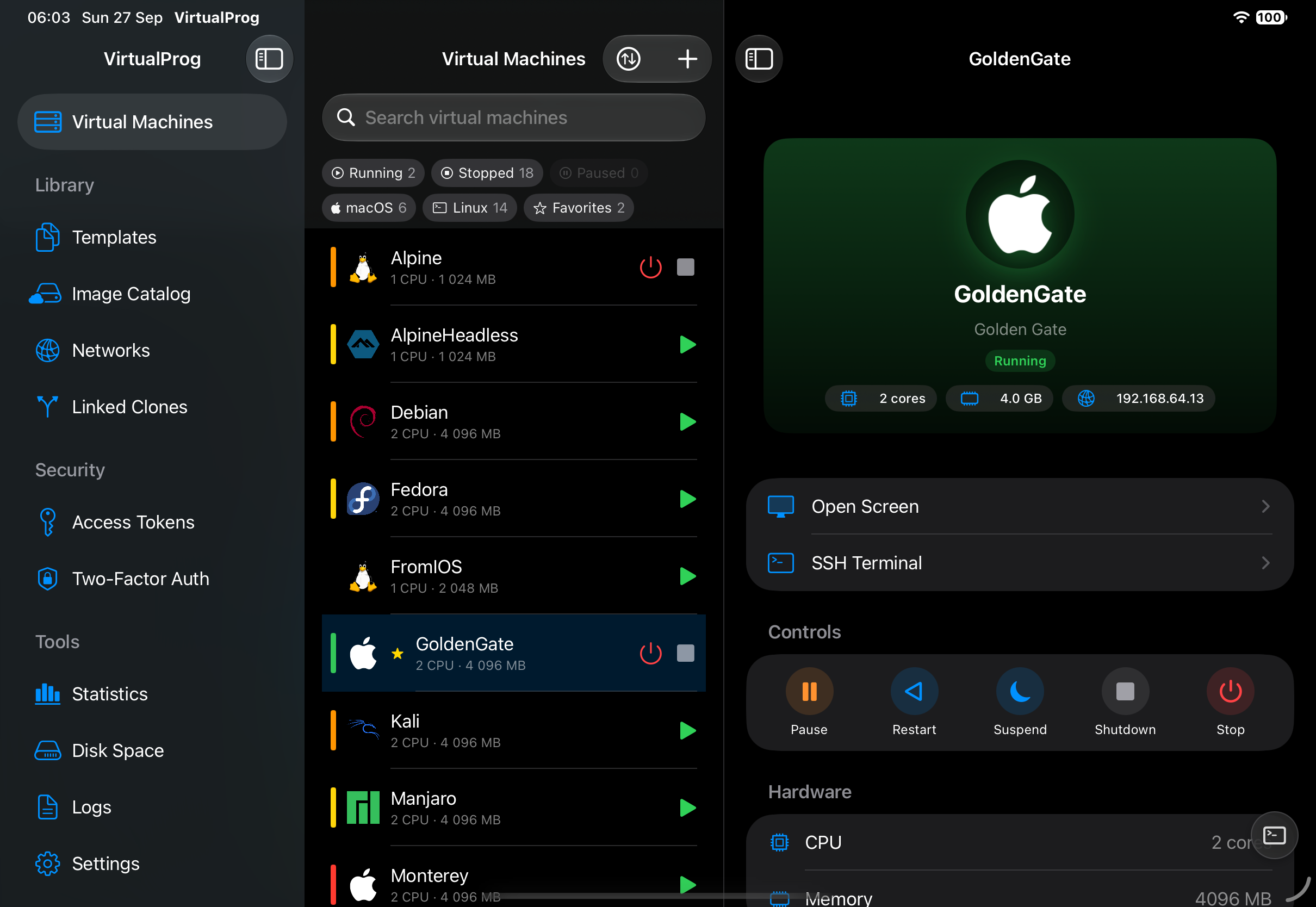
| iPhone | One screen at a time by default. Choose Sidebar (when space allows) in Settings to use split navigation in a window at least 700 points wide. |
| iPad | Choose Single Column (default) or Sidebar (when space allows) — a sidebar of areas, the VM list and the VM details side by side. Change it in Settings. |
| iPhone Duo | Choose Single Column or Sidebar (when space allows) for the large inner display. The sidebar layout is used when the available window width is at least 700 points. |
| Android phone | One screen at a time, like iPhone. The ⋯ menu opens Library, Security and Tools. |
| Android tablet / foldable | Same as iPad: turn on Sidebar layout on tablets in Settings. It applies when the window is at least 840 dp wide — a tablet, or an unfolded foldable — and falls back to the phone layout on narrower windows. |
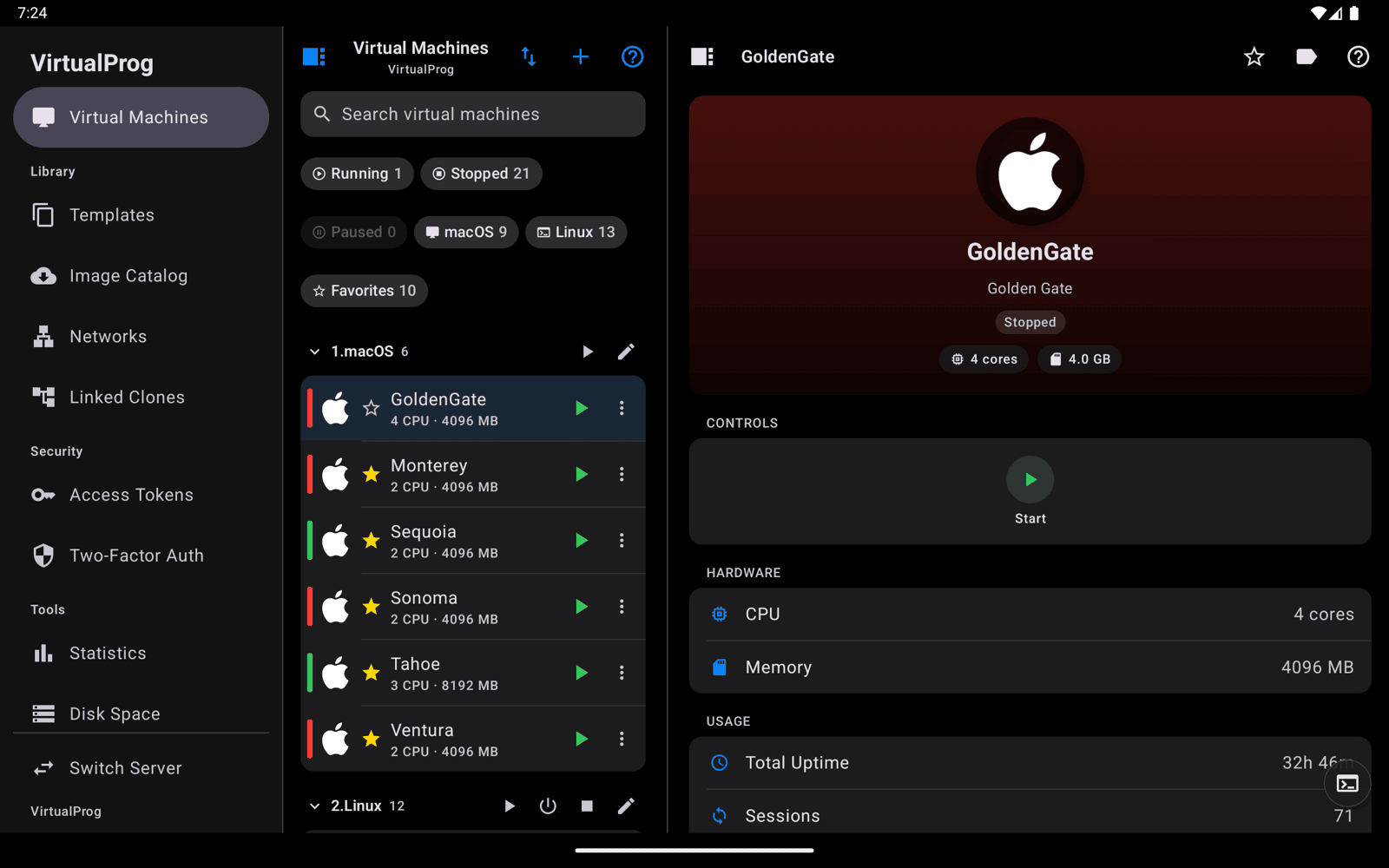
Android tablet
On a tablet or unfolded foldable with Sidebar layout on tablets turned on, Android shows the same three columns — sidebar, VM list and details.
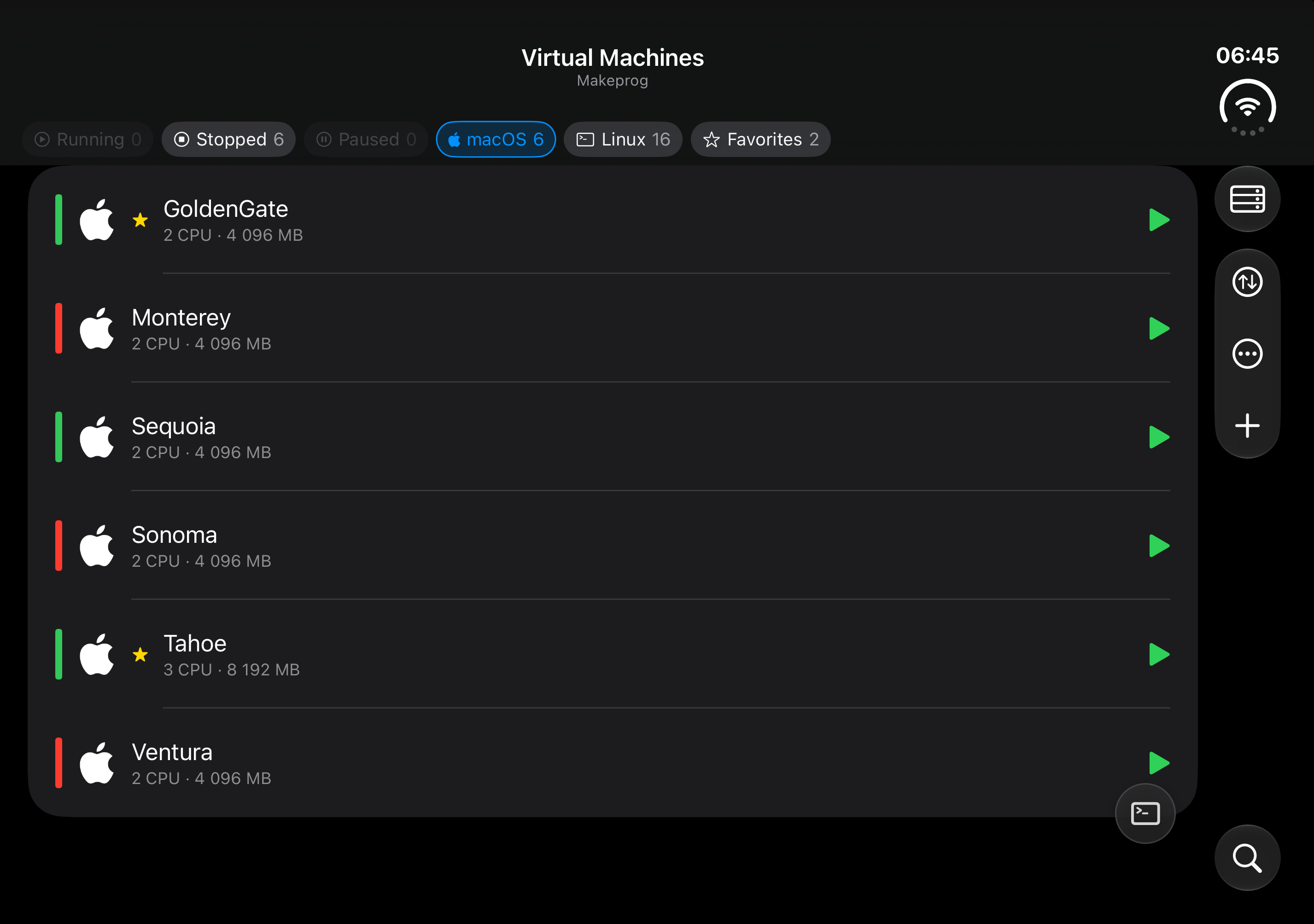
iPhone Duo
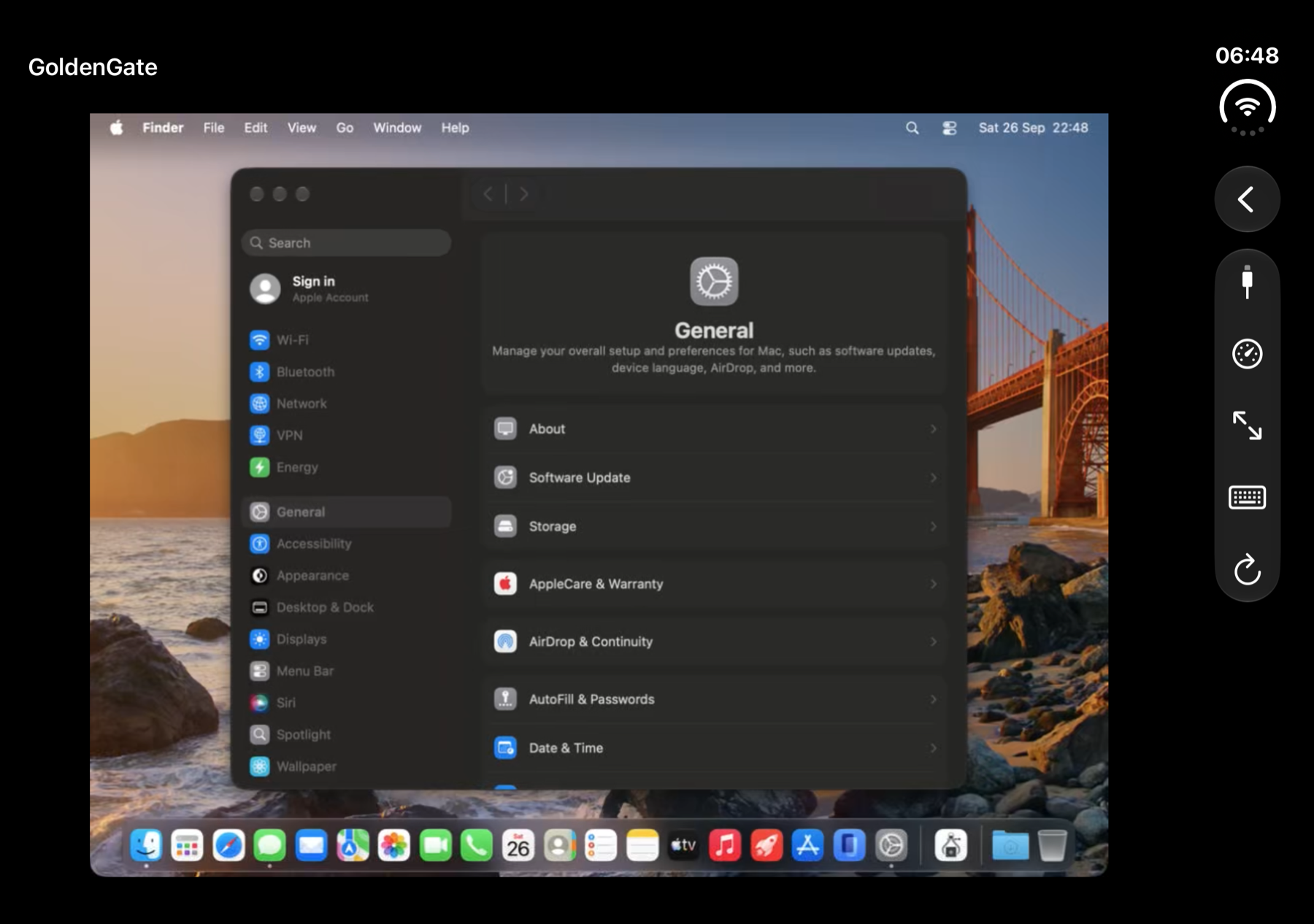
The large unfolded display gives the VM list and the live screen more room.
🗺️ What's Inside
| Area | What you can do |
|---|---|
| Connect | Pair with your Mac, switch servers, HTTPS and troubleshooting |
| Virtual Machines | List or grid, search, filter, sort, bulk actions, create, VM details |
| Live Screen | Remote display with keyboard input, stream settings, USB and memory balloon |
| Console, SSH & CLI | Serial console, SSH terminal and the in-app command line |
| Snapshots | List and timeline views, taking and restoring snapshots |
| Checkpoints & Clones | Checkpoints, linked clones and their topology |
| Templates | Create and manage templates |
| Networks | Host networks and the network topology diagram |
| Image Catalog | Download macOS restore images and ISO files to your Mac |
| Security | Access tokens, two-factor authentication, Face ID lock |
| Disk Space | See what uses your disk; resize or delete |
| Logs | Application and per-VM logs |
| Statistics | Uptime and session charts |
| Settings | Theme, layout, live screen defaults and more |
| Shortcuts & Siri | Automate VMs with Shortcuts and voice (iOS); launcher shortcuts (Android) |
| iOS vs Android | What works differently on each platform |
❓ Help
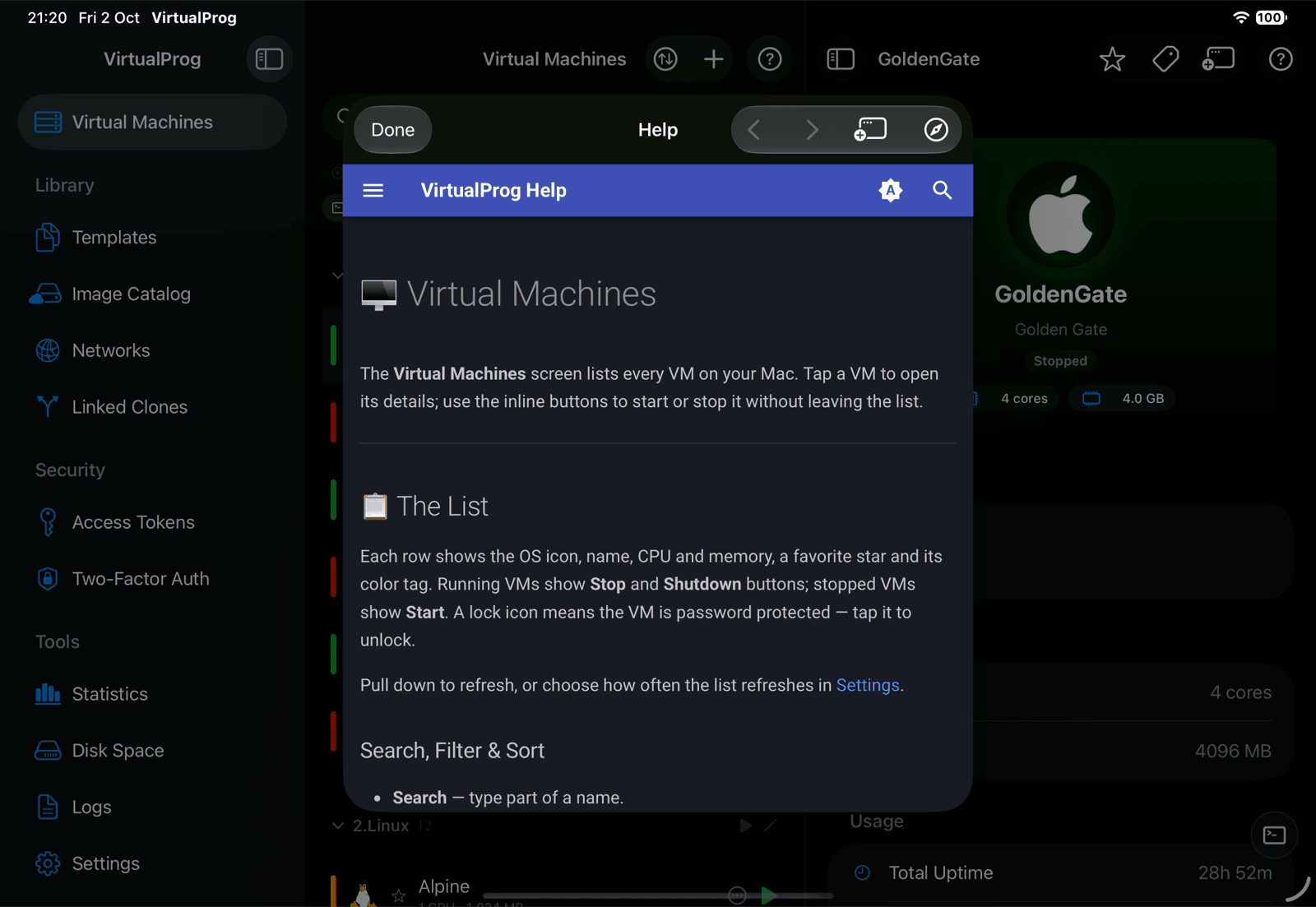
Every screen has a ? button in its toolbar that opens this help site, scrolled to the page for that screen. On Android the whole help site is built into the app, so it also works offline. On iPad, open it in its own resizable window from a button next to Back/Forward, instead of a cramped sheet.