🔐 Permissions
VirtualProg requires three macOS permissions to unlock its full feature set — Microphone, Screen Recording, and Local Network. You can grant these during the first-run Onboarding wizard, or at any time afterwards through the Tools menu.
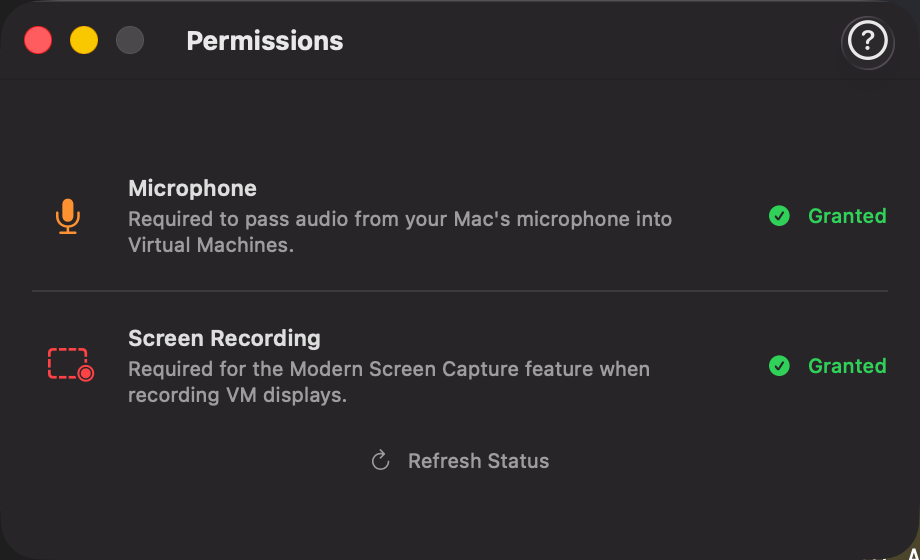
📸 Screenshot:
How to Access
-
During Onboarding
Step 4 of the setup wizard is dedicated to permissions. Granting them here ensures everything works correctly before you create your first Virtual Machine. -
Tools Menu
Select Tools → Permissions… from the menu bar at any time after onboarding to review or update your permission status.
Microphone
VirtualProg can pass audio from your Mac's microphone directly into a running Virtual Machine, enabling voice input for the guest OS.
-
Granting permission
Click Request — macOS will show a one-time system dialog asking for microphone access. Click Allow to grant it. -
If previously denied
Click Open Settings to go directly to System Settings → Privacy & Security → Microphone, then enable the toggle next to VirtualProg.
💡 Note: Without microphone permission, the Sound Input option in a VM's configuration will not pass audio through to the guest, even if it is enabled.
Screen Recording
Screen Recording permission is required for two features:
- Modern Screen Capture — used when recording a VM's display to a video file.
-
Web Remote Control — required to stream a VM's display to a browser for remote control via the Web Dashboard.
-
Granting permission
Click Request — macOS will show a system prompt asking for Screen Recording access. Approve the request in the dialog. -
If the prompt has already been dismissed
Click Open Settings to go directly to System Settings → Privacy & Security → Screen Recording, then enable the toggle next to VirtualProg.
💡 Note: When Screen Recording permission is granted, VirtualProg automatically enables the Modern Screen Capture toggle in Settings → Advanced, so no additional configuration is needed.
Local Network
Local Network access allows VirtualProg to reach virtual machines by their IP addresses on your local subnet. This is required for:
- Web SSH — the browser-based SSH client connects directly to a VM's IP address. This applies whether you are accessing the dashboard from the host Mac itself or from another device on your network.
Without this permission, Web SSH will fail to connect even if VirtualProg and the web dashboard are otherwise fully reachable.
-
Granting permission (macOS 15 and later)
Click Request — VirtualProg sends a harmless UDP probe to trigger the macOS system dialog asking for Local Network access. Click Allow to grant it. The status updates automatically after a few seconds. -
If previously denied
Click Open Settings to go directly to System Settings → Privacy & Security → Local Network, then enable the toggle next to VirtualProg. Click Refresh Status afterwards to update the display.
💡 Note: macOS 14 and earlier do not enforce Local Network privacy; this permission only applies on macOS 15+.
Permission Status
The Permissions screen shows the current status of each permission at a glance:
- Granted — displayed as a green ✓ badge. No action is needed.
- Request / Open Settings buttons — displayed when a permission has not yet been granted or was previously denied.
After granting a permission in System Settings, click Refresh Status to update the display immediately.
Tip
All three permissions are optional — VirtualProg works without them. However, microphone pass-through requires Microphone access; screen recording and web remote control require Screen Recording access; and Web SSH requires Local Network access, even when accessing the dashboard from the host Mac itself.