🖨️ Serial Console
Every serial port configured on a VM shows as its own row, by name, right in VM Details. What tapping a port does depends on how it's set up:
| Mode | What tapping it does |
|---|---|
| Console | Opens an interactive terminal. Needs the VM running — while it's stopped, the row is dimmed with a hint to start it first |
| File | Opens the port's log file (see below) — works whether or not the VM is running, since it's just reading a file |
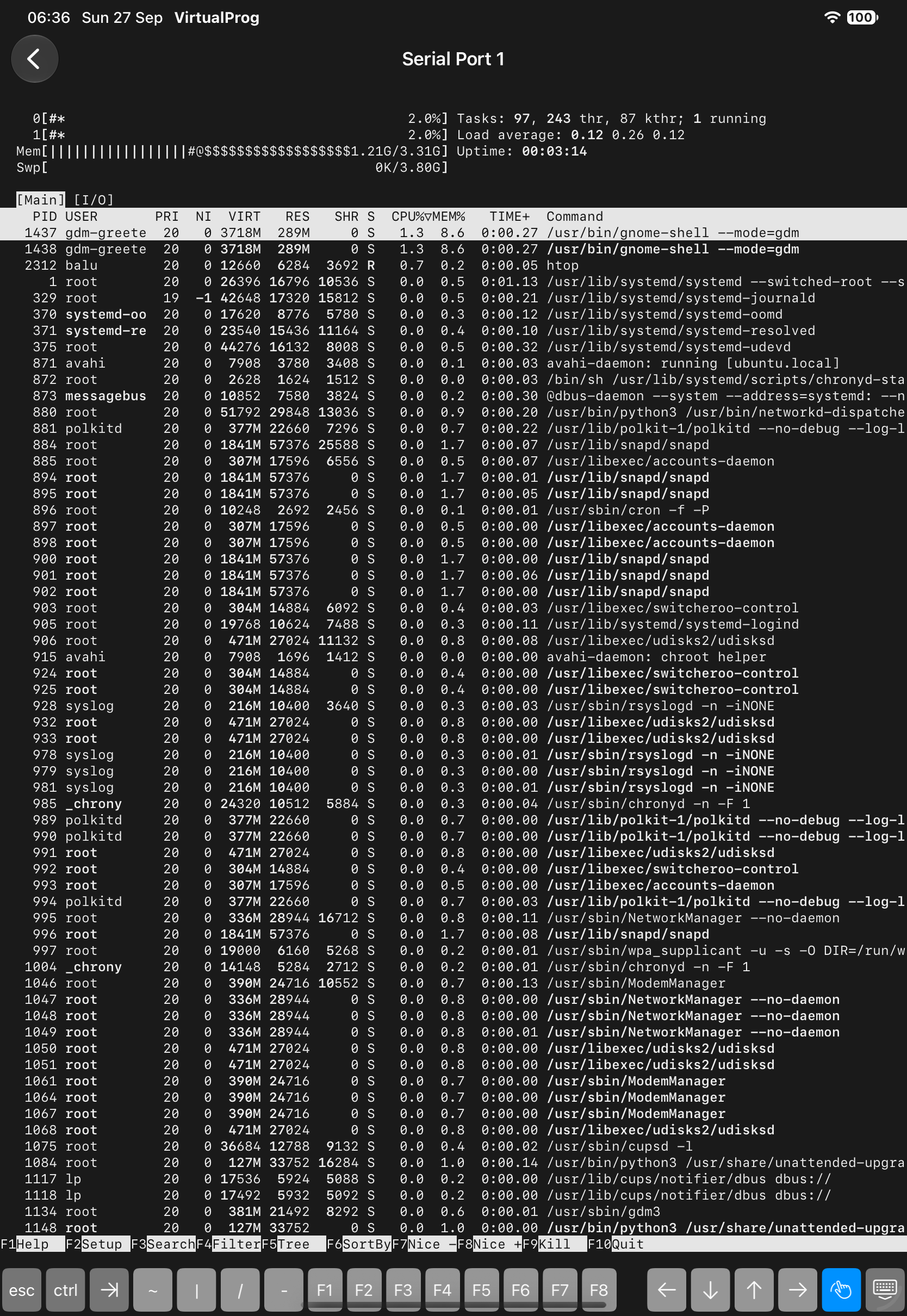
Console Ports
An interactive terminal with full ANSI color support; its theme follows the port's own setting. If the connection drops, the app reconnects automatically.
Note: See Serial Port for configuring a port's mode and theme.
File Ports
Shows the log file's text content, with Refresh to re-read it and Download to save or share the raw file. The whole file is read each time — there's no live tailing.
🪟 Open in Window (iPad)
Long-press any serial port — Console or File — or tap its ••• button, and choose Open in Window to open it in its own window. Each port opens independently, so several can be open at once; opening one that's already open brings its window forward instead of duplicating it.