💽 Disk Space
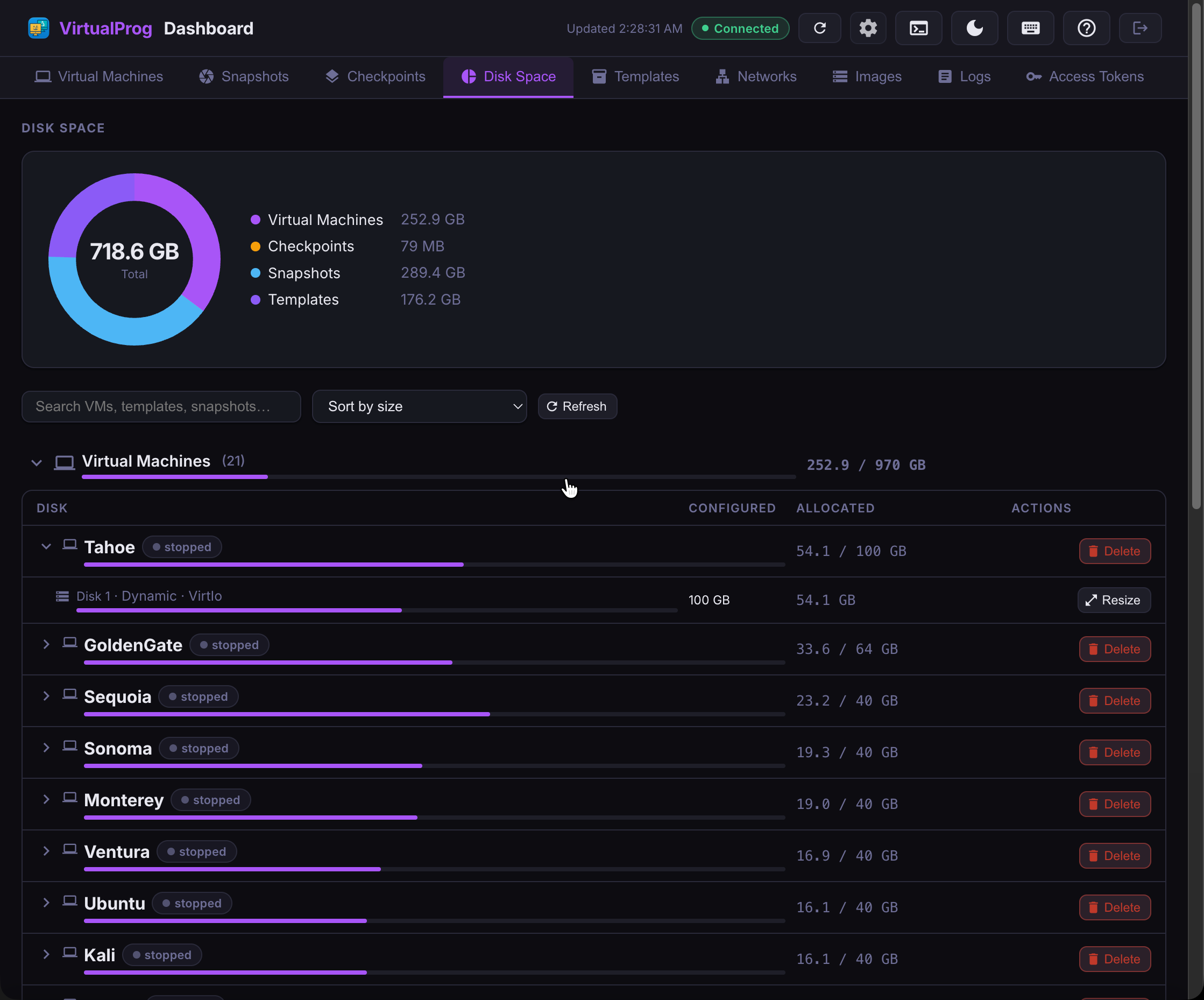
The Disk Space tab gives you a single view of how much storage every VM, template, and snapshot is actually using — allocated vs. configured — with a summary chart, per-disk resize, and delete, all without leaving the browser.
Summary
At the top, a donut chart breaks total usage down into four categories — Virtual Machines, Checkpoints, Snapshots, and Templates — with a legend showing the exact size of each. The center of the chart shows the grand total across your whole fleet.
Sections
Usage is grouped into three collapsible sections — Virtual Machines, Templates, and
Snapshots (grouped by parent VM) — each starting collapsed. Click a section header to expand
it; the header itself shows the section's total in the format X.X / Y GB (allocated / configured),
with a thin usage bar underneath that turns red past 85%.
The Templates section only appears if there are templates to show, and only for a master token or a scoped admin token with template access — the same visibility rule the Templates tab itself uses.
VM / Template / Snapshot Nodes
Expanding a section reveals one row per VM, template, or snapshot. Each row is itself expandable — click it to reveal its individual disks and any checkpoints. A row shows:
- Its name, with a state pill (VMs only) and a lock icon if the VM is password-protected
- A size figure (
X.X / Y GB) with a usage bar underneath, plus a small "+ N GB checkpoints" note when the item has checkpoint overlays - A Delete button
Deleting a VM permanently removes it and all its data; deleting a template or snapshot removes just that item. Every delete asks for confirmation first.
Disks and Checkpoints
Expanding a VM, template, or snapshot row shows its disks underneath, indented. Each disk shows its configured size, its allocated size with a usage bar, and — for VM and template disks only, never snapshots — a Resize button. Resize only supports growing a disk, matching the same rule the Mac and iOS apps use; a disk that can't currently be resized (running VM, locked VM, external disk, etc.) shows the reason as a tooltip on the disabled button.
Resizing a Fixed disk on a macOS guest offers a follow-up prompt to relocate the recovery partition to the end of the disk, same as the desktop app.
Any checkpoints on that VM, template, or snapshot are listed below its disks, each showing its name, date, a Current badge on the newest one, and its size.
Search and Sort
The search bar filters VMs, templates, and snapshots by name across all three sections. The sort control toggles between largest first and name — matching the Mac, iOS and Android Disk Space analyzers.
Scoped Tokens
An operator-scope token can view everything on this tab but never sees the Resize or Delete buttons — same read-mostly restriction applied throughout the dashboard. A scoped token only ever sees its own allowed VMs; the totals and every section reflect only what that token can see.