SSH
Store SSH credentials for this virtual machine so the Web Dashboard can connect with one click — no typing required each time.
📸 Screenshot:
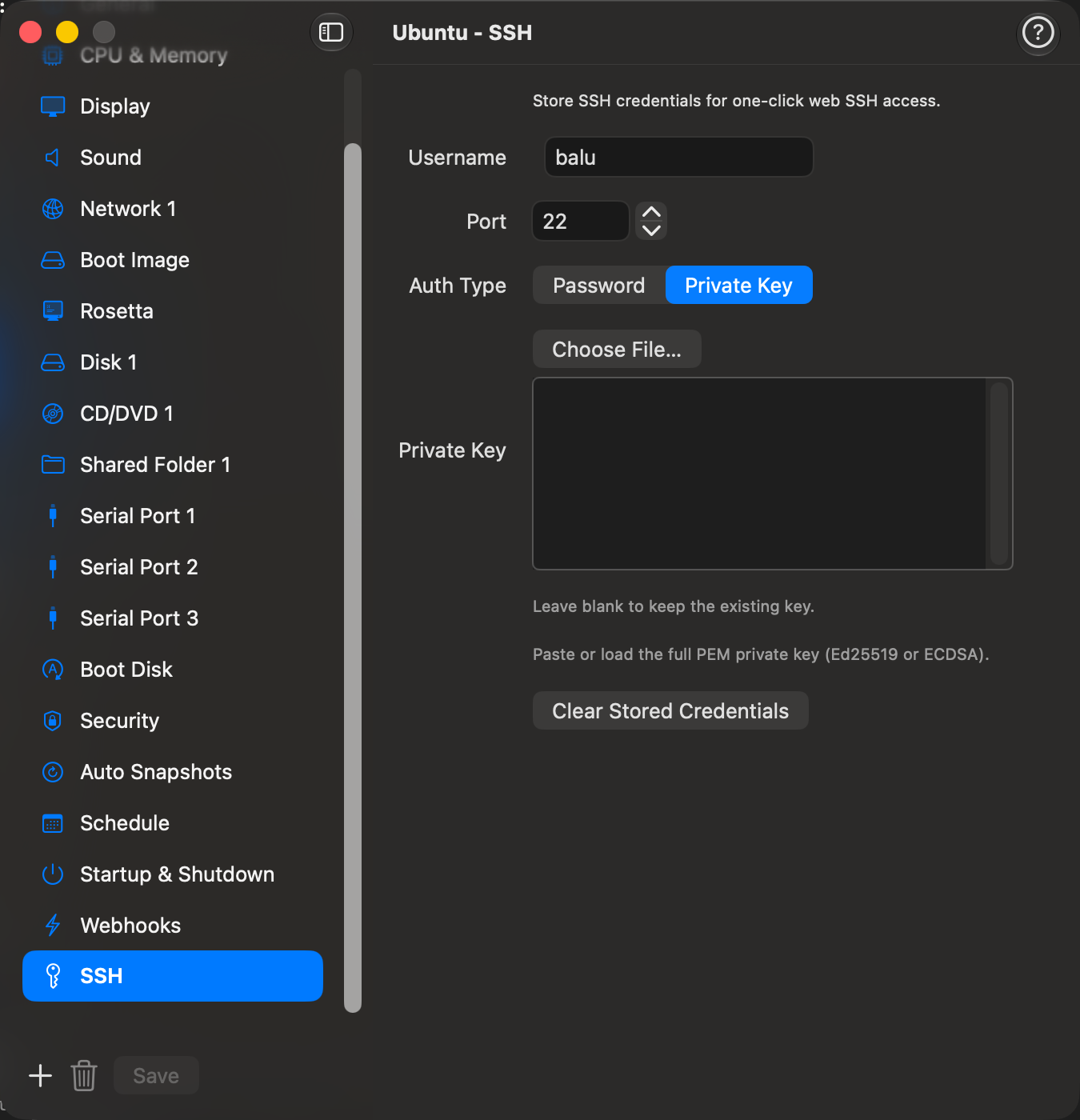
Fields
| Field | Description |
|---|---|
| Username | The SSH user on the guest (e.g. ubuntu, root). Pre-filled automatically in the Web Dashboard SSH panel when set. |
| Port | The port the SSH server listens on. Default is 22. Use the stepper or type a value directly. |
| Auth Type | Choose Password or Private Key. |
| Password | (Password auth) The SSH password. Leave blank to keep an existing stored password. |
| Private Key | (Private Key auth) Paste the full PEM private key, or click Choose File… to load a .pem or .key file from disk. Leave blank to keep an existing stored key. |
Credential Storage
Credentials are encrypted before being saved — the plaintext password or private key is never written to disk in plain text.
Click Clear Stored Credentials to remove any saved password or private key from the VM configuration.
Auto-Connect
When a username and matching credential are stored here, clicking Web SSH in the Web Dashboard connects immediately — the credential form is skipped entirely. If the stored credential fails, the form is shown pre-filled with the username and port so you can re-enter your details.
Supported Key Types
| Type | Formats accepted |
|---|---|
| Ed25519 | OpenSSH (BEGIN OPENSSH PRIVATE KEY) or PKCS#8 (BEGIN PRIVATE KEY) |
| ECDSA | PKCS#8 (BEGIN PRIVATE KEY) |
RSA keys are not supported.
Generate an Ed25519 key and install it on the guest:
Tip: You can also configure SSH credentials from the command line with
vpvm config ssh <vmname> --username ubuntu --password <password>orvpvm config ssh <vmname> --auth-type privateKey --key-file ~/.ssh/id_ed25519.