💻 Command Line
The built-in command line accepts the same commands as the Web CLI Terminal
and vpvm — for example list, start, stop, snapshot and template. It respects your
token's permissions.
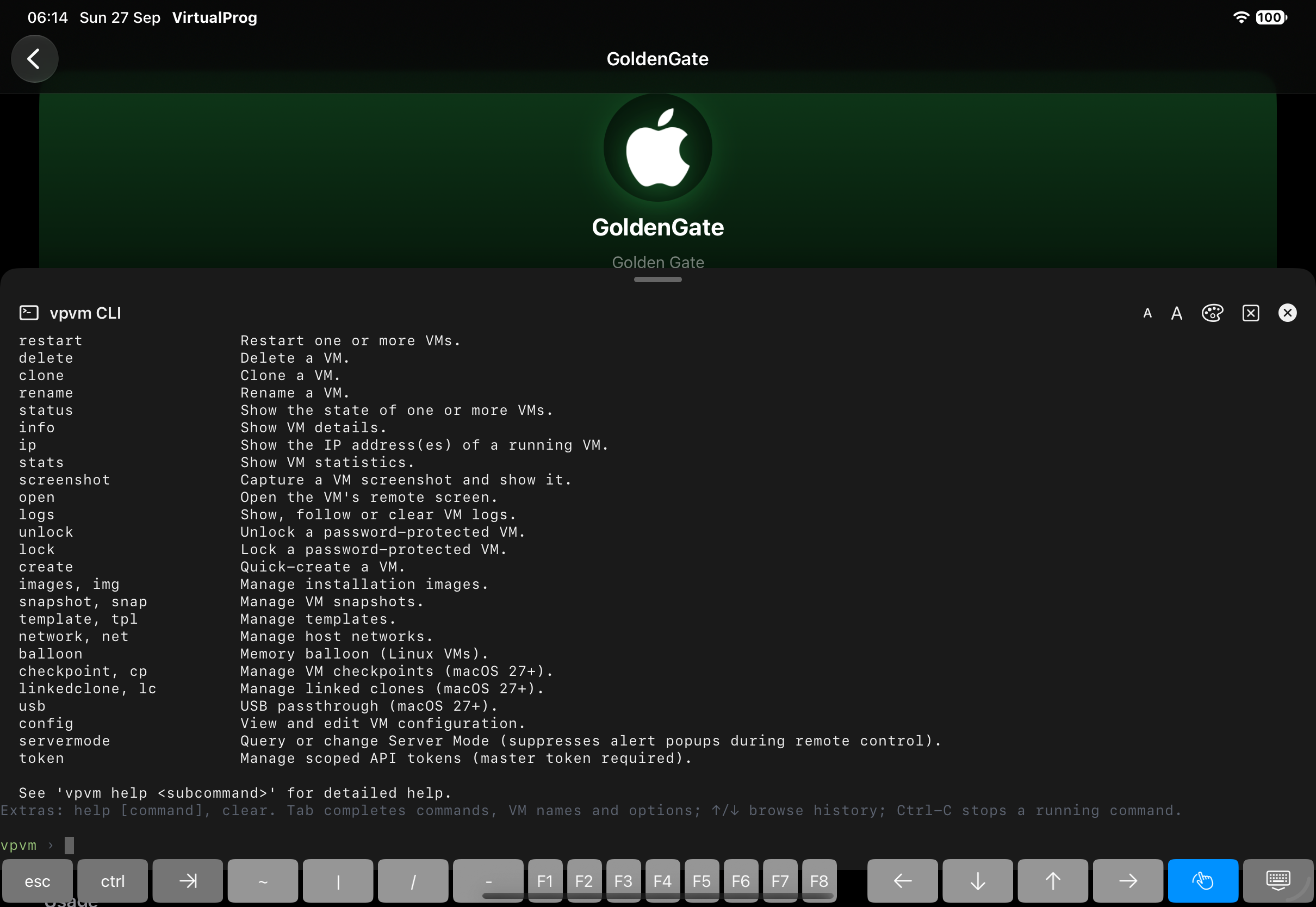
Use server-settings list [--format text|json] to inspect the Mac's shared feature settings, or
server-settings set <setting> <true|false> to update one. Supported keys are favorites,
tag-colors, groups, screenshot-background, server-mode, and window-border. Scoped tokens
can list settings; updates require the master token and do not prompt for confirmation. Server
Mode is managed with server-settings set server-mode true or
server-settings set server-mode false.
Open it from:
- the floating terminal button on any screen (turn it off in Settings)
- More → Tools → Command Line on iPhone, or Tools → Command Line in the iPad sidebar
- ⌃
** or **⌘on a hardware keyboard (Android: Ctrl+** or **Meta+)
The panel docks at the bottom of the screen at full width. Drag its handle to resize it; your history and scrollback are kept for the whole session.
🪟 Open in Window (iPad)
Android: the command line always stays in its docked panel; there is no separate window.
Tap the window button in the CLI's header to pop it out of the docked panel into its own window — handy for keeping a terminal open alongside a VM's screen or another window. The floating terminal button and docked panel stay hidden until you close the window; your session, history and scrollback carry over either way, since it's the same terminal underneath.
Run open <vm> from this window and the VM's screen opens in its own new window too, instead of
switching back to the main one — the same open command run from the docked panel still switches
the main window as before.