Schedule
Enable scheduling for automatic start up and shutdown of your virtual machine.
📸 Screenshot:
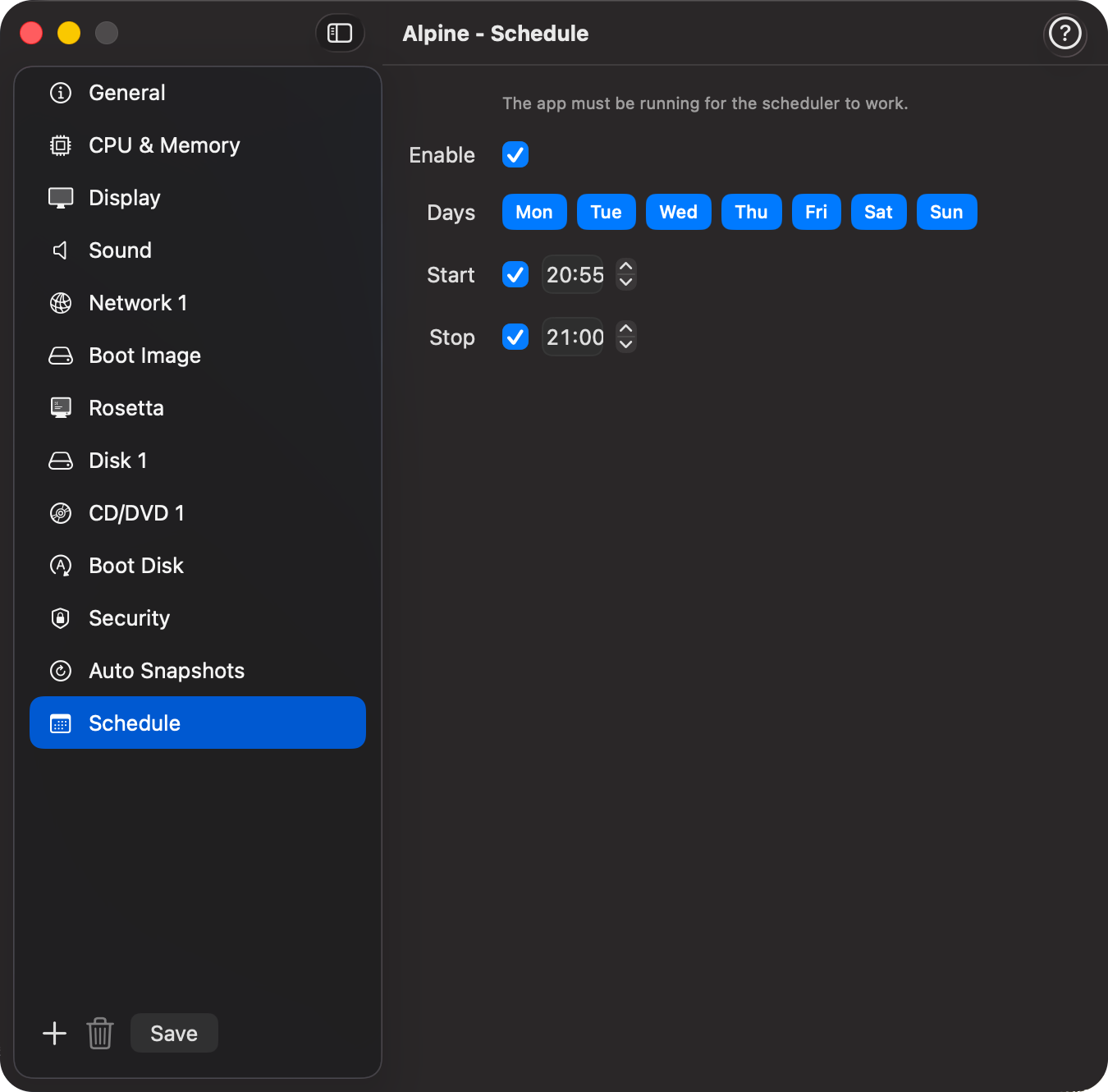
Fields
| Field | Description |
|---|---|
| Enable | Turn scheduling on or off for this VM. |
| Days | Days of the week on which the schedule runs. Select one or more days. |
| Start | Time to start the virtual machine, in 24-hour format (HH:mm). Disable to skip auto-start. |
| Stop | Time to stop the virtual machine, in 24-hour format (HH:mm). Disable to skip auto-stop. |
How It Works
When scheduling is enabled, VirtualProg automatically starts and/or stops the VM at the configured times on the selected days.
- VirtualProg must be running for the scheduler to fire. If the app is not open at the scheduled time, the event is skipped.
- The global scheduler toggle in Settings → Advanced must also be enabled. If it is turned off, no scheduled VMs will run regardless of their individual settings.
- If the VM is already running at the scheduled start time, it is left as-is.
- If the VM is already stopped at the scheduled stop time, it is left as-is.
Example Scenarios
Work hours VM — Start at 09:00, stop at 18:00, Monday to Friday. The VM is available every weekday morning and shuts down automatically in the evening.
Nightly build VM — Start at 02:00, stop at 05:00, every day. Runs a build job overnight without manual intervention.
Weekend-only VM — Enable only Saturday and Sunday with a start and stop time for testing or personal projects.