🖥️ Web Console
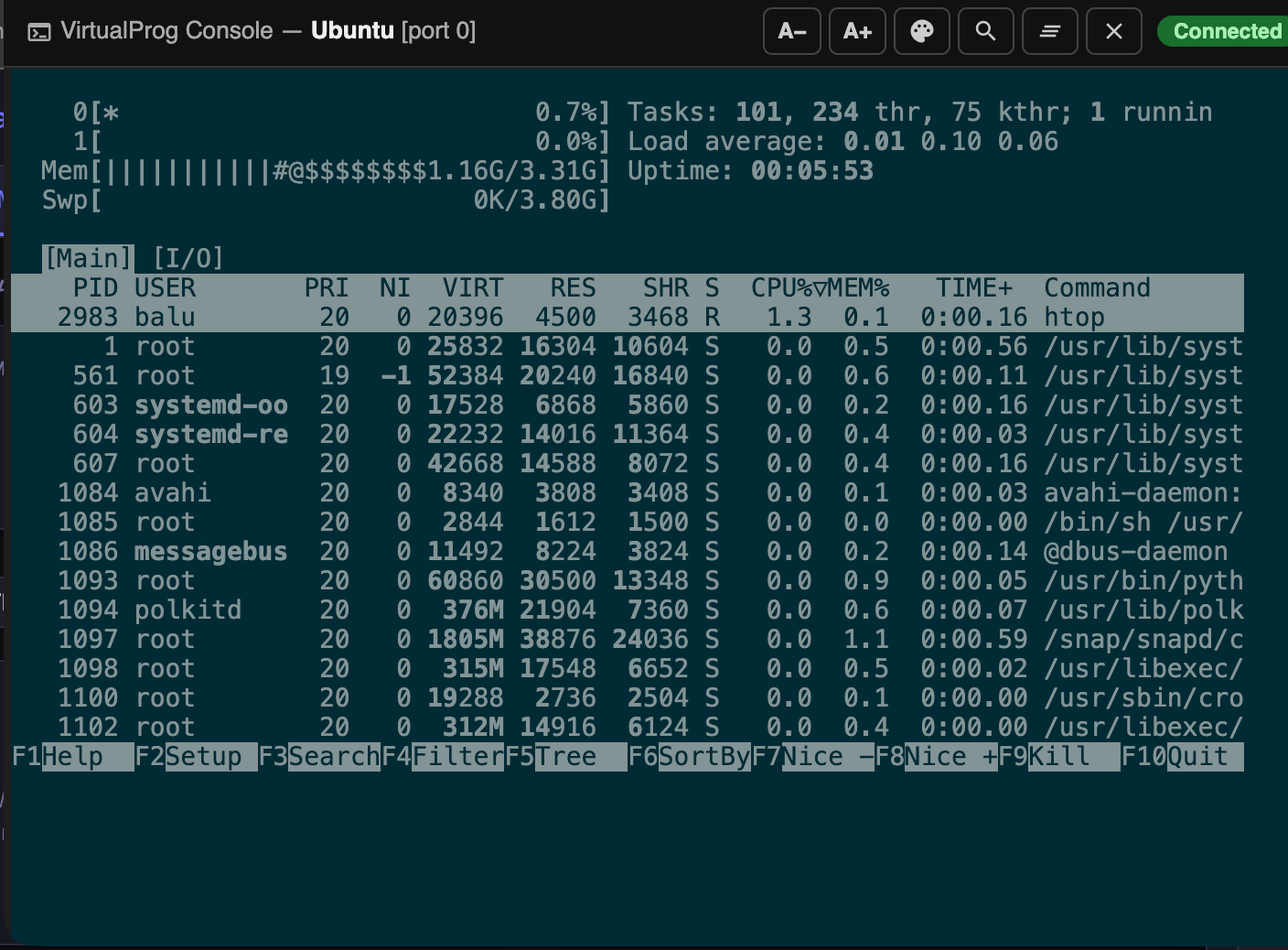
The Web Console lets you interact with a VM's serial console directly from your browser — no SSH, no app window required. It provides full terminal emulation with ANSI colour support.
Requirements
- The CLI Server must be running (Settings → CLI → Enable CLI Server)
- The VM must have at least one serial port configured in Console mode
Opening the Console
- Open the Web Dashboard in your browser
- Click any running VM card to open the detail panel
- Scroll to the Console Ports section
- Click Open Web Console next to the port you want
The console opens in a small popup window. Each serial port gets its own button and its own popup — you can open multiple consoles simultaneously.
Toolbar
| Button | Action |
|---|---|
| A− / A+ | Decrease / increase font size (saved across sessions) |
| Theme picker | Switch between terminal colour themes |
| Search | Open inline search bar (also Ctrl+F / Cmd+F) |
| Clear | Clear the terminal scrollback |
| Close | Close the console window |
Font size and theme are stored locally in the browser and remembered across sessions.
Search
Press Ctrl+F (or Cmd+F on Mac) to open the search bar. Type to highlight all matches in the terminal output; use Enter / Shift+Enter (or the ↑ ↓ buttons) to step through results. Press Escape to close.
Connection Status
A status badge in the toolbar shows the current state:
| Badge | Meaning |
|---|---|
| Connecting… (amber) | WebSocket handshake in progress |
| Connected (green) | Live session — output and input are flowing |
| Disconnected (red) | Connection dropped unexpectedly — auto-reconnects in 3 seconds |
| VM stopped (red) | The VM was shut down — the connection closed cleanly and will not reconnect |
Multiple Connections
Several browser tabs or devices can connect to the same serial port at the same time. All connections receive the same VM output independently; keyboard input from each connection is forwarded to the VM.
When the VM Stops
When the VM shuts down or is stopped from the dashboard, the console displays:
The connection closes cleanly and the console does not attempt to reconnect.