Virtual Machine Window
The Virtual Machine Window displays the active interface of a running or stopped virtual machine in VirtualProg. This window adapts based on the VM's current power state and provides tools for controlling and interacting with the virtual machine.
📸 Screenshot (Running):

🔧 When Running
The top-right toolbar includes the following controls (from left to right):
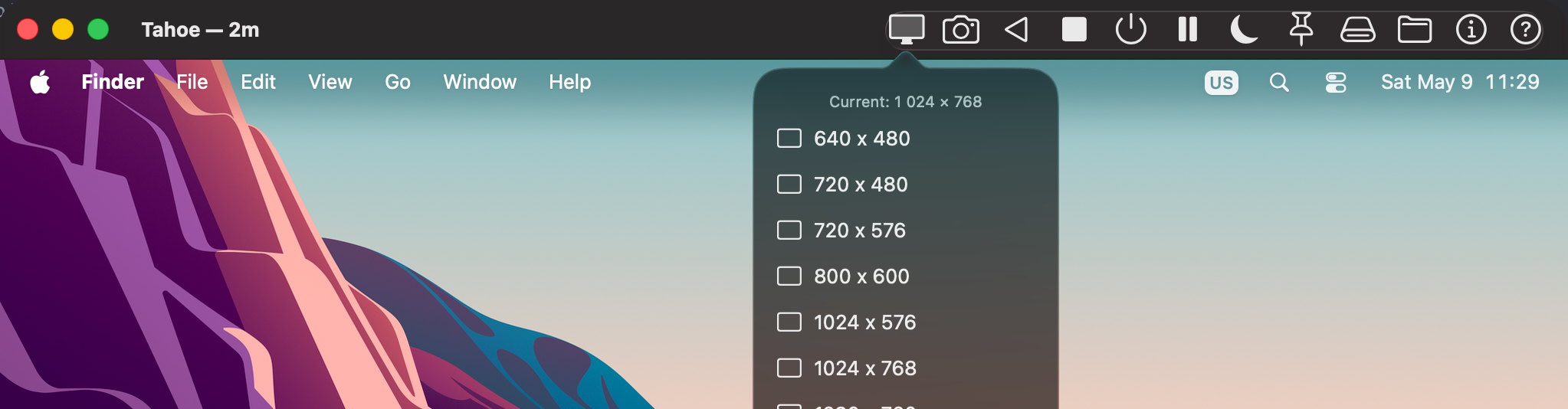
- 🖥 Display Resolution
Opens a popup listing all resolutions supported by the host display. Selecting a resolution resizes the virtual machine window to that size — the guest operating system automatically adapts its display to match via the VirtIO GPU (Linux) or Virtualization framework (macOS guests).
This button is only visible when Auto Resolution is enabled in the VM's Display settings. When Force Resolution is configured, the button is hidden because the guest resolution is locked at boot.
📸 Screenshot
- 📸 Camera
Opens a menu with the following options:
Screenshot to File: Save a screenshot to disk.
Screenshot to Clipboard: Copy a screenshot to the clipboard.
Screen Record: Start recording the VM screen.
It opens a Record Video dialog
📸 Screenshot

-
< Restart
Immediately stops the VM and then starts it again. -
⏹ Shutdown
Initiates a clean shutdown of the guest operating system. -
⏻ Power Off
Forces the VM to stop immediately (equivalent to unplugging power). -
⏸ Pause
Pauses execution of the VM, freezing its state. -
>⏸ Suspend (Apple Silicon with macOS 14 onwards)
Temporarily saves the state of the virtual machine, allowing you to resume later exactly where you left off. Currently supported only for Apple Silicon with macOS 14 onwards.\ -
📌 Pin Window
Toggles whether the virtual machine window stays on top of other windows. -
🖥 Serial Ports
Opens a popup listing configured serial ports:
Console-mode ports open in a Terminal Viewer.
File-mode ports open the associated log file.📸 Screenshot

-
💾 Attach Disks
Opens a popup with:
Attach CD/DVD
Attach Disk
Install Guest Tools (macOS guests only)📸 Screenshot

-
⏏ Eject Media
Opens a popup to eject mounted CDs or disks.📸 Screenshot

-
🔌 USB Devices (macOS 27 Golden Gate or later)
Passes USB devices from your Mac directly into the running virtual machine.
📸 Screenshot

Step 1 — Connect the device to VirtualProg
When a USB device is plugged in, macOS shows a USB accessory menu in the menu bar. Click the USB icon in the menu bar, select the device, and choose Use with VirtualProg.
📸 Screenshot
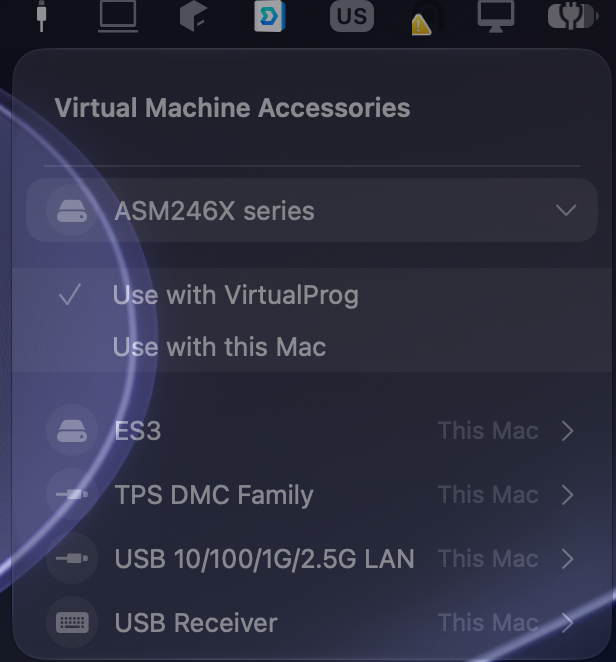
Once connected to VirtualProg the device becomes available to attach to a guest VM.
Step 2 — Attach the device to the guest VM
Click the USB Devices icon (plug icon) in the Virtual Machine toolbar. A popup lists all USB devices currently connected to VirtualProg. Click a device to attach it to the running VM — a ✓ tick mark appears next to attached devices.
Clicking a ticked device detaches it from the guest VM.
Step 3 — Return the device to your Mac
To give the device back to macOS, click the USB icon in the menu bar and choose Use with this Mac.
Note: USB passthrough requires macOS 27 Golden Gate or later. The virtual machine must be running and must have a USB (XHCI) controller configured. The USB Devices toolbar icon is only shown when USB Passthrough is enabled in Settings → Advanced.
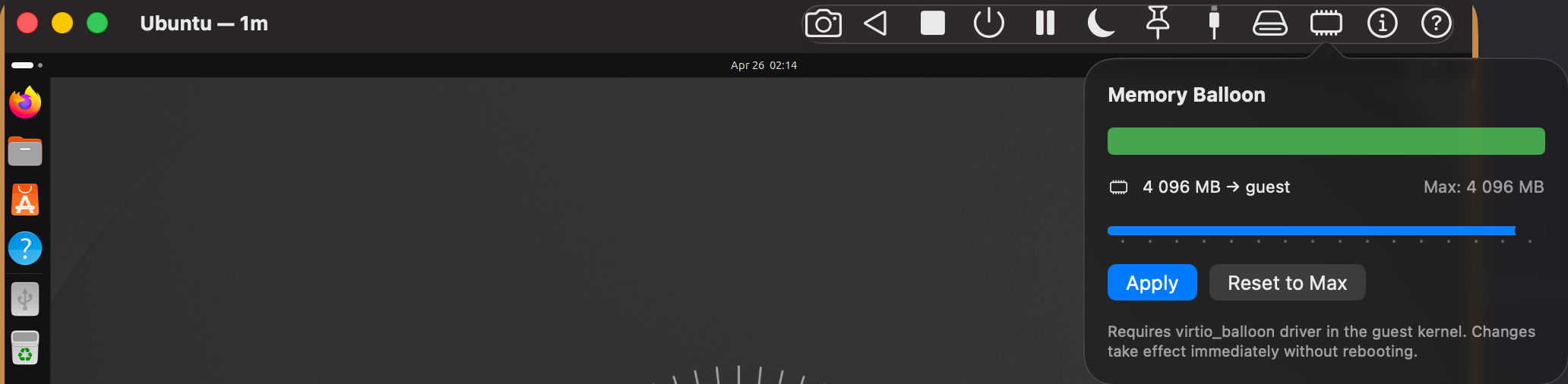
- 🧠 Memory Balloon (Linux guests only, when Memory Balloon is enabled in configuration)
Dynamically adjusts how much memory is available to the guest without rebooting.
A slider lets you set the target memory from a minimum of 256 MB up to the VM's configured maximum. - Apply — sends the new memory target to the guest immediately.
- Reset to Max — restores the full configured memory to the guest.
Note: This feature requires the
virtio_balloondriver to be loaded inside the guest. Most modern Linux distributions include it by default. The maximum memory cannot exceed what was configured when the VM was created.📸 Screenshot
- 🗂️Shared Folders
Opens a popup that lists all shared folders for the VM and lets you attach or detach folders at runtime.
The popup contains three sections:
- Configured folders (permanent) — folders saved in the VM configuration. Click a folder name to open it in Finder. These folders persist across VM restarts and can only be added or removed through the VM configuration editor.
- Runtime folders (temporary, shown with a
+badge icon) — folders you have attached during the current session. Click the folder name to open it in Finder, or click the – button to detach it immediately. Runtime folders are removed when the VM is stopped or restarted. - Add Shared Folder… — available at the bottom of the popup in any VM state. Click it to open a folder picker and attach any folder from your Mac. If the VM is running, the folder becomes available inside the guest immediately.
Note: Runtime-attached folders are session-only. They are visible inside the guest immediately after attaching but are not saved to the VM configuration. To make a folder permanently available, add it in the VM configuration editor instead.
📸 Screenshot

📂 Drag & Drop Files to Shared Folder
You can copy files from your Mac directly into a VM's shared folder by dragging and dropping them onto the Virtual Machine window.
- Drag one or more files from Finder onto the VM window.
- A green border and overlay appear to confirm the window is ready to receive files.
- If one writable shared folder is configured, files are copied there immediately.
- If multiple writable shared folders are configured, a picker sheet appears — select the destination folder and the files are copied.
- If no writable shared folders are configured, a red overlay is shown and an alert explains how to add one in the VM configuration.
Note: Both permanently configured folders and runtime-attached folders are available as drag-and-drop targets. The shared folder must be writable — read-only folders are not available as drop targets. Files with the same name are automatically renamed with a numeric suffix (e.g.
report (1).pdf) to avoid overwriting existing files. The VM does not need to be running — files are copied directly on the host and become visible inside the guest via the shared folder mount.
-
ℹ️ Quick Info
View Quick Info of the current VM in Pop-up. -
❓ Help
Virtual Machine View Help
📸 Screenshot (Stopped):
⏹ When Stopped
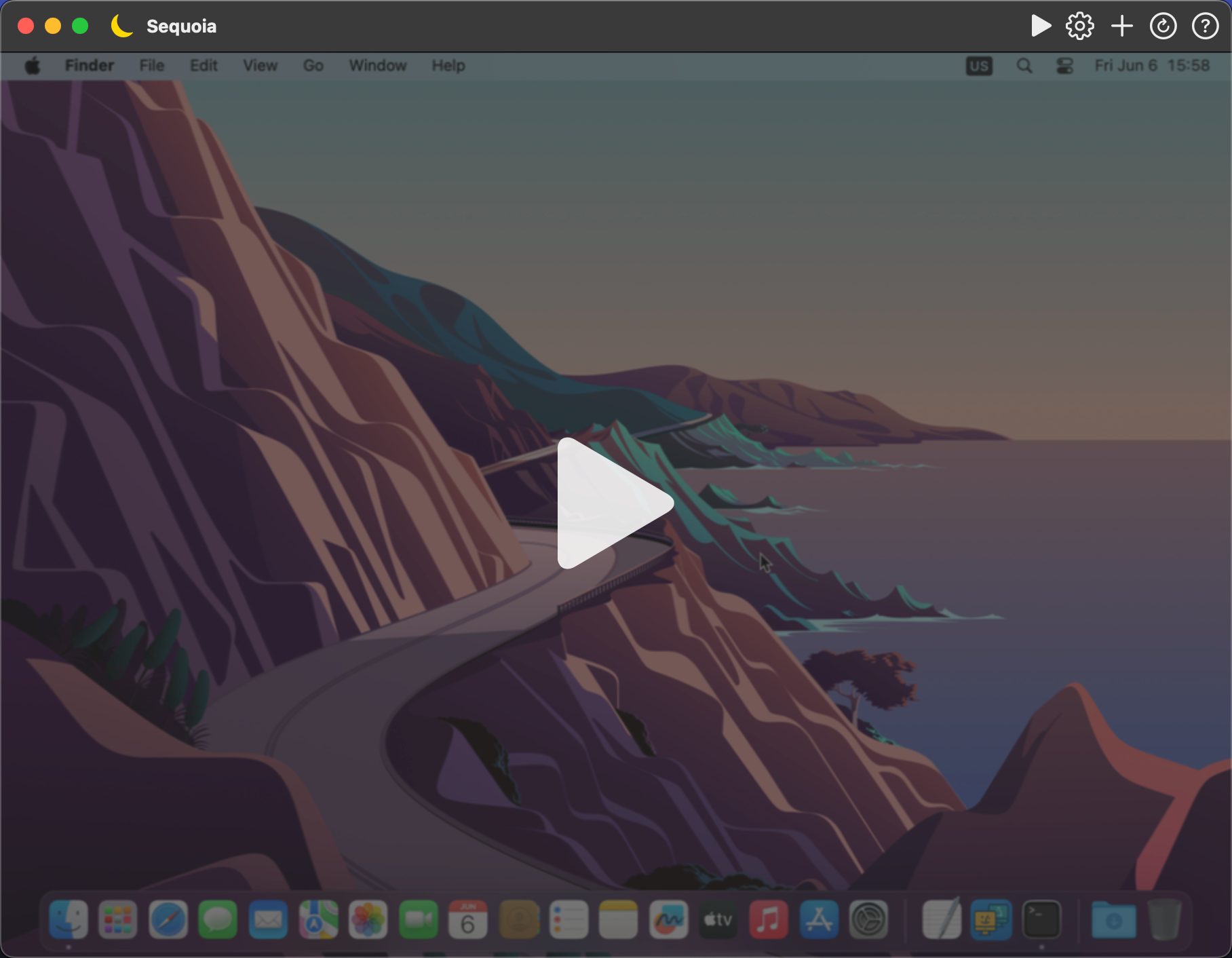
When the virtual machine is not running, the top-right toolbar includes:
-
▶ Start
Boots the selected virtual machine. -
⚙️ Edit
Opens the VM's configuration editor. -
📸 Take Snapshot
Opens the Take Snapshot dialog to capture the current state. -
🗂️Shared Folders
Opens a popup that lists all configured shared folders for the VM and allows you to attach new folders via Add Shared Folder…. You can also drag and drop files from Finder onto this window to copy them directly into a shared folder. -
ℹ️ Quick Info
View Quick Info of the current VM in Pop-up. -
🕘 Snapshots
Opens the Snapshots window to view and manage all saved snapshots. -
❓ Help
Virtual Machine View Help
Additionally, a large Start button is centered in the middle of the screen to easily boot the VM.
🌙 Suspend Indicator Icon
If a virtual machine is currently suspended, a yellow suspend icon appears left side of the title.
⏸ Pause Indicator Icon
If a virtual machine is currently paused, a yellow pause icon appears left side of the title.
💡 The virtual machine window provides essential runtime and post-run operations, all in a compact and intuitive layout.