Create Virtual Machine
The Create Virtual Machine dialog lets you create a new virtual machine from an existing template or directly from a snapshot. This is the fastest way to spin up a clean, pre-configured environment without modifying the original.
📸 Screenshot:
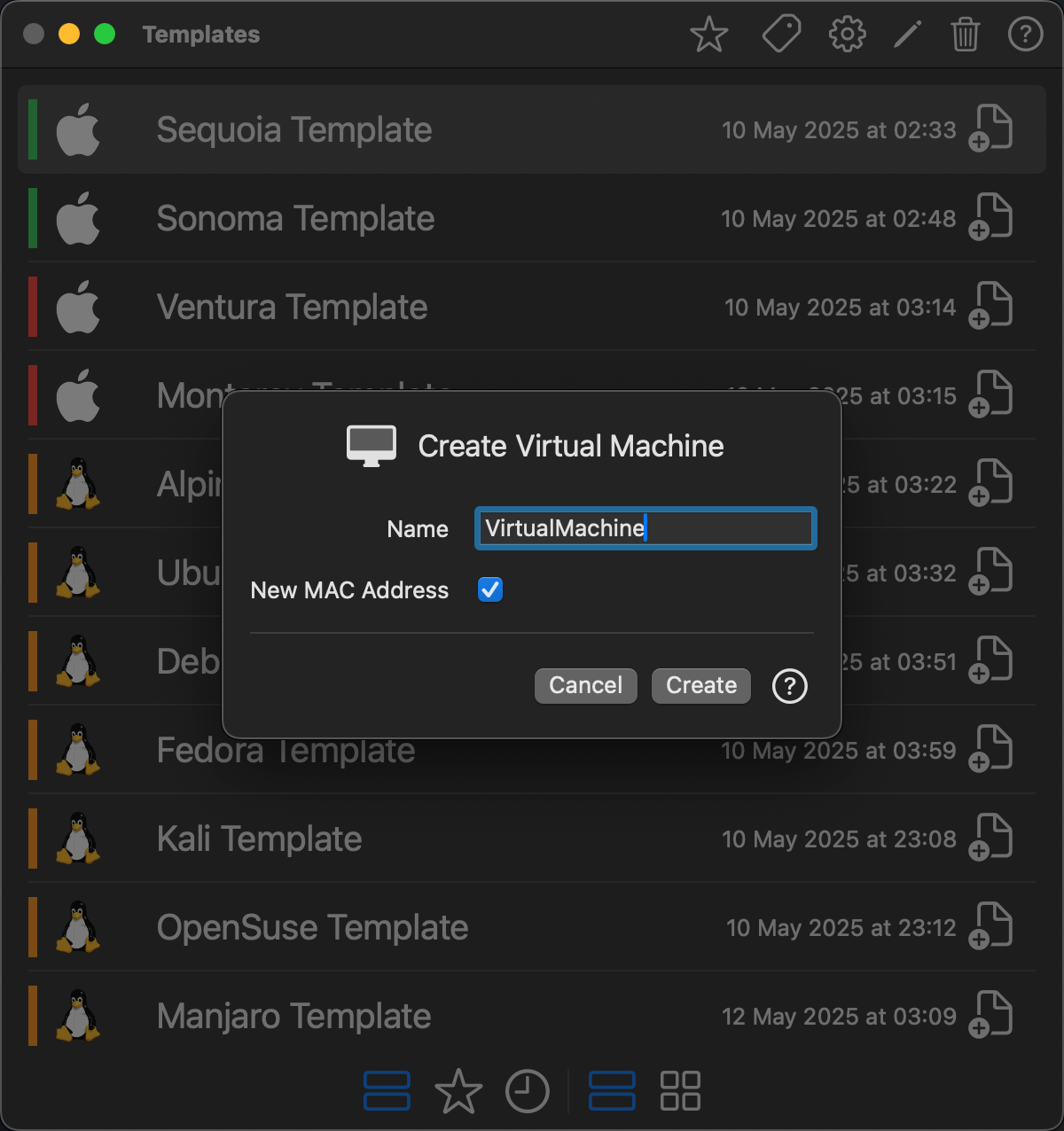
Access
You can open the Create Virtual Machine dialog from two locations:
- Templates Window
-
Click the ➕ icon on a template, or right-click a template and choose Create Virtual Machine.
-
Snapshots Window
- Right-click on a snapshot of a virtual machine.
- Select Create Virtual Machine to create a new VM from that snapshot's exact state.
Fields
- Name: Enter a name for the new virtual machine. This is used as its identifier in the Control Center. Click on the 🔄 button to generate a unique name.
- New MAC Address: When enabled (default), a new MAC address is generated for the network adapter. Disable this only if you need to preserve the original MAC address.
How It Works
- VirtualProg copies the source bundle (template or snapshot) to the VM storage location.
- The name and network MAC address are updated in the configuration.
- Statistics are reset so the new VM starts with a clean usage history.
- The new virtual machine appears immediately in the Control Center, ready to configure and launch.
💡 Creating from a snapshot is ideal for branching off at a known good state — for example, before a major update or experiment — without affecting the original VM or its snapshot history.