🔐 Web SSH
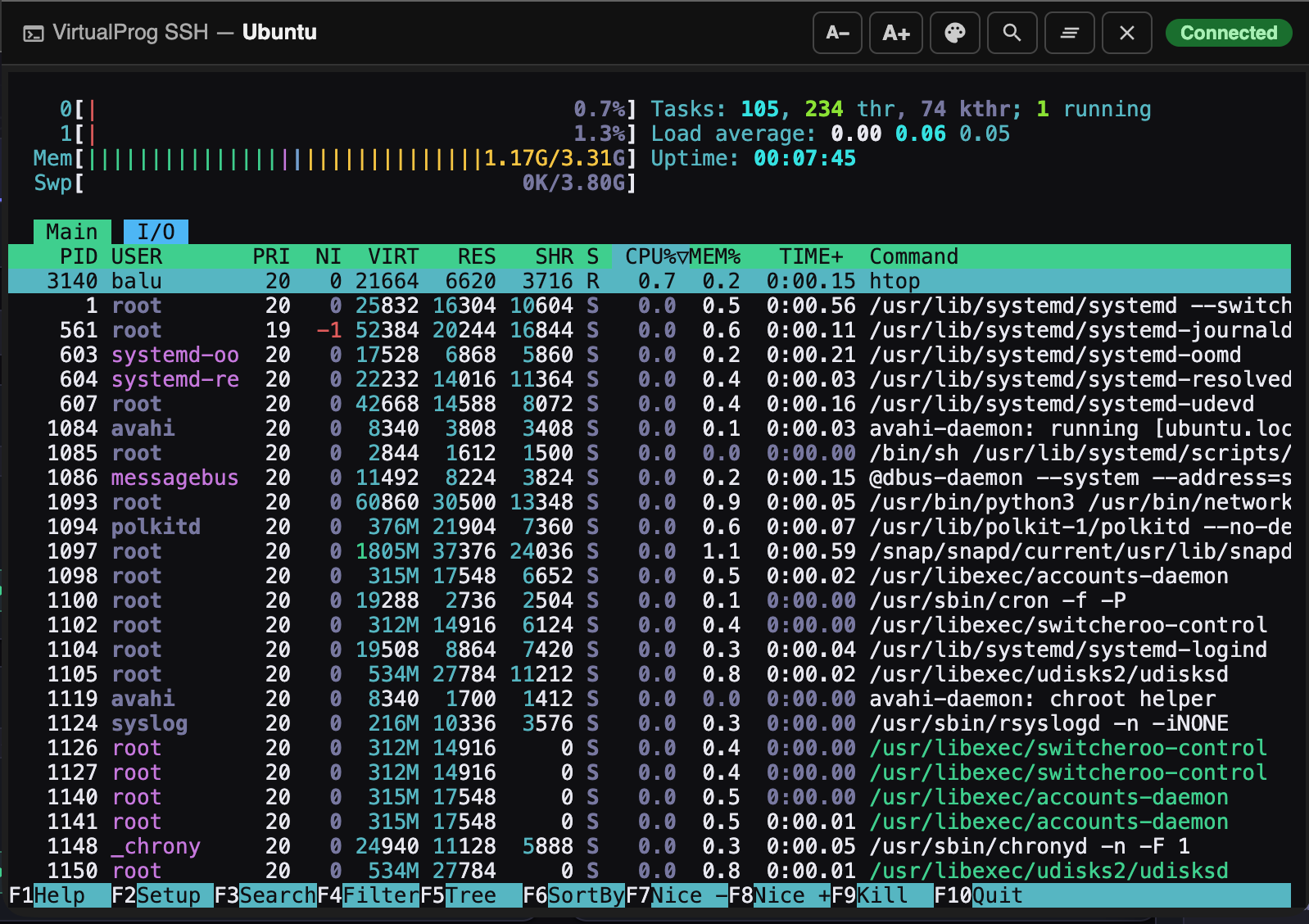
Web SSH opens a full SSH terminal session to a running VM directly in your browser — no local SSH client required. The VirtualProg server acts as an SSH proxy to the VM.
Requirements
- The CLI Server must be running (Settings → CLI → Enable CLI Server)
- The VM must be running with a resolved IP address
- The guest must have an SSH server running (e.g.
openssh-server)
Opening Web SSH
- Open the Web Dashboard and click any running VM card to open the detail panel
- Scroll to the SSH section
- Enter a Username (pre-filled from stored config if available, and editable)
- Click Web SSH
If SSH credentials are stored in the VM configuration, the connection is established automatically — no credential form is shown. See SSH Configuration for how to store a username, port, and password or private key.
If no stored credentials are available, a popup window opens with a credential form. Fill in your details and click Connect.
Stored Credentials & Auto-Connect
VirtualProg can store SSH credentials (username, port, password or private key) encrypted inside the VM configuration. When stored credentials are present and match the configured auth type, clicking Web SSH connects immediately without showing the form.
To set up stored credentials:
- Open the VM configuration (⚙ Configure)
- Go to the SSH section in the sidebar
- Enter a username, port, and either a password or private key
- Click Save Changes
See SSH Configuration for the full reference.
If auto-connect fails (e.g. wrong password), the credential form is shown with the username and port pre-filled so you can re-enter your details.
Authentication
The form supports two authentication methods:
Password
Enter your username, password, and port (default 22), then click Connect.
Private Key
Click the Private Key tab to switch methods. Provide your private key by clicking Choose file or pasting the key contents directly into the text area.
Supported key types: Ed25519 and ECDSA (P256/P384/P521). RSA keys are not supported.
Supported formats: OpenSSH (-----BEGIN OPENSSH PRIVATE KEY-----) and PKCS#8 (-----BEGIN PRIVATE KEY-----). Generate an Ed25519 key with:
Then add the public key to the VM's ~/.ssh/authorized_keys.
Custom SSH Port
If your VM's SSH server listens on a non-standard port, change the Port field in the credential form (default is 22).
Toolbar
| Button | Action |
|---|---|
| A− / A+ | Decrease / increase font size (saved across sessions) |
| Theme picker | Switch between terminal colour themes |
| Search | Open inline search bar (also Ctrl+F / Cmd+F) |
| Clear | Clear the terminal scrollback |
| Close | Close the SSH window |
Search
Press Ctrl+F (or Cmd+F on Mac) to open the search bar. Type to highlight all matches; use Enter / Shift+Enter to step through results. Press Escape to close.
Connection Status
| Badge | Meaning |
|---|---|
| Connecting… (amber) | Establishing the SSH connection to the VM |
| Connected (green) | Live SSH session |
| Disconnected (red) | Session ended — re-enter credentials to reconnect |
SSH into VM (Native Client)
The SSH into VM button opens an ssh:// URI. On macOS this launches your registered SSH client (Terminal, iTerm2, etc.) and copies the SSH command to your clipboard.
Web SSH works in any browser, including from a remote machine or mobile device, without needing a local SSH client installed.