⚙️ Settings
Open More → Tools → Settings on iPhone, or Tools → Settings in the iPad sidebar. Changes apply immediately. Choose App for device-specific preferences or Mac Server for settings shared with the connected Mac.
🖥️ Mac Server Features
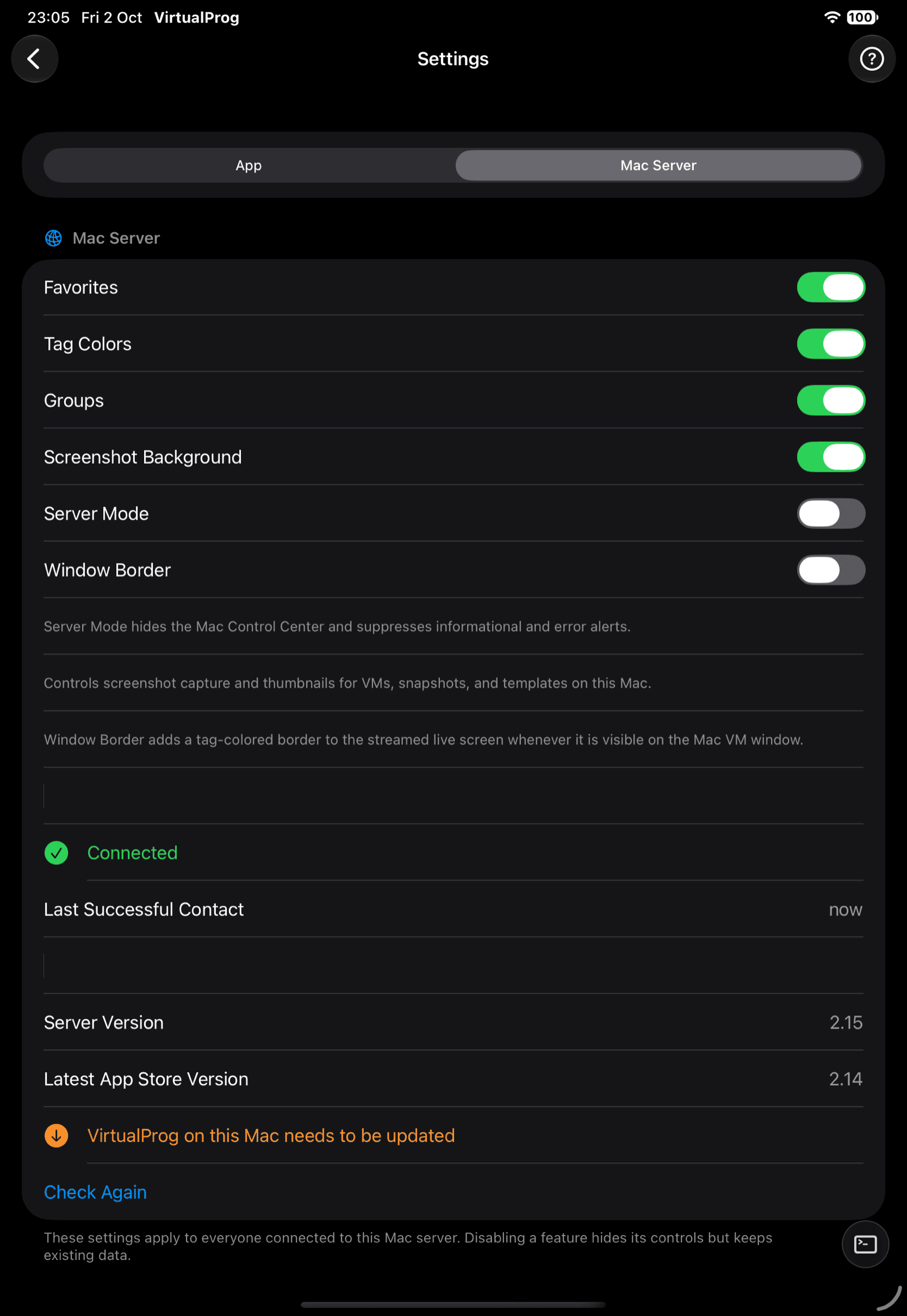
Favorites, Tag Colors, Groups, Screenshot Background, Server Mode, and Window Border show the current settings from the connected Mac and apply to everyone using that server. Changes take effect immediately. Only the master token can edit them; scoped tokens can view the values. Disabling Favorites, Tag Colors, or Groups hides its controls but keeps existing data.
Enabling Server Mode hides the Mac Control Center and suppresses informational and error alerts; changing it requires confirmation. Screenshot Background controls Mac screenshot capture and iOS VM-card thumbnails; disabling it also clears cached thumbnails from the app. Window Border adds the VM's tag-colored border to the streamed live screen whenever it is visible on the Mac VM window. If a value is unavailable, update the Mac server to a version that supports remote settings.
Settings shows the Mac's VirtualProg version and whether an App Store update is available. iOS warns after connecting if an update is needed; if status can't be checked or the server is too old, Settings explains that.
Settings also shows whether the connection to the Mac is currently healthy — Connected or Connection Issue — with the time of the last successful contact, covering any activity in the app, not just this screen.
🎨 Appearance
| Setting | Description |
|---|---|
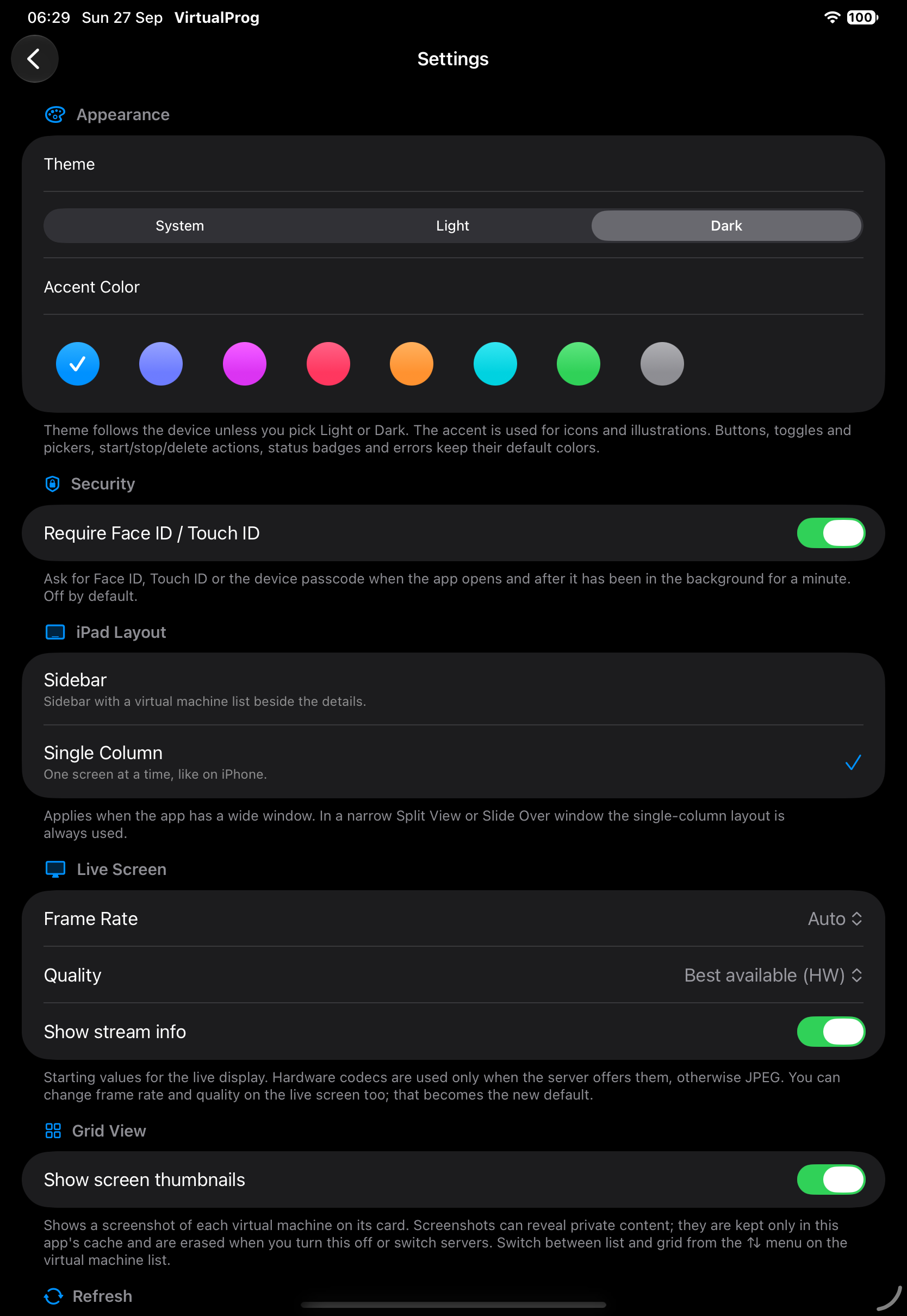
| Theme | System follows the device; or force Light or Dark. Applies to the whole app, including menus and sheets |
| Accent Color | Eight colors for icons and illustrations. Buttons, toggles and status colors keep their defaults |
🛡️ Security
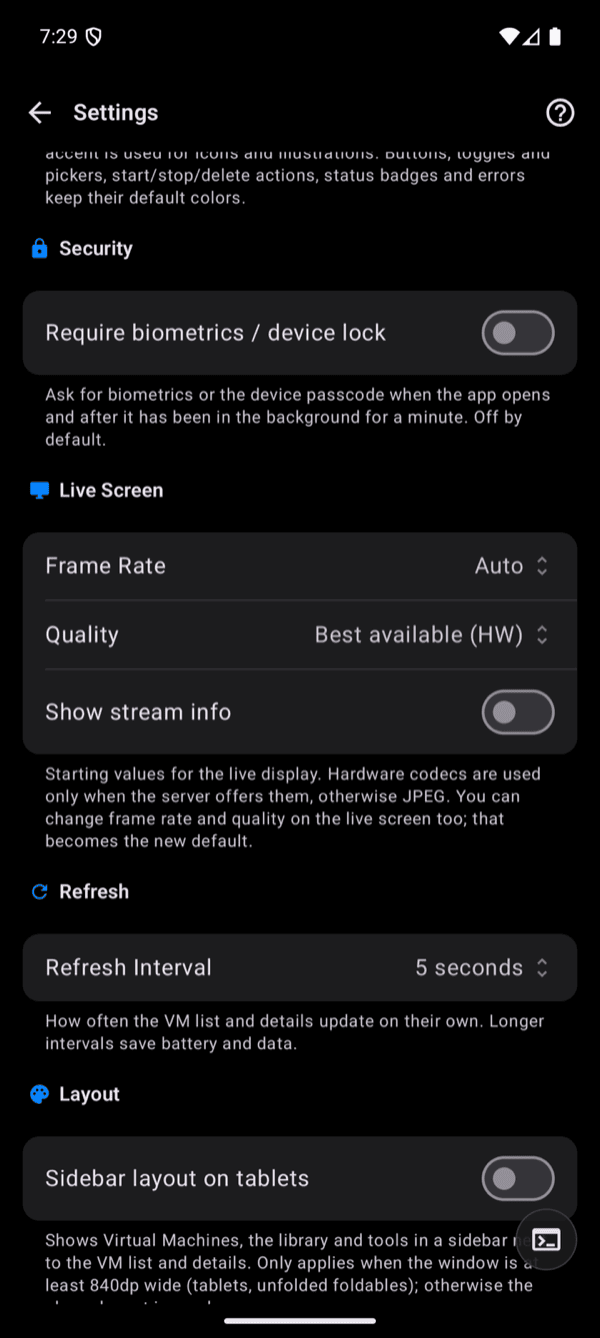
Require Face ID / Touch ID (Android: Require biometrics / device lock) locks the app when it opens and after a minute in the background. Off by default. See Security.
🖥️ Layout (iOS and Android tablets)
Choose Sidebar (when space allows) or Single Column below. Sidebar mode is used when the available window width is at least 700 points; below that width, the app uses one screen at a time. Single Column always keeps one screen at a time, even in a wide window.
Turn on Sidebar layout on tablets. It is off by default and only applies when the window is at least 840 dp wide, so a phone — or a tablet in a narrow split-screen window — always uses the one-screen layout. The sidebar shrinks to an icon rail below 1000 dp, and you can drag the divider between the VM list and the details to resize the list.
| Option | Description |
|---|---|
| Sidebar (when space allows) | Uses split navigation when the available width is at least 700 points |
| Single Column | One screen at a time, even in a wide window (default) |
While a live screen or terminal is open, the sidebar and list slide away to give it the whole window.
📺 Live Screen
Starting values for the live screen.
| Setting | Default |
|---|---|
| Frame Rate | Auto |
| Quality | Best available (HW) |
| Show stream info | Off |
🔄 Refresh
| Option | Description |
|---|---|
| 2 s, 5 s, 15 s, 30 s | How often the VM list and details update on their own. Default 5 s; longer saves battery and data |
| Manual | Update only when you tap Refresh or pull down |
💻 Command Line
Show floating button turns the round terminal button on or off. The command line stays available
from the ⋯ menu, the iPad or tablet sidebar, and ⌃** / **⌘ (on Android, Ctrl+** or
**Meta+) on a hardware keyboard.