USB
Choose USB devices from your Mac that are connected to the virtual machine before it boots (macOS 27 Golden Gate or later). The VM can then start from a USB disk or install an operating system onto one. It works for macOS, Linux, and Windows VMs.
📸 Screenshot:
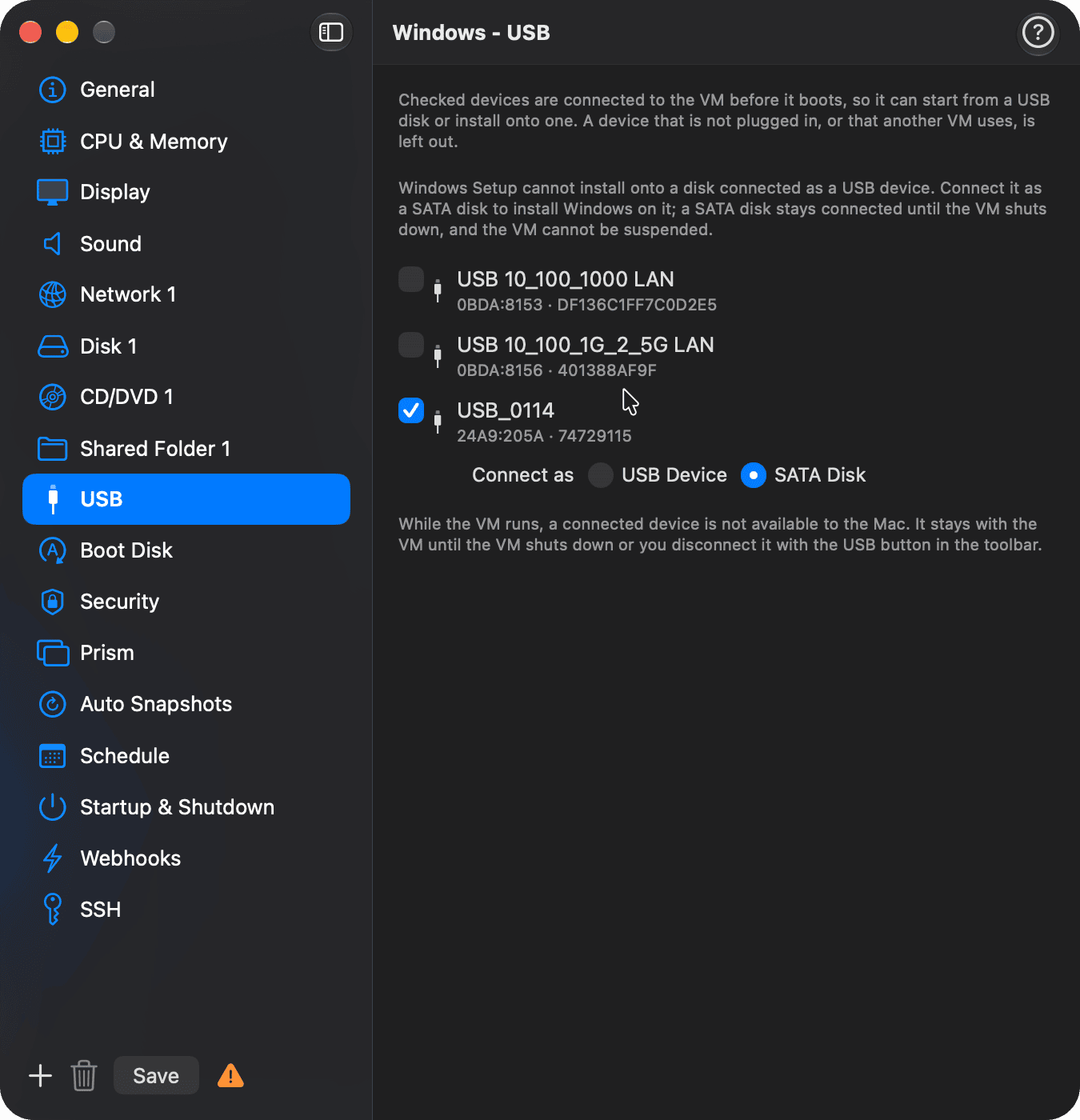
Fields
| Field | Description |
|---|---|
| Device list | Every USB device plugged into your Mac, with a checkbox. Check a device to connect it each time the VM starts. |
| Details | The device's vendor and product ID (VVVV:PPPP) and its serial number, when it has one. VirtualProg finds the device again by these, even on a different USB port. |
| Not plugged in | A checked device that isn't plugged in now. It stays in the list, so the choice is kept for the next time you plug it in. |
| Connect as (Windows, USB disks) | USB Device (default) passes the disk through as a USB device. SATA Disk shows it to Windows as an internal SATA disk, so Windows Setup can install onto it. |
Usage Notes
- USB Passthrough must be on in Settings → Advanced. When it is off, the tab shows a warning and no devices are connected.
- Devices are connected when the VM starts from a shutdown. On resume, macOS and Linux VMs don't reconnect them; attach them with the USB Devices toolbar button. Windows VMs reconnect the devices they had when suspended.
- A device that isn't plugged in, or that another VM is already using, is skipped and the VM starts without it. The VM log says which devices were connected.
- While the VM runs, your Mac can't use a connected device. It goes back to the Mac when the VM shuts down, or when you disconnect it with the USB Devices toolbar button.
- Linux: you can install onto a USB disk and start the VM from it.
- macOS: the VM starts from its own disk, but you can install macOS onto a connected USB disk as well, as on a Mac: run the macOS installer in the VM and choose the USB disk. The VM's main macOS stays on its own disk. Other USB devices work too.
- Windows: Windows Setup can't install onto a disk connected as a USB device. Choose Connect as → SATA Disk to install Windows on a USB disk and start from it; Windows sees it as VirtualProg SATA Disk. A SATA disk stays connected until the VM shuts down: it isn't in the USB Devices menu, and the VM can't be suspended. Installing erases the disk.
- A SATA disk is slower than a disk image: expect roughly the USB drive's own speed. A few USB 3 drives speak only UAS and can't be used as a SATA disk; the VM then doesn't start, and the VM log says why.
- Templates have a USB tab too: every VM created from the template gets its devices. Only one running VM can use a device at a time; another VM starts without it. A snapshot shows its devices read only.
- You can also choose the devices from the web dashboard (VM configuration → USB), the iOS and
Android apps (Configuration → USB), and the command line (
vpvm config usb). There, a change is saved at once, and the VM must be shut down. On the command line,--connect-as satachooses SATA Disk.