🔍 VM Details
Tap a VM in the list or grid to open it.
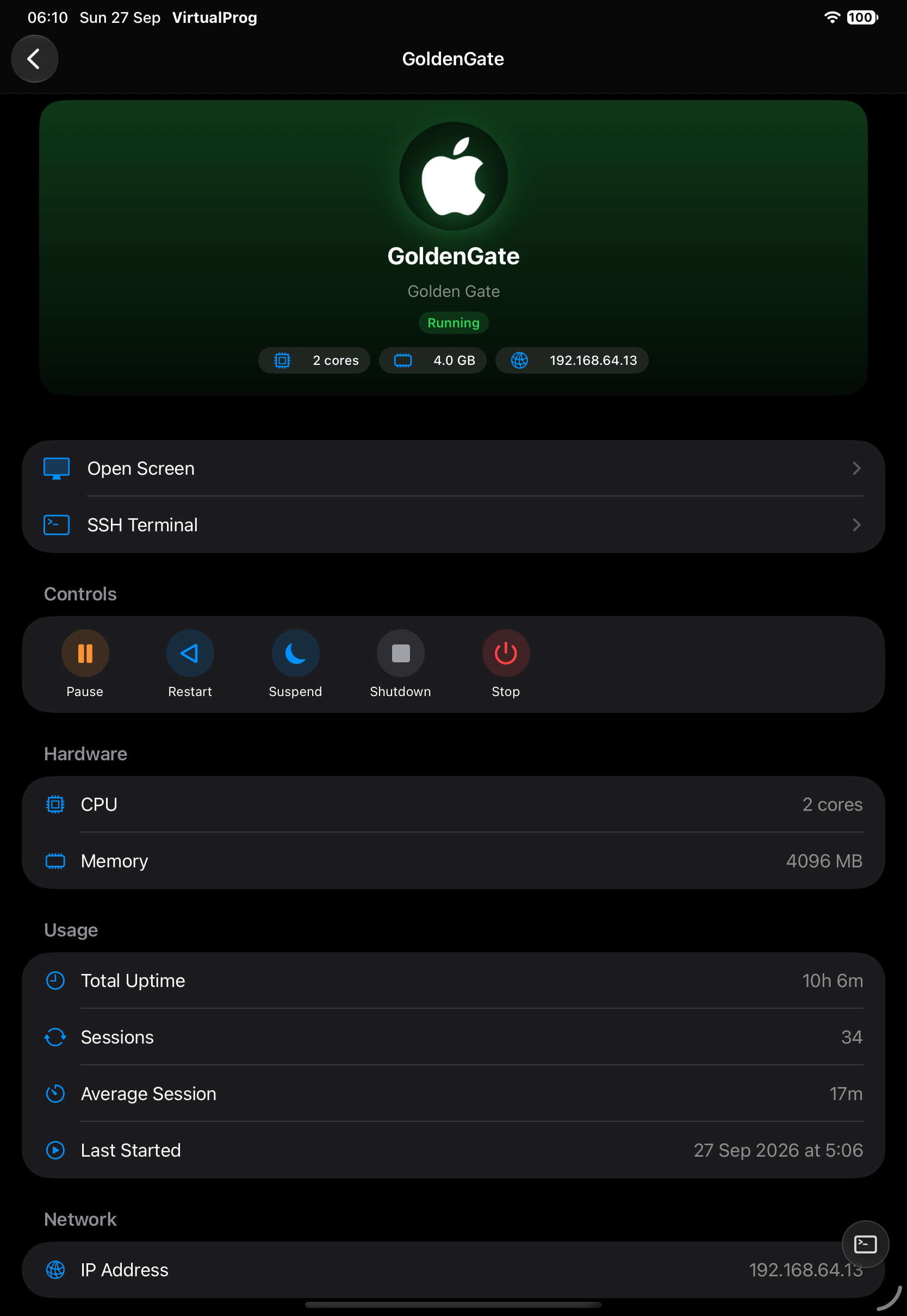
| Section | What it shows |
|---|---|
| Toolbar | ★ Favorite toggle and a 🏷️ Tag Color menu, alongside Help, manual refresh, and — on iPad — a button to open these details in their own window |
| Header | Icon, name, state, CPU, memory and IP address |
| Connect / SSH Terminal | Opens the live screen or an SSH terminal. On iPad, long-press either — or tap its ••• button — to open it in its own window |
| Controls | Buttons that depend on the state — see below |
| Hardware | CPU and memory; Memory Balloon for a running VM — see Live Screen |
| Usage | Total uptime, sessions, average session and last started |
| Network | IP addresses |
| Snapshots | Opens Snapshots for this VM. On iPad, tap its ••• button to open it in its own window |
| Checkpoints | Opens Checkpoints for this VM — needs a macOS 27+ Mac. On iPad, tap its ••• button to open it in its own window |
| Logs | Opens this VM's Logs. On iPad, tap its ••• button to open it in its own window |
| USB Devices | Attach or detach USB devices — needs a macOS 27+ Mac and a running VM — see Live Screen |
| Serial Ports | One row per configured serial port, by name — see Serial Console |
| Configuration | Opens the Advanced Configuration editor for this VM |
| Create Template | Turns this VM into a reusable Template |
| Linked Clones | See below |
Controls
| State | Available controls |
|---|---|
| Stopped | Start |
| Running | Pause, Restart, Suspend, Shutdown, Stop |
| Paused / Suspended | Resume, Stop |
| Installing | Stop, and Connect to watch the installation |
Shutdown asks the guest to shut down cleanly; Stop powers it off immediately. Suspend is available on Apple Silicon.
🔗 Linked Clones
A linked clone forks a VM instantly without copying its disks; it stores only its own changes. In the Linked Clones section, tap Create Linked Clone. A clone shows a link badge with its parent's name — tap it to jump to the parent. This needs a macOS 27+ Mac.
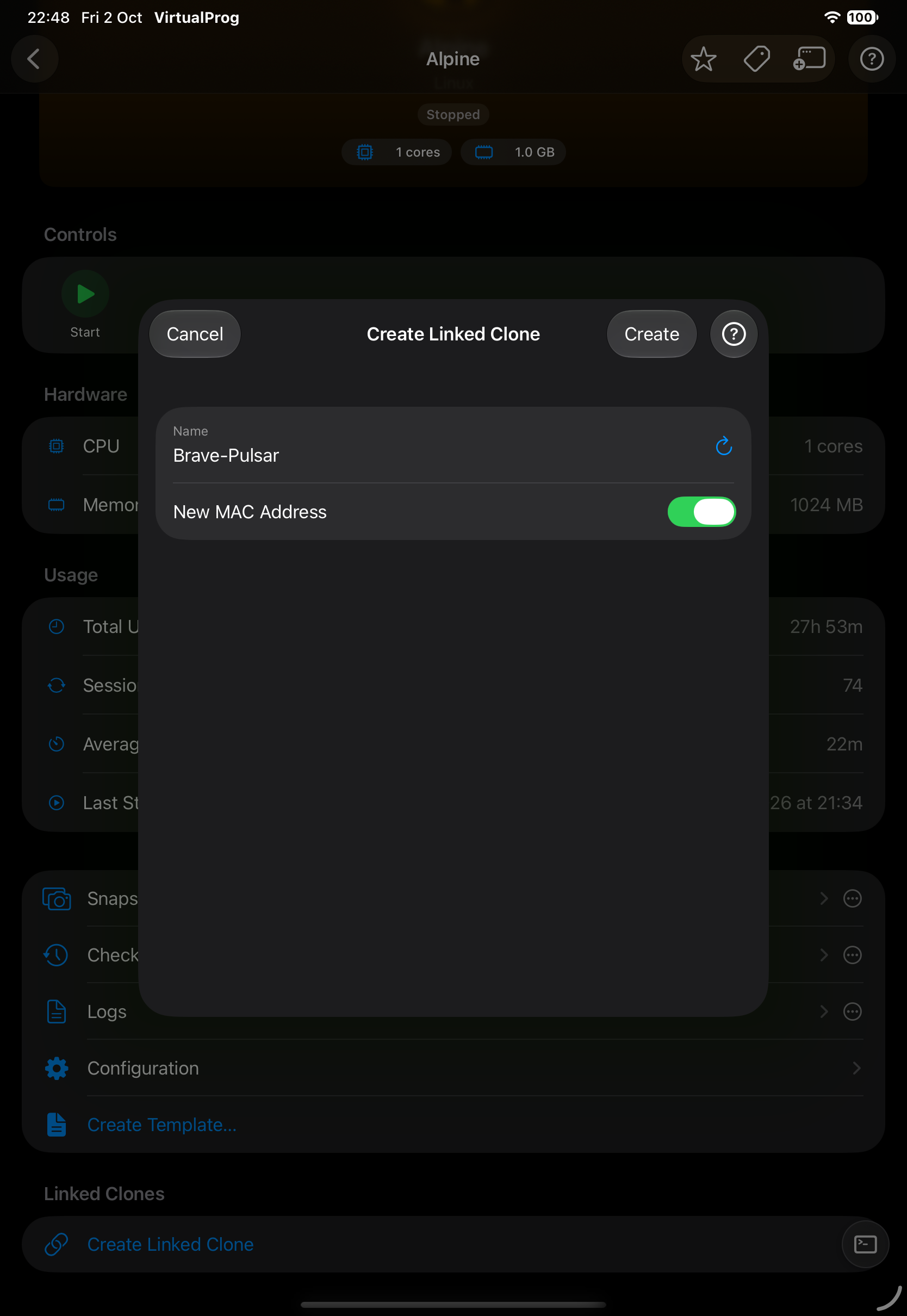
Clones can be cloned again to any depth. A parent with clones cannot be deleted until its clones are removed.
Note: A linked clone's disk is a chain of layers, not a standalone file, so a clone itself can't be snapshotted, exported, or turned into a template — only a full VM can.
See the family tree of every clone and its parent in Linked Clone Topology.