📋 Logs
Logs shows what VirtualProg has recorded — application events and per-VM activity. Open More → Tools → Logs (iPad: Tools → Logs). A VM's own logs are also under Logs in its details.
Note: Logging must be enabled on the Mac (Settings → Advanced → Logs). If it is off, the screen says so.
🗂️ Sources
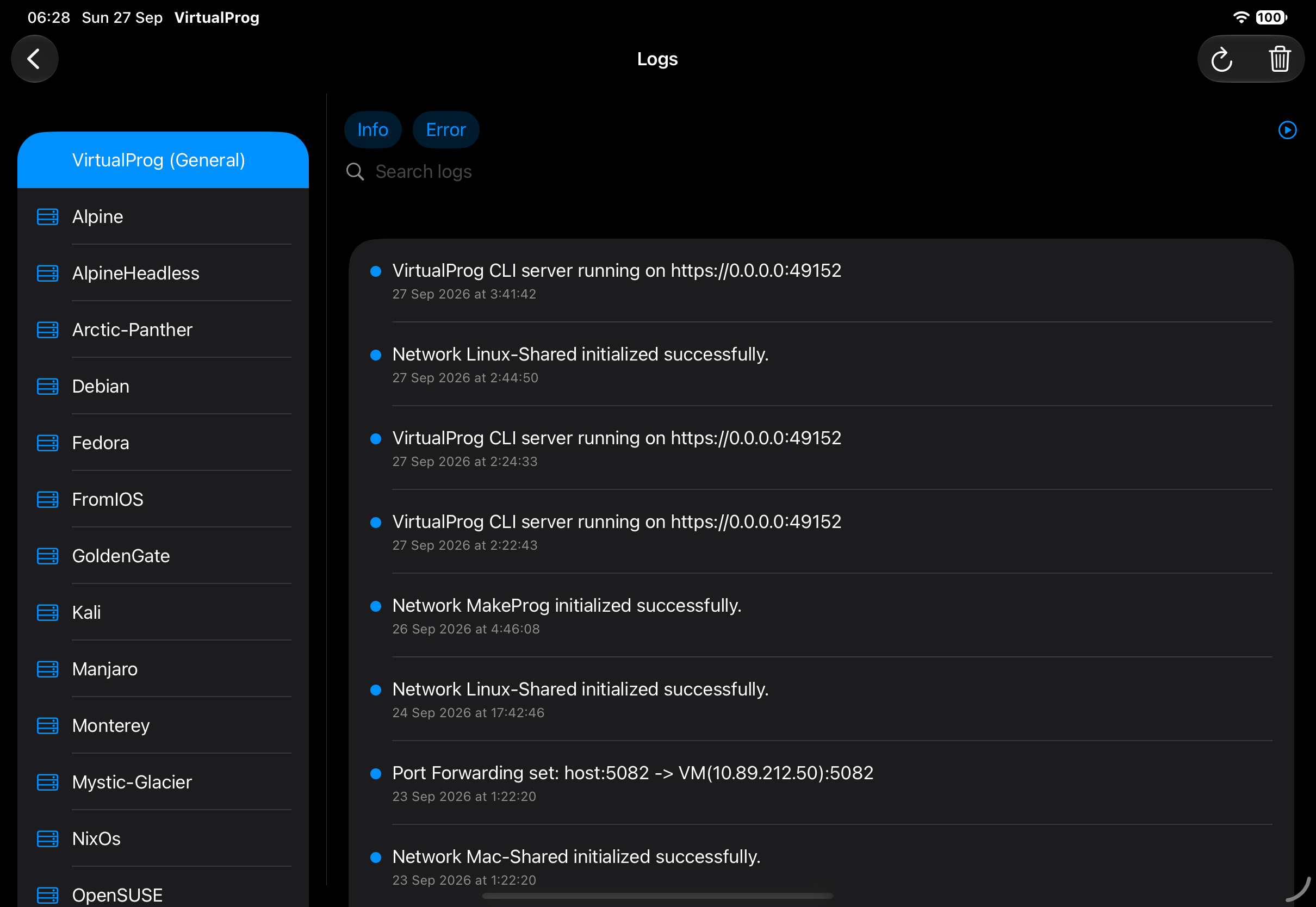
The screen opens on VirtualProg (General) — messages that don't belong to a single VM, such as network and app events. Switch to any VM to see only its entries.
- iPhone — tap the source name in the title bar and pick from the menu (entry counts are shown).
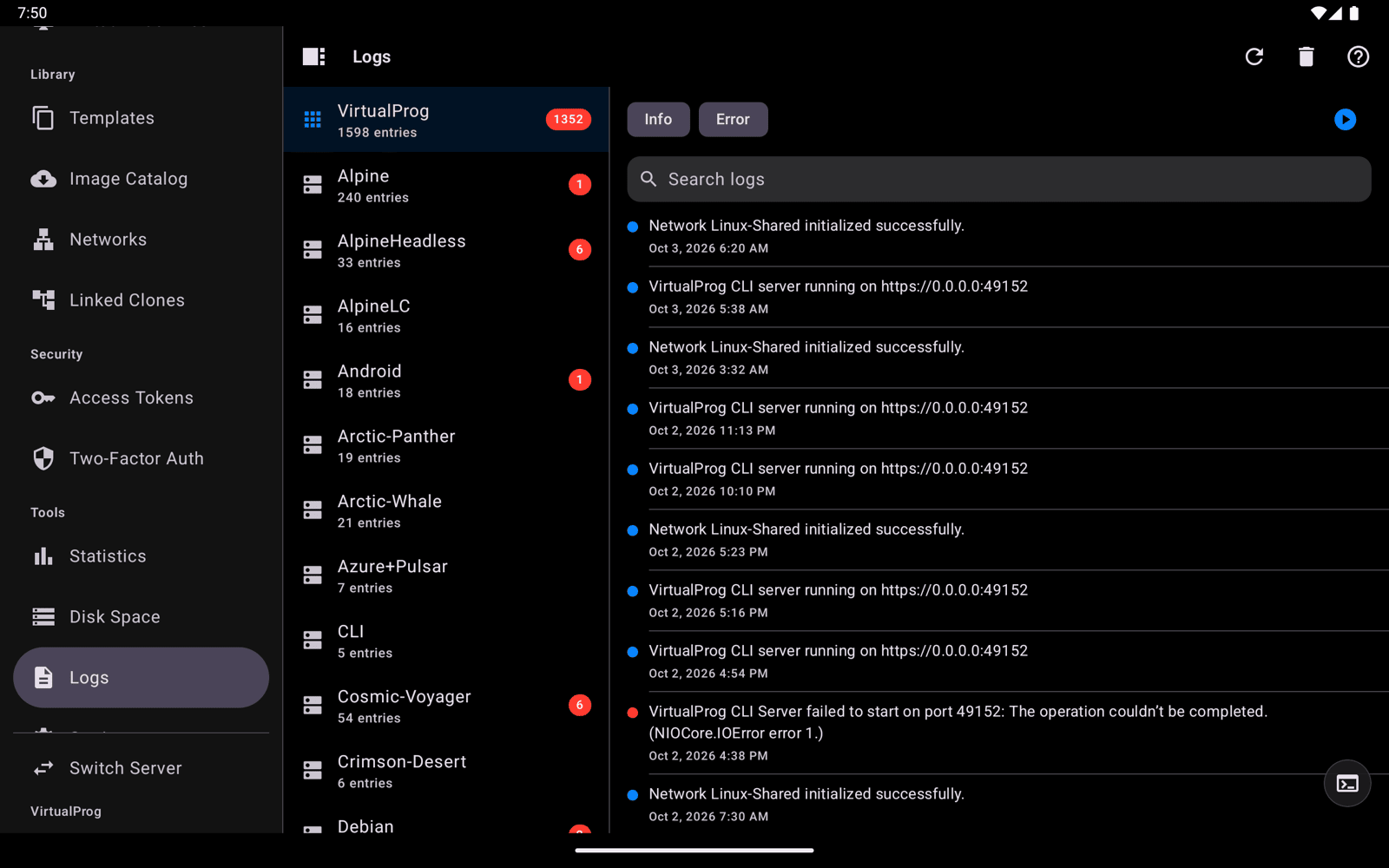
- iPad — pick from the source list on the left; a red badge shows how many entries are errors.
- Android — the same as iPad when the window is wide (a tablet, or an unfolded foldable): the source list is on the left. On a phone, pick the source from the title bar menu.
VMs you have since deleted still appear while they have log entries. Scoped tokens only see the VMs they are allowed to access, and VirtualProg (General) is available to tokens that cover all VMs.
🔎 Reading Logs
| Control | Description |
|---|---|
| Info / Error | Show or hide each type. Errors have a red dot; everything else is blue |
| Search | Filter entries by text |
| Follow (▶) | Stream new entries live as they are written; tap again to stop |
| Refresh | Reload the latest 500 entries |
| Delete | Remove the logs for the selected source (asks for confirmation) |
Entries are shown newest first. On iPad (Android has no separate windows), tap the window button in the toolbar to open the full Logs screen — source list and detail together — in its own window.