Windows Virtual Machines
VirtualProg runs Windows 11 ARM64 as a virtual machine on Apple silicon Macs. This page covers everything specific to Windows VMs — requirements, creating a VM, installing the drivers, display, networking, and day-to-day operation.
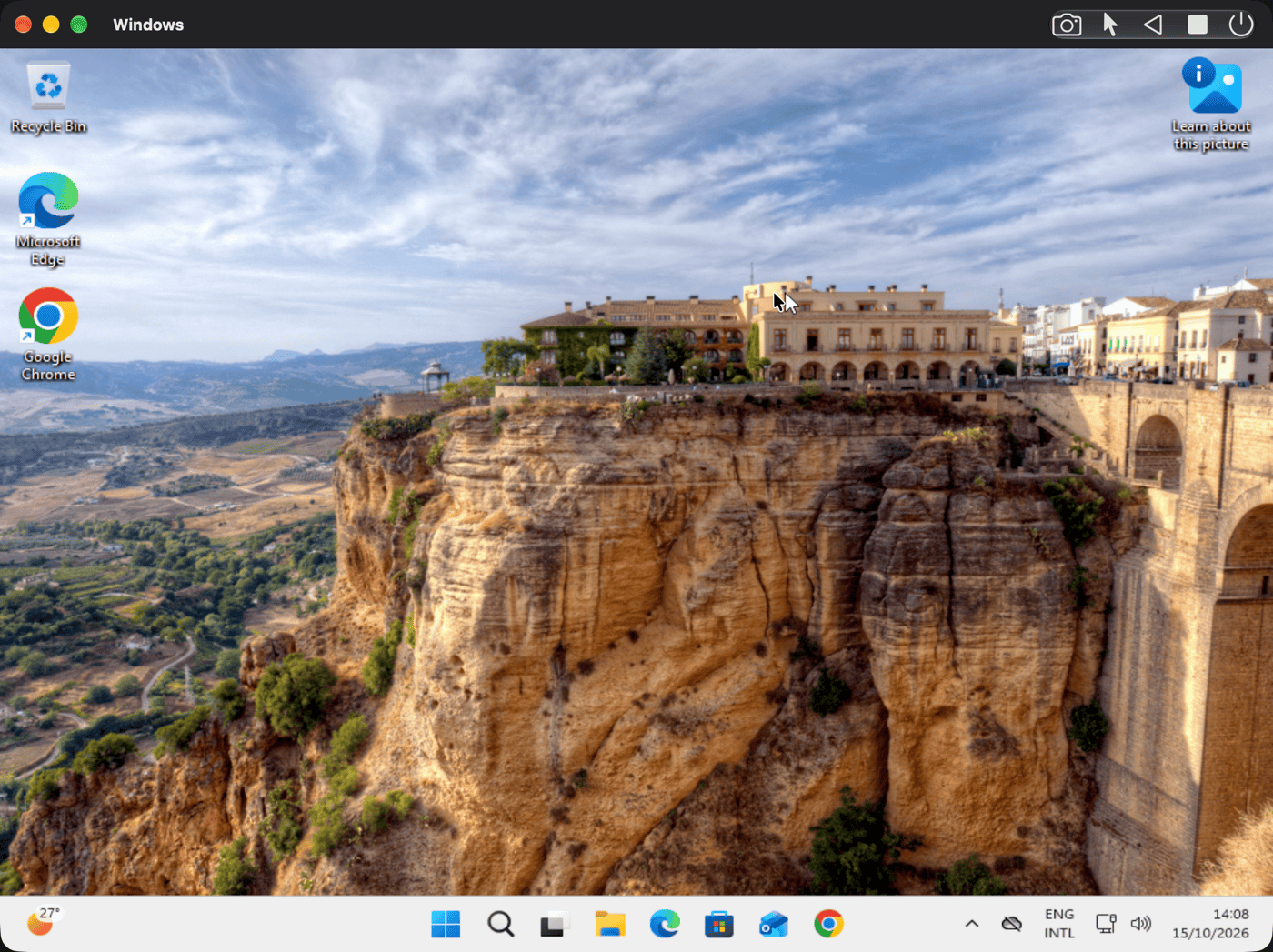
📸 Screenshot:
✅ Requirements
| Requirement | Details |
|---|---|
| Mac | Apple silicon (M1 or later). Intel Macs are not supported for Windows VMs. |
| Windows | A Windows 11 ARM64 installer .iso file. |
| Disk | Dynamic or fixed, as for macOS and Linux VMs. |
| Drivers | The VirtIO Drivers CD/DVD, attached automatically to every new Windows VM. |
💡 The Windows option appears in the OS pickers only on Macs that support Windows VMs.
➕ Create a Windows VM
Before you create the VM, get the installer ready:
- Download the Windows 11 ARM64 installer
.isofrom Microsoft's official website. - Add it to the Image Catalog: click +, choose Local File, enter a
display name, select ISO, then click Choose File and pick the downloaded
.iso. VirtualProg copies it into the images folder.
Then create the VM:
- Click Quick Create in the Control Center, or ➕ for the full configuration wizard.
- Enter a Name and select Windows as the OS.
- Select your Windows 11 ARM64 installer
.isoas the boot image. - Set Processors, Memory (MB), and Disk Size (GB). See CPU & Memory for guidance.
- Click Create, then start the VM and follow Windows Setup.
New Windows VMs automatically receive the VirtIO Drivers ISO as a separate CD/DVD, which stays attached so you can install drivers after setup.
You can also create Windows VMs remotely:
- Web dashboard — choose Windows 11 ARM64 as the OS in Create VM.
- iOS and Android apps — see Create a VM.
- Command line — use
--os windows, for example:
See Command Line for all vpvm create options.
🖥️ Display and Resolutions
Windows VMs offer your Mac monitor's resolutions, the same list used for macOS and Linux VMs. Choose the resolution in the VM's Display configuration.
Until the VirtIO GPU driver (viogpudo) is installed, Windows draws through the firmware
display, which supports only a few standard modes such as 1920 × 1080, 1024 × 768 and
800 × 600. Other resolutions can look garbled or tiled until the driver is loaded. Install
the display driver after Windows Setup to use every resolution.
With Auto Resolution selected in the Display configuration, Windows follows the size of the VM window, as macOS and Linux VMs do. Resize the window, enter full screen, or pick a size from the 🖥️ Set Display Resolution button in the toolbar. The web viewer and the iOS and Android apps offer the same resolution picker and Fit to Window / Fit to Screen. Windows needs the display driver and the resize service below.
🧩 Install the Display Driver
After Windows Setup, install the VirtIO GPU display driver from the VirtIO Drivers CD/DVD:
- Finish Windows Setup and sign in to the desktop.
- Right-click Start and choose Device Manager.
- Expand Other devices, right-click Video Controller, and choose Update driver.
- Choose Browse my computer for drivers, click Browse…, select the VirtIO Drivers drive
(for example
D:), open theviogpudo\w11\ARM64folder, and click Next. - Allow the installation if Windows asks. The screen may flicker briefly; the adapter then appears as Red Hat VirtIO GPU DOD Controller.
- Restart Windows if prompted. You can now pick any of your Mac monitor's resolutions in Settings > System > Display > Display resolution.
Install the Resize Service
For Auto Resolution, Windows also needs the VioGpu Resolution Service, which ships with the display driver on the same CD/DVD. It switches Windows to the size VirtualProg asks for.
- Copy the
viogpudo\w11\ARM64folder from the VirtIO Drivers CD/DVD to a permanent place, for exampleC:\Program Files\VioGpu. The service keeps running from there, also after the CD/DVD is removed. -
Open PowerShell as administrator in that folder and run:
-
.\vgpusrv.exe statusshows whether it runs. It starts with Windows from now on. To remove it, run.\vgpusrv.exe -u.
🌐 Networking
Windows VMs have one extra network setting, Adapter: USB (NCM), the default, uses
Windows' built-in driver; VirtIO (PCI) needs the NetKVM driver from the VirtIO Drivers CD/DVD,
in the NetKVM\w11\ARM64 folder, installed the same way as the display driver.
💡 After changing a Windows VM's MAC address, disable and re-enable the network adapter in Windows so that it uses the new address.
💡 Windows Firewall blocks most incoming connections. To reach a forwarded port, such as Remote Desktop (3389), allow the app or port in Windows Security > Firewall & network protection.
See Network for all network options.
🔑 IP Address and SSH
While a Windows VM runs, its IP address is shown in the VM list, the web dashboard, the iOS and
Android apps, Network Topology, and vpvm info. The SSH terminal in the web dashboard and the
mobile apps works too, once Windows' built-in OpenSSH Server is turned on:
- In Windows, open Settings > System > Optional features, select View features, and add OpenSSH Server.
-
In PowerShell run as administrator, start the server and make it start with Windows:
-
Sign in with your Windows user name and password. Save them in the VM's SSH configuration so you aren't asked each time.
🧠 Memory Balloon
With Memory Balloon on in the VM's CPU & Memory configuration, you can lower or raise the
memory available to a running Windows VM, as for Linux VMs — from the 🧠 button in the VM
window toolbar, the VM list's context menu, the web dashboard, the iOS and Android apps, or
vpvm balloon. The setting applies the next time the VM starts.
Windows needs the VirtIO Balloon driver from the VirtIO Drivers CD/DVD. In Device Manager,
right-click the PCI Device under Other devices, choose Update driver, and select the
Balloon\w11\ARM64 folder, the same way as the display driver. Until the driver is installed,
changing the balloon has no effect.
💡 Not sure which device is which? Open the device's Properties > Details > Hardware Ids:
DEV_1002is the Memory Balloon andDEV_1003is the VirtIO Serial device used for Clipboard Sharing.💡 Unlike Linux, Windows' Task Manager keeps showing the full configured memory. The memory the balloon takes back appears as In use inside Windows, while the Mac gets it back.
📋 Clipboard Sharing
With Share Clipboard on in the VM's Security configuration, you can copy and paste text and images between your Mac and Windows in both directions. The setting applies the next time the VM starts. Windows needs two pieces, installed once:
- VirtIO Serial driver — in Device Manager, right-click the PCI Simple Communications
Controller under Other devices, choose Update driver, and select the
vioserial\w11\ARM64folder on the VirtIO Drivers CD/DVD, the same way as the display driver. - SPICE Agent — download the installer directly:
spice-vdagent-x64-0.13.0.msi
and run it in Windows. It runs on Windows 11 ARM64 through Windows' built-in x64 emulation.
Then restart Windows, or start the Spice Agent service in Services (
services.msc).
💡 If copy and paste stops working, check in Services that Spice Agent is running.
🔌 USB Devices
With USB Passthrough turned on in Settings (macOS 27 Golden Gate or later), you can attach USB
devices connected to your Mac to a running Windows VM, as for macOS and Linux VMs. Use the USB
Devices button in the VM window, the VM's context menu, the Virtual Machine menu, the web
dashboard, the iOS and Android apps, or vpvm usb. Windows installs its own driver for the
device. While a device is attached, your Mac can't use it; detach it, or unplug it, to give it back.
💡 Webcams, USB audio interfaces, and other devices that stream audio or video don't work yet. USB 3 drives use the standard USB mass-storage protocol in Windows.
💽 Disks and CD/DVD
- Windows VMs support dynamic and fixed disks. You can add more disks in the Disk configuration.
- The VirtIO Drivers ISO is attached as its own CD/DVD. You can attach additional ISO images under CD/DVD.
- 🔌 Hot-plug CD/DVD and disks while running: use the 💿 Attach Disks toolbar button. No restart is needed. Windows sees each device as a USB mass-storage drive.
- ISO: attaches as a read-only CD/DVD.
- IMG: attaches as a raw disk image, read/write. Use raw
.imgfiles, not.asif. - ⏏️ Eject Disk: removes a device you attached this session. The eject is immediate, like pulling a USB drive without Safely Remove. Unsaved guest writes can be lost, so close files and flush first.
- Attaching a second CD/DVD can take a few seconds while Windows enumerates it and mounts the volume. This is normal.
- Attached disks are session-only and are cleared when the VM stops.
- Windows shows each attached device as Virtual Prog CD/DVD USB Device (or Virtual Prog Disk USB Device) in Device Manager.
- Explorer may need F5 to show new media after a replug.
⏻ Start, Shut Down, and Restart
| Action | Behavior |
|---|---|
| Start | Boots the VM and opens its window (or runs it headless if configured). |
| Shutdown | Sends a power-button request, so Windows shuts down normally. |
| Restart | Shuts Windows down and starts it again; the VM window stays open. |
| Stop | Stops the VM immediately. Unsaved work in Windows is lost. |
| Pause / Resume | Freezes the VM in memory and continues it later, as for macOS and Linux VMs. Windows does not see the paused time. |
| Suspend | Saves the VM's state to disk and stops it. Start (shown as Resume) continues where Windows left off. |
While Windows shuts down, its screen stays visible with a small Shutting down… badge, so you can answer any prompt Windows shows, such as apps that block shutdown. If Windows has not shut down after 90 seconds, VirtualProg suggests using Stop.
💡 Shutting down or restarting from inside Windows (Start > Power) works the same way; the VM window closes when Windows has finished shutting down.
Pause and Suspend work from the VM window, the VM list, the menus, the web dashboard, the iOS
and Android apps, and vpvm pause / vpvm suspend. Mac Sleep, Mac Shutdown, VM
Close, Inactivity, and Battery % in Startup & Shutdown can pause or suspend a Windows
VM too; a VM paused by Mac Sleep resumes when the Mac wakes. Shutdown, Restart, and Stop also
work on a paused VM.
Suspend
Suspending writes the VM's memory and device state next to its disks, so it takes a few seconds per GB of memory. A suspended VM keeps its disks, UEFI settings, and TPM state exactly as they were, so its configuration, snapshots, and checkpoints cannot be changed until you resume it.
- Disconnect USB devices passed through to the VM before suspending it.
- Windows' clock does not move while the VM is suspended, as with Pause. Windows corrects it the next time it syncs with an internet time server.
- If the saved state cannot be restored (for example after an update that changed the virtual hardware), VirtualProg tells you, discards it, and starts Windows normally.
🧭 Checkpoints and Linked Clones
Checkpoints and Linked Clones work for Windows VMs as they do for macOS and Linux VMs, on dynamic and fixed disks (macOS 27 or later). Stop the VM first.
A Windows checkpoint also keeps the VM's UEFI settings and TPM state as they were. Restoring a checkpoint puts them back with the disk, and a linked clone starts with the ones from its fork point.
💡 A linked clone is an exact copy of Windows, with the same computer name. If it joins the same network as its parent, rename it in Windows (Settings > System > About).
📁 Sharing Files with Windows
Windows VMs can use Shared Folders from the VM configuration. You can also add or remove folders while the VM is running, and drag files into them. The folders are served by VirtIO-FS and are available inside Windows through WinFsp. For setup steps, see Windows Shared Folders.
You can also use Windows' built-in network sharing. Either option works while the VM is running and on the default NAT network.
🍎 Share a Mac Folder with Windows
On the Mac, open System Settings > General > Sharing, turn on File Sharing, and click the
(i) button. Under Shared Folders, click +, choose the folder you want to share, and
give your Mac user Read & Write access. In Windows, open File Explorer, right-click
This PC, choose Map network drive, and enter \\192.168.64.1\FolderName, replacing
FolderName with the shared folder's name and 192.168.64.1 with your Mac's address on the VM's
network if it differs. Sign in with your Mac user name and password, and tick Reconnect at
sign-in to keep the drive available.
🪟 Share a Windows Folder with the Mac
In Windows, right-click the folder you want to share, choose Properties > Sharing > Share...
(or Advanced Sharing and tick Share this folder), add your Windows user with Read/Write
permission, and click Share. Make sure the network is set to Private under Settings >
Network & internet, and that File and Printer Sharing is allowed in Windows Security >
Firewall & network protection. Then find the VM's IP address in VirtualProg, or run ipconfig
in Windows. On the Mac, choose Finder > Go > Connect to Server (⌘K), enter
smb://<windows-ip>/ShareName, and sign in with your Windows user name and password.
🚫 Not Available for Windows VMs
| Feature | Notes |
|---|---|
| Serial Ports | Not offered in the Windows configuration. |