Network Manager
The Network Manager window is where you create and configure the shared and host-only networks available to your virtual machines. Open it from Tools → Network Manager. Network Manager requires macOS 26 or later.
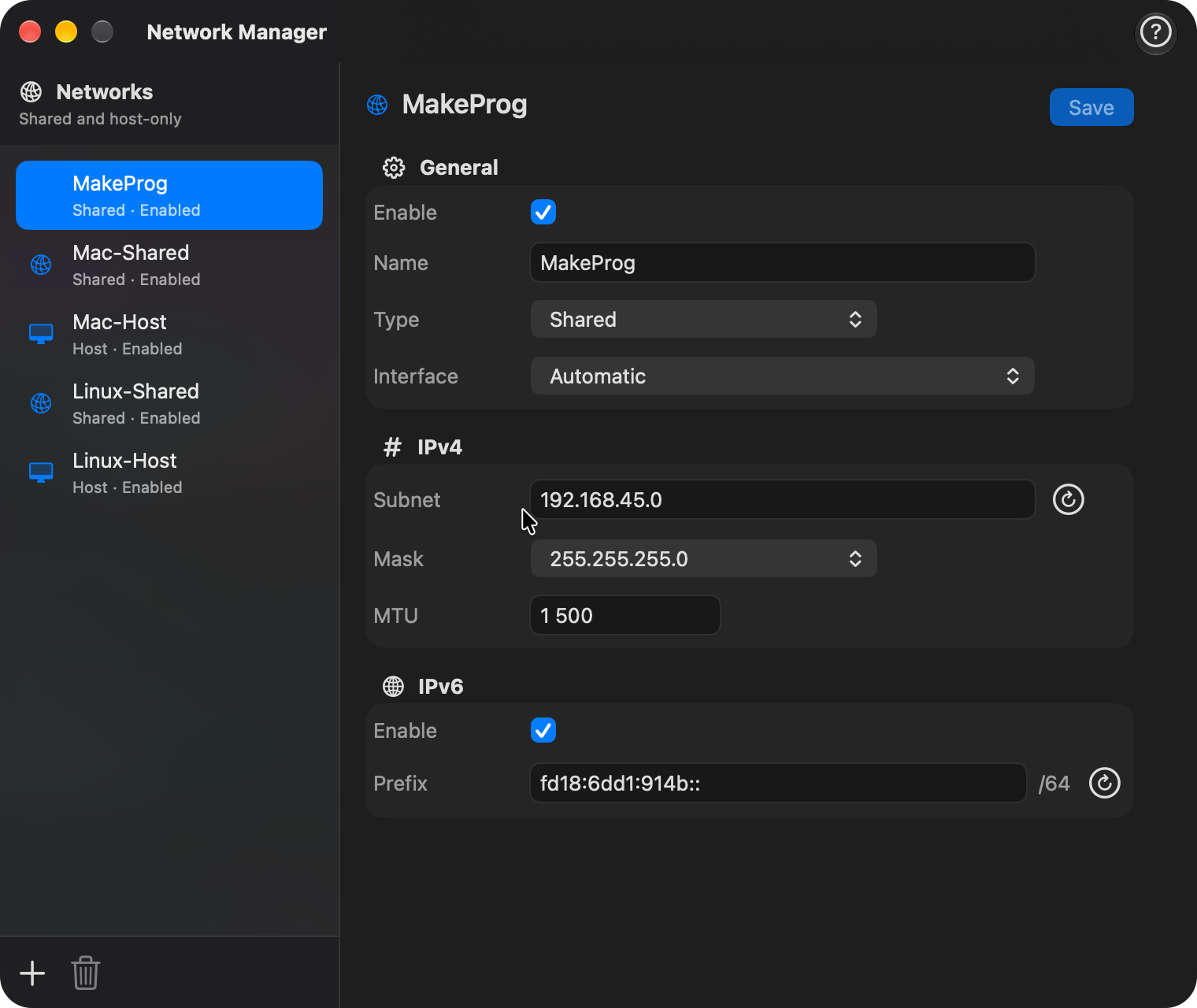
➕ Creating a Network
Click + at the bottom of the sidebar to add a new Shared network. The sidebar shows each network's name, type, and enabled state. Select a network to edit its settings.
⚙️ Configuration Options
The editor organizes settings into General, IPv4, and (for Shared networks) IPv6:
| Setting | Description |
|---|---|
| Enable | Turns the network on or off. |
| Name | Sets the name used when assigning this custom network to VM adapters. |
| Type | Chooses Shared or Host-only networking. |
| Interface | For Shared networks, selects a physical interface or Automatic. |
| Subnet | Sets the IPv4 subnet. Enter a valid local address ending in .0, or click the regenerate button. |
| Mask | Selects the subnet mask. |
| MTU | Sets the maximum transmission unit, from 1280 to 9000. |
| IPv6 | Enables IPv6 for a Shared network. |
| Prefix | Sets the IPv6 unique-local prefix. Enter a valid address beginning with fd, or click the regenerate button. |
💾 Saving Changes
Click Save to apply valid changes. The Save button becomes available when there are valid changes to save. An orange warning icon beside Save indicates unsaved changes or a validation error; click it to see the details.
Changing a network name or switching it from Shared to Host-only may also update VM configurations. VirtualProg lists the affected VMs and asks you to confirm before saving. Switching to Host-only clears the affected VMs' port-forwarding rules.
🗑️ Removing a Network
- Select the network in the sidebar.
- Click the Trash button at the bottom of the sidebar.
- Confirm that you want to remove the network.
A network cannot be removed while any saved VM configuration refers to it. Remove or reassign those VM network adapters first.
⚠️ Network in Use
The usage notice below the network name shows how many saved VMs use it. If any of those VMs are not stopped, the notice identifies the VM or shows the active VM count and explains that they must be stopped before editing. A network cannot be removed while any saved VM configuration refers to it; hover over the disabled trash button for guidance. Remove or reassign those adapters first.
💡 Network Manager and Network Topology
Network Manager changes host-level network definitions. To configure the adapters attached to one VM, edit that VM's configuration. Tools → Network Topology visualizes the current VM-to-network connections; it does not replace Network Manager for editing networks.