🖥️ Virtual Machines
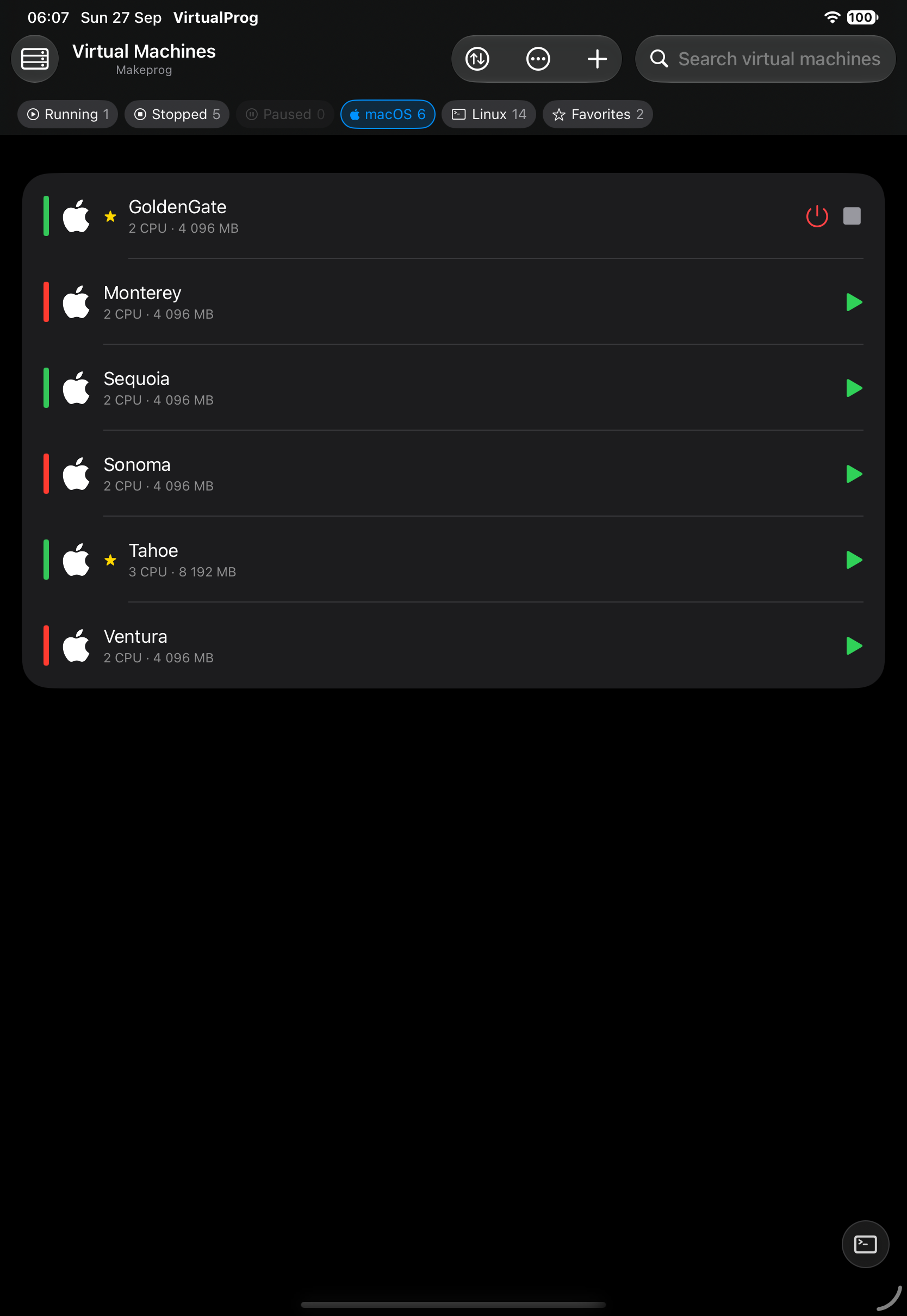
The Virtual Machines screen lists every VM on your Mac. Tap a VM to open its details; use the inline buttons to start or stop it without leaving the list.
📋 The List
Each row shows the OS icon, name, CPU and memory, a favorite star and its color tag. Running VMs show Stop and Shutdown buttons; stopped VMs show Start. A lock icon means the VM is password protected — tap it to unlock.
Pull down to refresh, or choose how often the list refreshes in Settings.
Each server remembers its own sort order, List/Grid choice and collapsed groups, so switching servers doesn't reset them. Your search and filters stay put when you open a VM and come back.
Starting, stopping and similar actions confirm briefly at the bottom of the screen ("UbuntuVM started") and give a light vibration; failures show an error instead. Stop (a hard power-off) always asks first, from the list, a group header, the VM details and the Live Screen. With no VMs yet, the empty list offers a Create Virtual Machine button.
Search, Filter & Sort
- Search — type part of a name.
- Filter chips — a single row under the toolbar that scrolls sideways: Running, Stopped, Paused, macOS, Linux and Favorites, each with a live count. Chips in the same group widen the result (Running + Stopped); chips from different groups narrow it (Running + Linux). A chip that would show nothing is dimmed. Tap a selected chip to turn it off, or choose Clear Filters in the ⇅ menu to reset them all. A fade at the right edge means more chips are off-screen, and a small number on the ⇅ icon tells you how many filters are on.
- Sort — open the ⇅ menu and choose Name, Status, CPU, Memory or Last Started, ascending or descending.
⭐ Favorites & Tag Colors
Favorites and Tag Colors follow the settings in the Mac app. Tap the star for Favorites; for Tag Color, long-press a VM (or tap its ••• button) in the list, Grid, or VM details. Disabling either setting hides its controls without clearing saved values.
🗂️ Groups
Groups are shared with the Mac app and appear in List and Grid when Groups is enabled in Mac Settings. Long-press a VM — or tap its ••• button — to assign, create, or remove a group; use the pencil in a group header to rename it. Group headers also offer Start, Stop, and Shut Down for eligible VMs. Ungrouped VMs appear under Default; search and filters apply to all groups.
Disabling Groups hides group sections without clearing assignments. Operators can view groups but cannot edit them. Admin access is limited to the token's VM scope; renaming requires full VM access.
👆 Swipe Actions
Android: swipe a row left to reveal the same buttons, or tap the ⋮ button on the row.
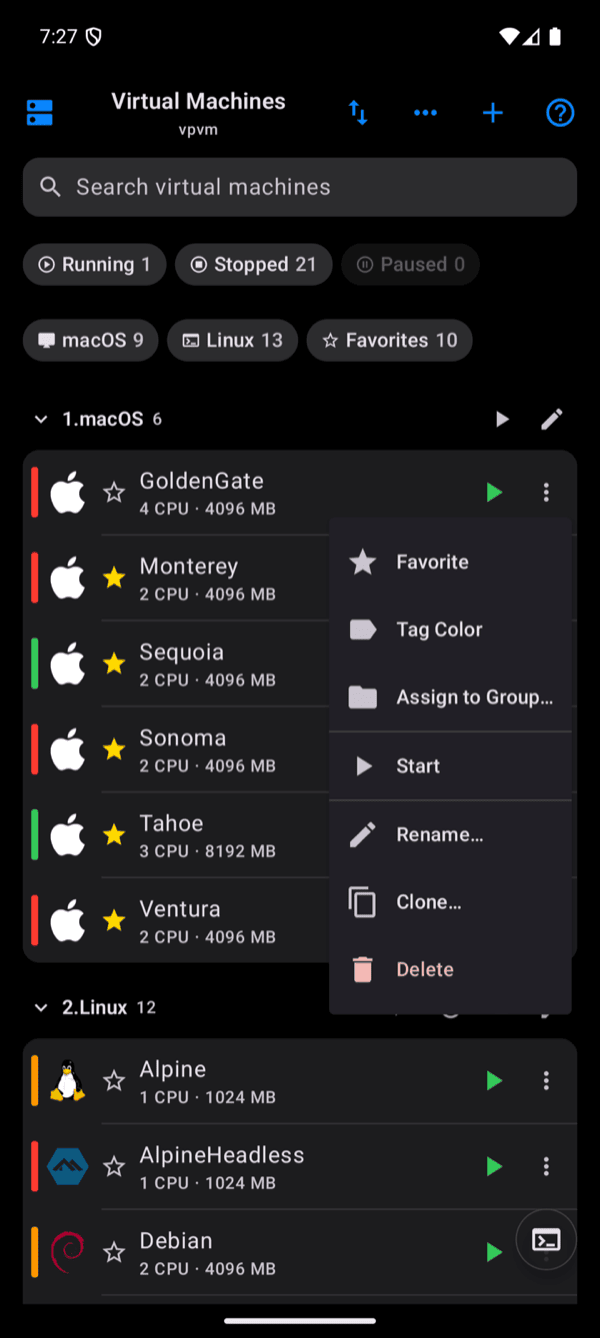
Swipe a stopped VM to Rename…, Clone… or Delete it (depending on your token's permissions), or tap its ••• button for the same actions plus Restart, Pause, Suspend (Apple Silicon only) and Resume — matching the ••• menu in Grid view. On iPad, the same menu opens with Open in Window, to view a VM's details in their own window without leaving the list.
⊞ Grid View
Open the ⇅ menu and choose Layout → Grid for cards with a screenshot of each VM. Tap a card to open it, tap the round button to start or shut it down, and long-press — or tap the card's ••• button — for more actions, including Open in Window (iPad), Restart, Pause, Suspend (Apple Silicon only), Rename, Clone and Delete.
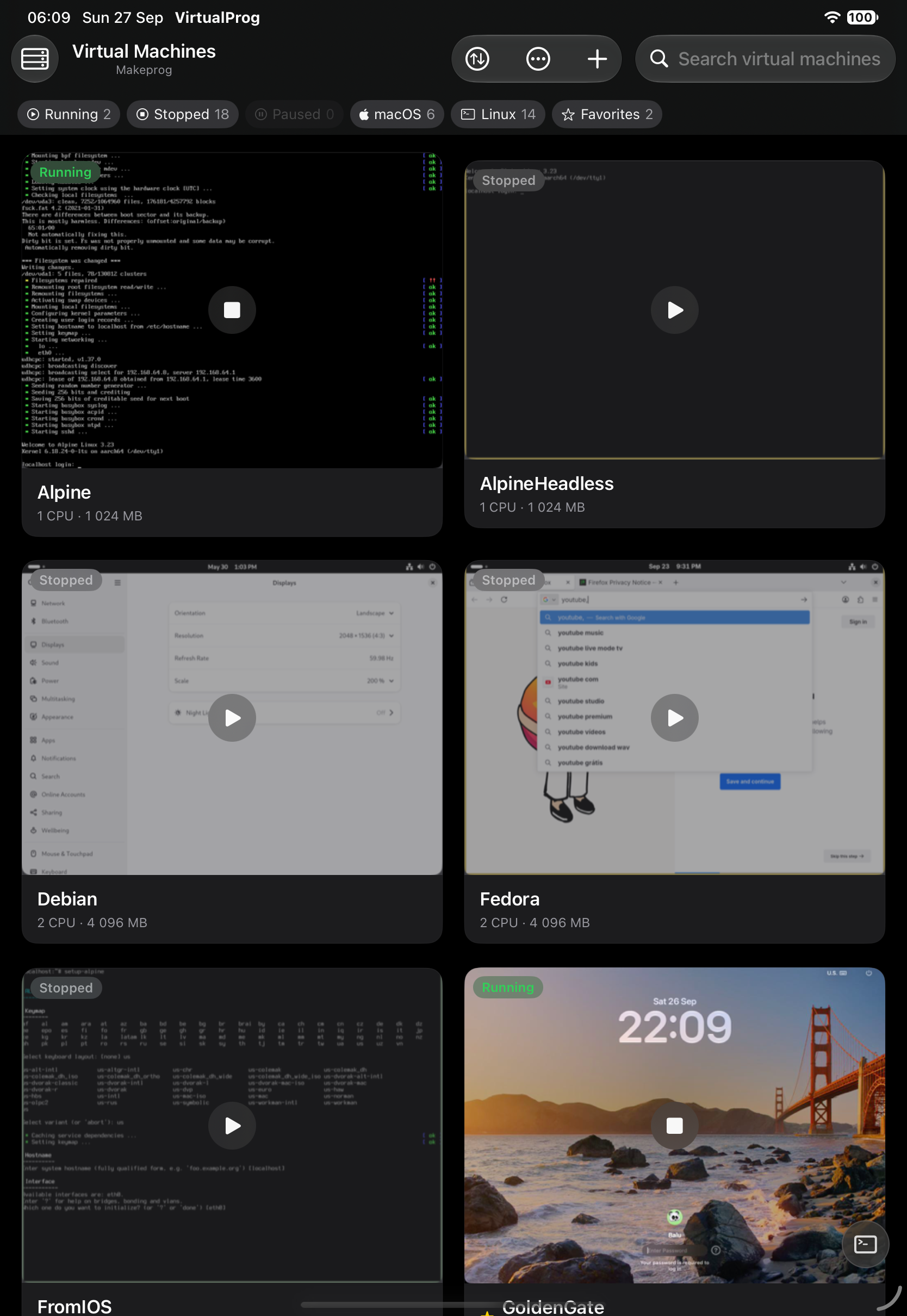
Screenshots come from the Mac: a live frame for running VMs and the last saved image for stopped ones. Turn them off in Settings if you prefer plain cards.
✅ Select & Bulk Actions
Choose Select in the ⇅ menu, tick several VMs and use the bottom bar.
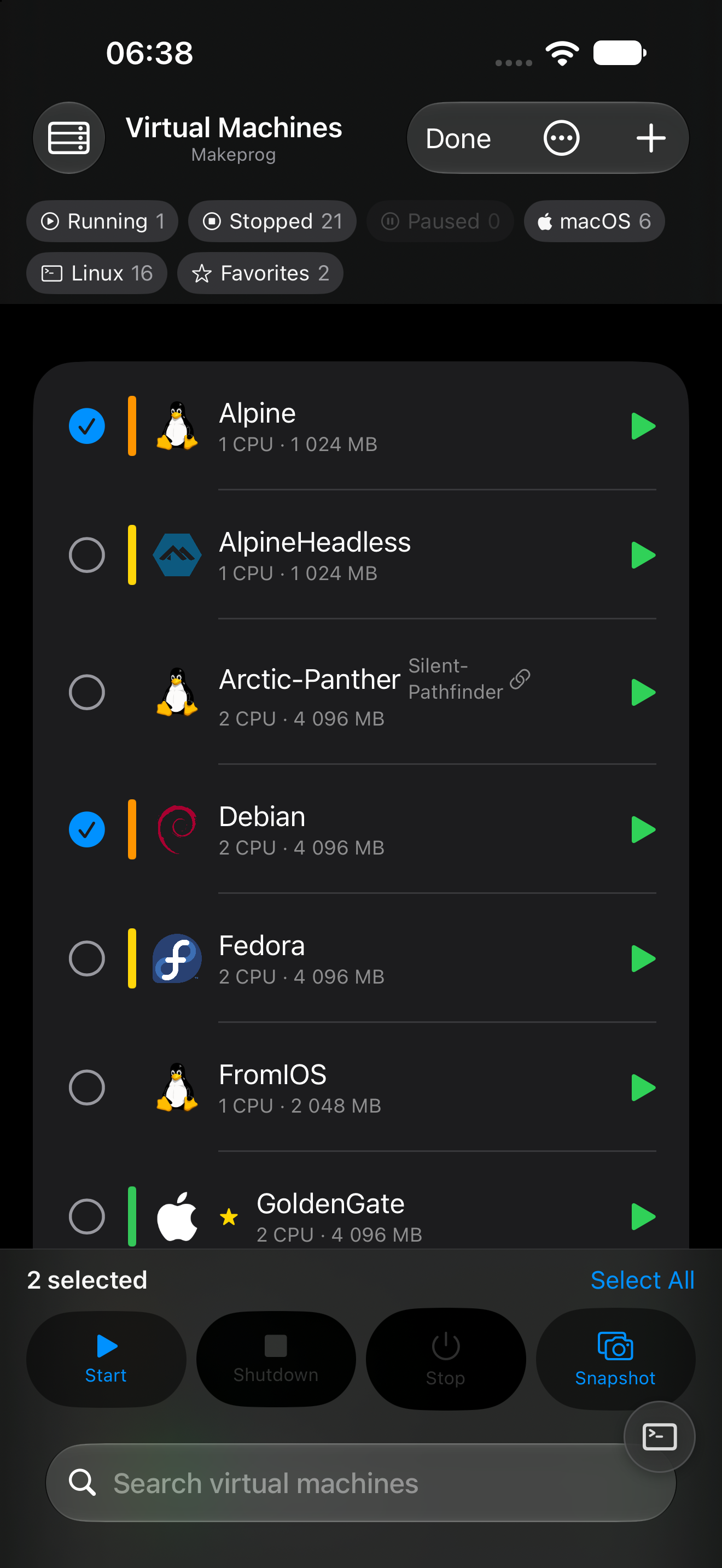
| Button | Action |
|---|---|
| Start | Starts the selected stopped VMs |
| Shutdown | Asks running VMs to shut down cleanly |
| Stop | Stops running VMs immediately (asks for confirmation) |
| Snapshot | Takes a snapshot of each selected stopped VM |
Each action applies only to VMs it makes sense for, and a summary tells you how many succeeded, failed or were skipped.