Camera
Use your Mac's camera in a Windows VM, for apps such as Teams, Zoom, or the Windows Camera app (Windows VMs only). Windows sees it as VirtualProg Camera and uses its own built-in driver, so nothing needs to be installed in Windows.
📸 Screenshot:
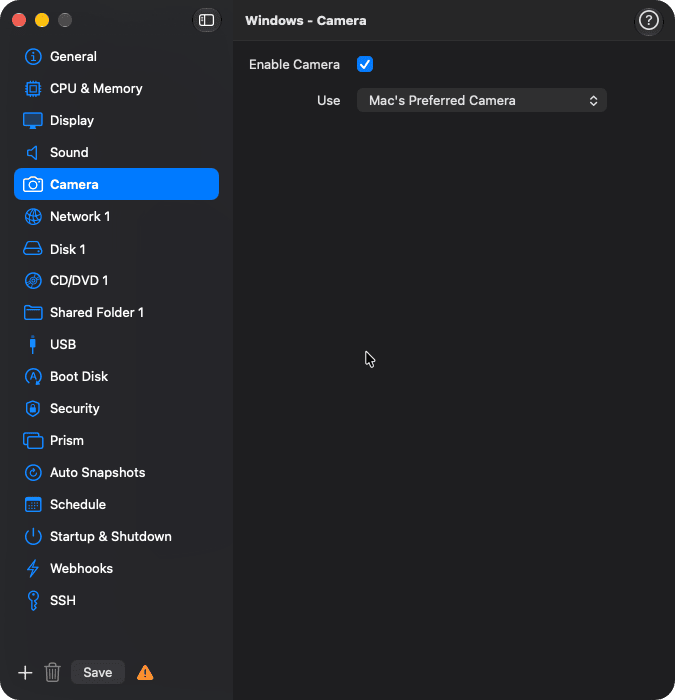
Fields
| Field | Description |
|---|---|
| Enable Camera | Gives Windows a camera. Off by default. |
| Use | Mac's Preferred Camera (default) is the camera macOS chooses, such as an iPhone with Continuity Camera when it is nearby. Or pick one camera. |
| Not Connected | A chosen camera that isn't connected now. The choice is kept; until the camera is back, Windows gets the Mac's preferred camera. |
Usage Notes
- Changes take effect the next time the VM starts from a shutdown. The setting can't be changed while the VM runs or is suspended.
- To switch cameras while the VM runs, click the camera button in the VM window's toolbar, or
use Devices → Camera in the Prism menu. Windows keeps the same camera and an app using it
shows the new picture. The switch lasts until the VM stops; the next start uses this setting.
Remotely: the camera button on the web live screen, Camera in the iOS and Android apps
(live screen ••• menu or VM details), or
vpvm camera select. - The Mac's camera turns on, with its green light, only while a Windows app uses the camera, and turns off when the app closes or the VM is paused.
- When you start the VM from the Mac app, VirtualProg asks for camera access, as it does for the microphone; you can also grant it in Permissions. Starts from the web, the command line, or in Server Mode don't ask. If access is denied, Windows gets a black picture; allow it in System Settings → Privacy & Security → Camera.
- Windows apps can choose 640×480, 1280×720, or 1920×1080 at 30 frames per second. The Mac's picture is cropped to fit, never stretched.
- If the camera is unplugged while Windows uses it, VirtualProg switches to the Mac's preferred camera. A camera that another Mac app is using may show a black picture until it is free.
- A USB webcam can also be connected to the VM with USB Devices. Windows then uses it, and its microphone, directly with its own driver, and your Mac can't use it until you disconnect it.
- Templates have a Camera tab too: VMs created from the template get the setting. A snapshot shows it read only.
- You can also set the camera from the web dashboard (VM configuration → Camera), the iOS and
Android apps (Configuration → Camera), and the command line:
vpvm cameraslists the Mac's cameras andvpvm config camerasets them. See Command Line.