⌨️ Console, SSH & CLI
Three ways to work in a terminal from your iPhone or iPad.
🖨️ Serial Console
Open a running VM and tap Serial Terminal to use a serial port configured in Console mode. The terminal supports ANSI colors, and its theme follows the port's setting. If the connection drops, the app reconnects automatically.
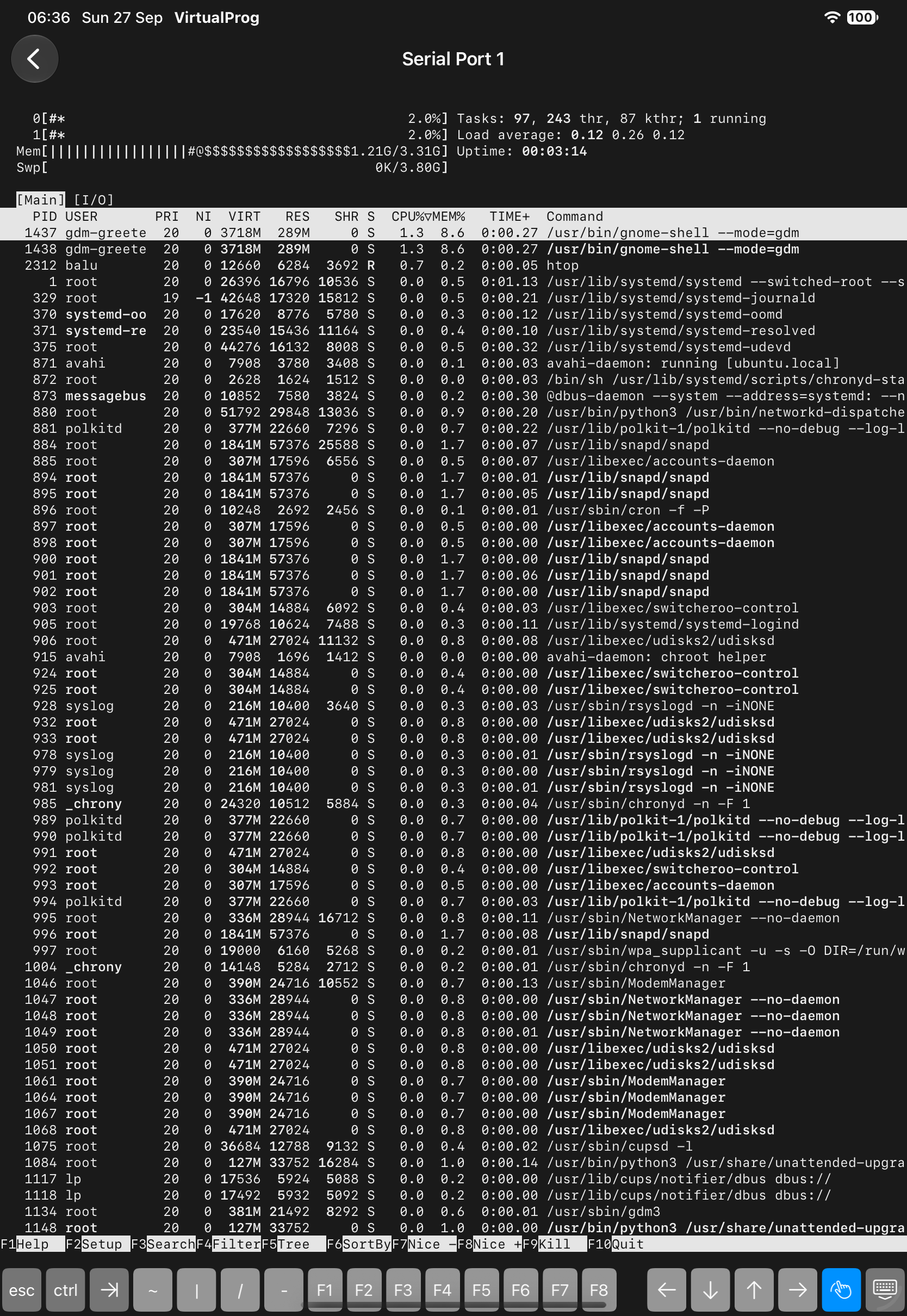
Note: The VM needs at least one serial port set to Console mode. See Serial Port.
🔐 SSH Terminal
Tap SSH Terminal in a running VM's details for a full SSH session — no serial port needed.
| Field | Description |
|---|---|
| Username | The account to sign in with |
| Authentication | Password or Private Key (paste it or import a key file) |
Credentials are sent encrypted and can be saved in the VM's SSH configuration. If the session drops, tap Reconnect — SSH sessions are never re-authenticated silently.
💻 Command Line
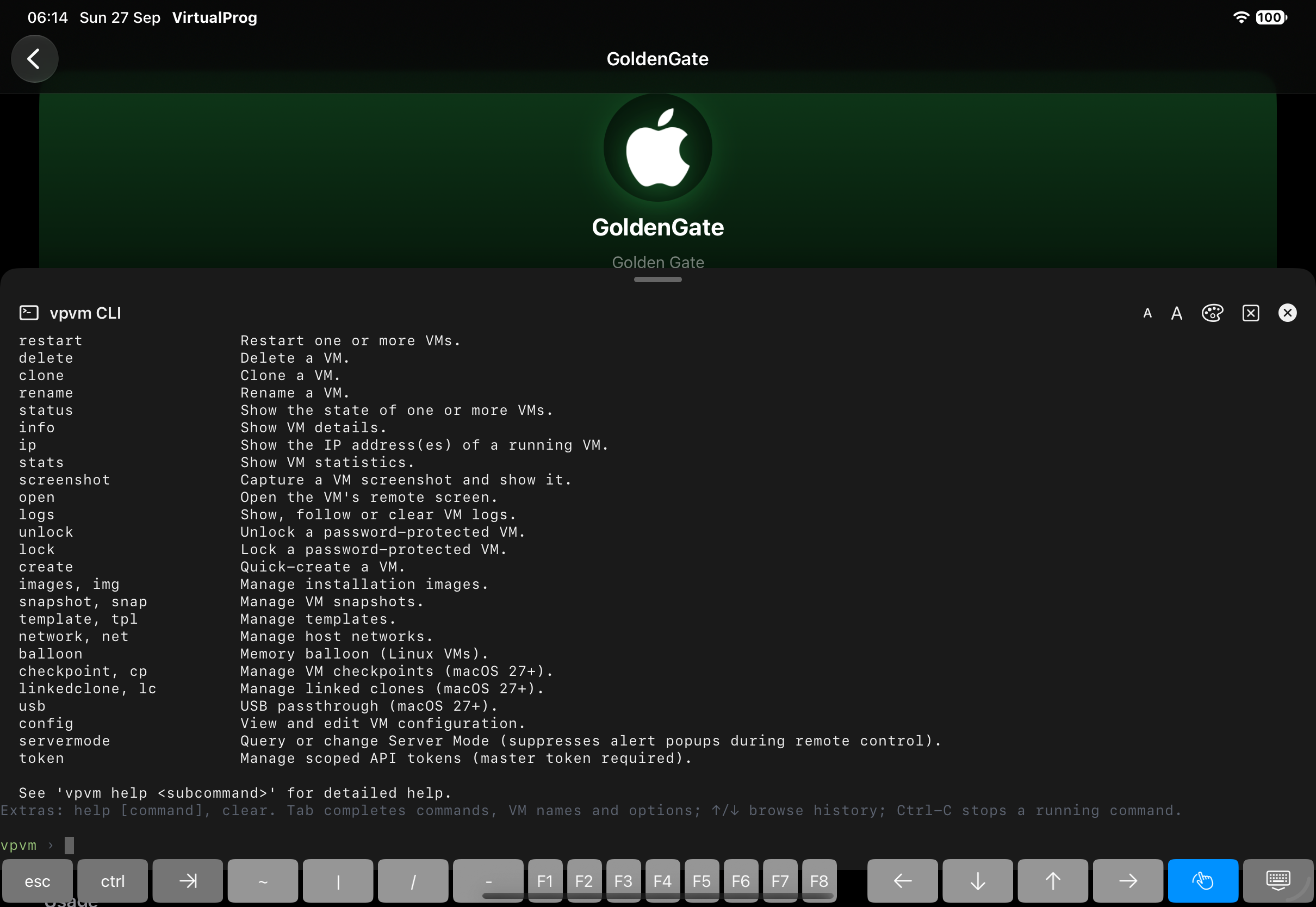
The built-in command line accepts the same commands as the Web CLI Terminal and vpvm — for example list, start, stop, snapshot and template. It respects your token's permissions.
Open it from:
- the floating terminal button on any screen (turn it off in Settings)
- More → Tools → Command Line on iPhone, or Tools → Command Line in the iPad sidebar
- ⌃
** or **⌘on a hardware keyboard
The panel docks at the bottom of the screen at full width. Drag its handle to resize it; your history and scrollback are kept for the whole session.